EasyManua.ls Logo

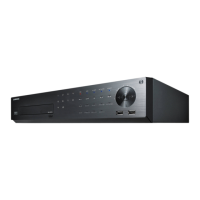
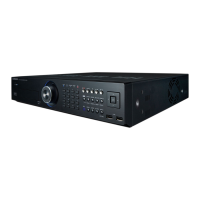
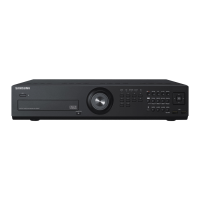
Samsung SRD-830D - User Manual

Samsung SRD-830D
132 pages
Print Icon
To Next Page IconTo Next Page
Loading...
8 CHANNEL/
16 CHANNEL DVR
User Manual
SRD-830/830D/830DC/
850/850D/850DC/870/870D/870DC/
1610/1610D/1610DC/1630/1630D/1630DC/
1650/1650D/1650DC/1670/1670D/1670DC

Table of Contents

Other manuals for Samsung SRD-830D

Questions and Answers

  • S
    Samuel QuinnSep 2, 2025
    Why is my Samsung SRD-830D recording not working?
    • J
      jamiethomasSep 2, 2025
      If your Samsung DVR is not recording, first, make sure you see an image on the screen. If you do, check your recording settings. To manually record, press the [REC] button on the front panel of the DVR or on the remote control. To schedule recording, specify a desired time in Menu – Record - Recording Schedule. There are different recording options: Continuous (recording proceeds in any conditions at the specified time), Event (recording performs only if the event is of alarm, motion detection and video loss), Continuous / Event (if there is no event found, continuous recording will perform. If an event occurs, event recording will perform).
  • M
    Michaela McdowellSep 1, 2025
    Why does my Samsung DVR say 'Need to reset date/time'?
    • L
      Laura ObrienSep 1, 2025
      If your Samsung DVR displays a message saying “Need to reset date/time,” it means there's an issue with the internal clock's time setting or the clock itself. In this case, it is recommended to contact the retailer or a service center for further assistance.
  • A
    Adam MatthewsAug 31, 2025
    Why can't I move the cursor to the Start button on my Samsung DVR calendar search?
    • N
      Nathaniel MendezAug 31, 2025
      If the cursor will not move to the Start button when you start the calendar search on your Samsung DVR, check if the channel and the date that you want to play are marked with the V symbol. Both channel and date should be checked before you can start playing with the Start button.
  • H
    helenrodriguezAug 30, 2025
    Why won't my Samsung SRD-830D start recording when I press the REC button?
    • M
      Mr. Michael DurhamAug 30, 2025
      If the REC indicator does not flash, nor does the player start recording when you press the [REC] button on the front panel of your Samsung DVR, check if there is a free space on the HDD for the recording and if the record mode is set to ON in the record mode setting.
  • W
    William CollinsAug 29, 2025
    How to fix Samsung SRD-830D DVR not recognizing external SATA HDD?
    • E
      Eric GarrettAug 29, 2025
      See the compatibility list of external storage devices to check if the connected device is supported by the Samsung DVR. For the compatibility list, contact the retailer where you purchased the DVR.
  • D
    David DeckerAug 28, 2025
    How to fix Samsung SRD-830D DVR not recognizing additional HDD?
    • S
      Susan MckinneyAug 28, 2025
      See the compatibility list to check if the additional HDD is supported by the Samsung DVR. For the compatibility list, contact the retailer where you purchased the DVR.
  • J
    Jade RivasAug 27, 2025
    What to do if my Samsung DVR system does not turn on?
    • L
      Laura GibsonAug 27, 2025
      If your Samsung DVR system does not turn on, check if the power supply system is properly connected. Also, check the system for the input voltage from the power source. If the problem persists even after you have taken the above actions, check the power supplier and replace it with a new one if necessary.
  • A
    Allison BuckleyAug 27, 2025
    Why does my Samsung DVR display a black screen on some channels?
    • C
      Chad HallAug 27, 2025
      If some channels on your Samsung DVR display a black screen even if they receive video sources, first check if the camera connected to the system properly displays the image and if the camera is properly supplied with power. Sometimes, this problem may occur on a channel with weak video signal from a video distributor that is connected to multiple systems. In this case, input the video source of the camera directly into the DVR.
  • S
    Stephen PerryAug 26, 2025
    What to do if my Samsung DVR does not recognize all installed disks?
    • D
      Denise LopezAug 26, 2025
      If your Samsung DVR does not recognize all the installed disks, it may simply need more time to recognize multiple external HDDs, so try again in a moment. If the problem persists, it may occur due to a mechanical error of the HDD installed, so try again with a different HDD.
  • T
    Timothy TranAug 25, 2025
    What to do if my Samsung SRD-830D DVR displays 'NO HDD' icon?
    • J
      Jim PriceAug 25, 2025
      If your Samsung DVR displays the “NO HDD” icon and an error message, check the HDD for connection. If the problem persists in a normal condition, contact the nearest service center to have the HDD checked by the service personnel.

Summary

OVERVIEW

IMPORTANT SAFETY INSTRUCTIONS

Essential guidelines for safe and proper operation of the unit.

INSTALLATION

CHECKING THE INSTALLATION ENVIRONMENT

Ensures optimal conditions and considerations for installing the DVR unit.

HDD ADDITION

Details the process and precautions for installing additional Hard Disk Drives.

LIVE

GETTING STARTED

Step-by-step guide to start and shut down the DVR system.

USING THE DVR

SYSTEM SETUP

Configuration of system properties including date, time, language, and permissions.

SETTING THE RECORDING

Configuring recording schedules, quality, resolution, and options.

NETWORK CONFIGURATION

Setting up network connection, protocols, DDNS, and mailing services.

search & play

appendix

TROUBLESHOOTING

Provides solutions for common problems encountered with the DVR system.

Samsung SRD-830D Specifications

General IconGeneral
Video Input Channels8
Audio Input Channels8
Audio Output Channels1
CompressionH.264
RS-485Yes
Motion DetectionYes
Power Supply12V DC
Video OutputsVGA, BNC
Network InterfaceRJ-45 10/100 Base-T
USB Ports2
Remote ViewingWeb viewer
Alarm Input/Output4/1
Operating Temperature0°C to 40°C
Hard Drive SupportSATA

Related product manuals