64_ using the DVR
using the DVR
Mailing Service
You can send an e-mail to a DVR-registered user at a specifi c time interval, or if an event occurs.
If an event occurs with a channel where the camera’s video is set to <OFF> or the remaining recording count is set
to <OFF>, only the text notifi cation will be sent to the applicable email address.
SMTP Setting
Sets the SMTP mail server.
Using the mouse may help make setup easier.
In the <Network> setting window, press the up/down
(
) button to move to <Mailing Service> and press the
[ENTER] button.
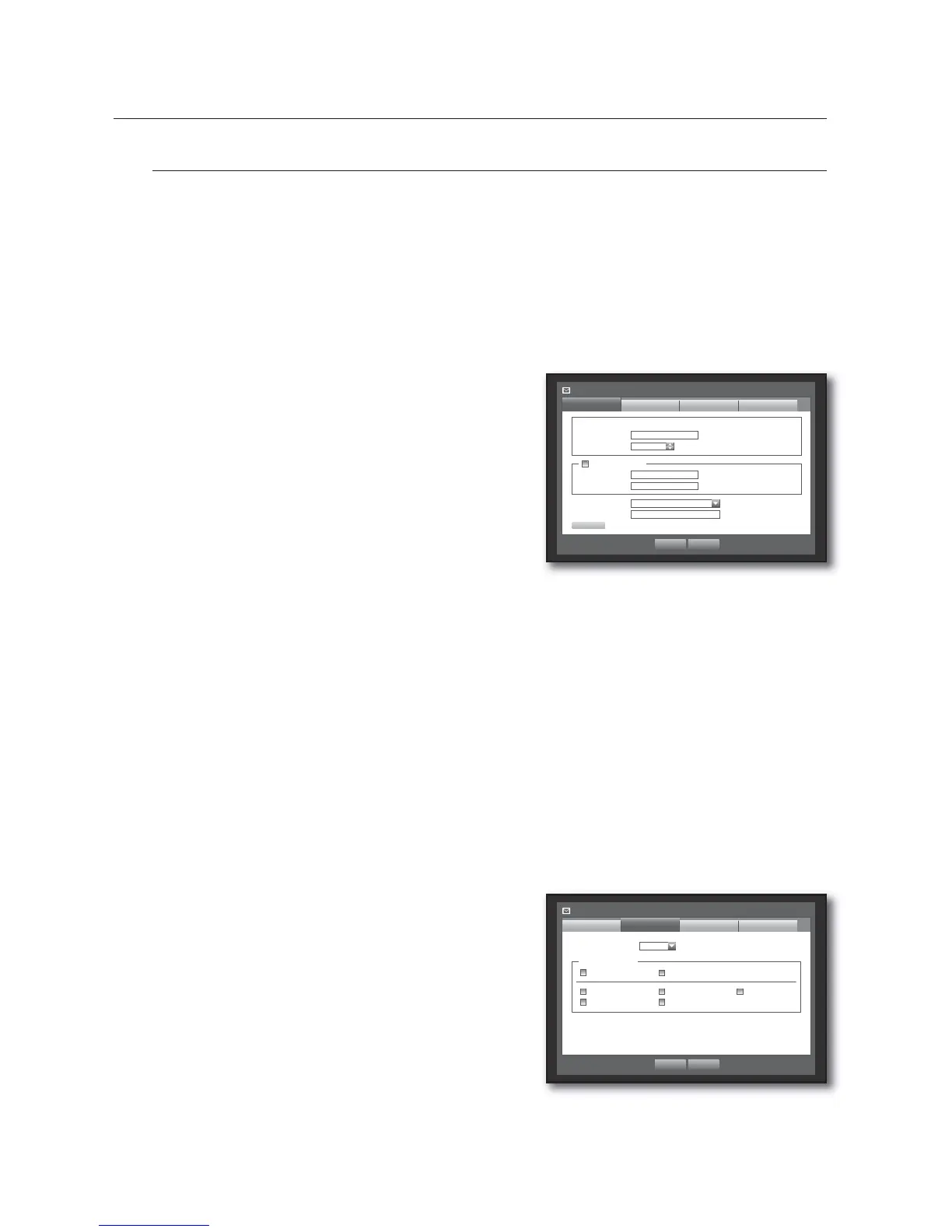
Select <SMTP>.
You will see the SMTP setting window.
Use direction buttons (
◄ ►
) to move to a desired item
and set the value.
ServerType : Displays the connected server type.
Server : Enter a server to connect to.
Port : Sets the communication port.
Use Authentication : Check this if the SMTP server uses user authentication.
The account input box will be activated.
User : Enter a user to use authentication when connecting to the SMTP server.
Password : Enter the password of the SMTP server user.
Secure Transfer : Select one from <Never> and <TLS (if available)>.
Sender : Use the virtual keyboard to enter the sender’s e-mail address.
Refer to “Using Virtual Keyboard”. (Page 36)
TEST : Conducts the test on the server settings.
When the SMTP setting is done, press <OK>.
Event Setting
You can set the interval and type of the event that will be sent to the user.
Using the mouse may help make setup easier.
In the <Network> setting window, press the up/down
(
) button to move to <Mailing Service> and press the
[ENTER] button.
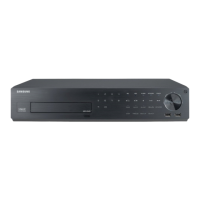
Select <Event>.
Use direction buttons (
◄ ►
) to move to a desired item
and set the value.
Event Interval : Set the event interval.
If a series of events occurs, the e-mail will be sent at the specifi ed
interval, not on each event.
Use Event Transfer : Select an event type to send if an event occurs.
If the selected event occurs, the e-mail will be sent to the group that has the recipient authority.
When the event setting is done, press <OK>.
M
1.
2.
3.
•
•
•
•
•
•
•
•
•
4.
1.
2.
3.
•
•
4.
Mailing Service
SMTP
Event
OK Cancel
Use Authentication
Group Recipient
x
ServerType SMTP mail Server
x
Server
x
Port 25
x
User
x
Password
********
x
Secure Transfer Never
x
Sender ex. user@example.net
TEST
Mailing Service
SMTP
OK Cancel
Recipient
x
Event Interval 10 min
Use Event Transfer
Sensor Motion
Change P/W HDD Info Video Loss
Power On/Off Manual Record
Event
Group


 To Next Page