17
Multi Window
Multi Window
Multitask by using multiple applications at the same time.
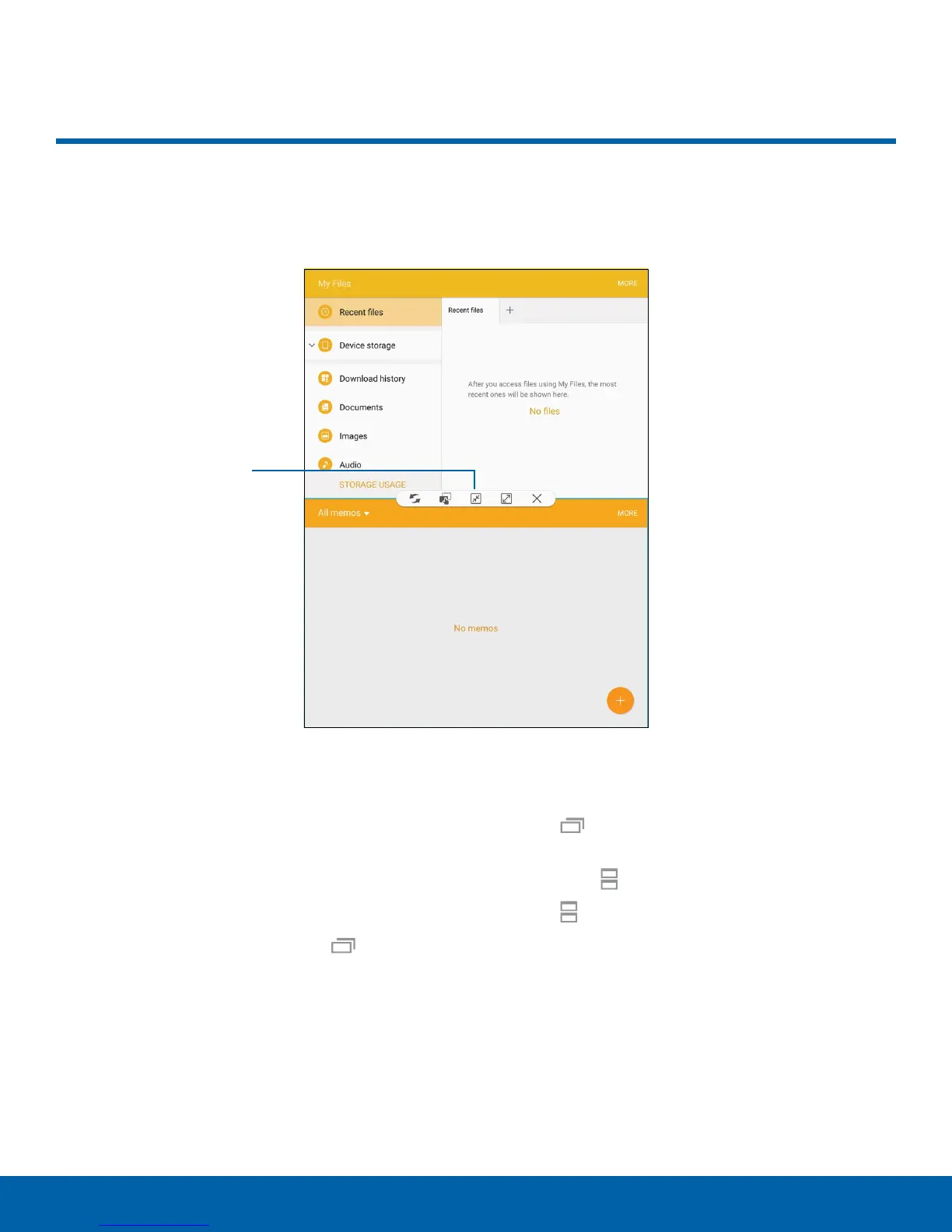
Window controls
Activate MultiWindow
Apps that support Multiwindow display together on
a split screen. You can switch between the apps,
adjust the size of their display on the screen, and
copy information from one app to the other.
Note: Multiwindow is not available for all apps.
1. From any screen, touch and hold Recent.
2. Tap two apps that support Multiwindow to open
them in split screen view.
- or -
If you are currently using an app that supports
Multiwindow, tap another app to add it in split
screen view.
You can also launch recently used apps directly into
Multiwindow view:
1. Tap
Recent.
•
Recently used apps that support Multiwindow
have a Multiwindow icon in their title bar.
2. Tap Multiwindow in the title bar to launch an
application in split screen view.
•
Other recently used apps that support
Multiwindow display below the launched app.
3. Tap an app icon to add it to the split screenview.
Note: Only applications that support Multiwindow
have the Multiwindow icon.









 To Next Page