EasyManua.ls Logo

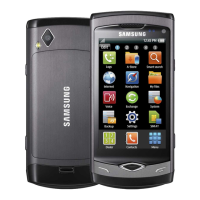
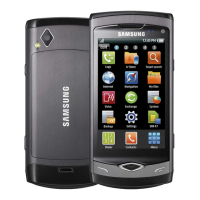
Samsung Wave - User Manual

Samsung Wave
146 pages
Print Icon
To Next Page IconTo Next Page
Loading...
GT-S8500
user manual

Table of Contents

Questions and Answers

  • C
    Christina DennisAug 20, 2025
    What to do if my Samsung Wave prompts for a password?
    • S
      Samantha TorresAug 20, 2025
      If your Samsung Cell Phone is prompting you for a password, it means the device lock feature is enabled. You will need to enter the password you set for the device.
  • B
    Bradley QuinnAug 22, 2025
    What to do if my Samsung Wave prompts for a PIN?
    • M
      Michelle FoxAug 22, 2025
      If your Samsung Cell Phone is prompting you for a PIN, especially when using it for the first time, you need to enter the PIN that came with your SIM or USIM card. You can disable this feature in the PIN lock menu.
  • C
    conniemorrisonAug 25, 2025
    What to do if the battery on my Samsung Wave does not charge properly?
    • S
      Sara LeonAug 25, 2025
      If the battery on your Samsung Cell Phone isn't charging properly, the terminals might be dirty. Try wiping the gold-colored contacts with a clean, soft cloth. If the battery still won't charge completely, replace it with a new one, disposing of the old battery properly according to local ordinances.
  • M
    Monica JohnsonAug 26, 2025
    What to do if my Samsung Wave Cell Phone gets hot?
    • M
      michaelaustinAug 26, 2025
      If your Samsung Cell Phone is hot to the touch, this is normal and should not affect the device's lifespan or performance.
  • V
    vadamsAug 27, 2025
    Why are calls being dropped on my Samsung Wave Cell Phone?
    • M
      Michael FerrellAug 27, 2025
      If calls are being dropped on your Samsung Cell Phone, try moving to another area. This may improve signal strength and prevent dropped calls.
  • J
    Julia BrownAug 29, 2025
    What to do if outgoing calls are not connecting on my Samsung Wave Cell Phone?
    • H
      harrisonkaraAug 29, 2025
      If outgoing calls are not connecting on your Samsung Cell Phone, make sure that: 1. You have pressed the Dial key. 2. You have accessed the correct cellular network. 3. You have not set call barring for the number you are dialing.
  • P
    pbrownAug 31, 2025
    What to do if incoming calls are not connecting on my Samsung Wave Cell Phone?
    • W
      wmuellerAug 31, 2025
      If incoming calls are not connecting on your Samsung Cell Phone, verify that: * Your device is turned on. * You have accessed the correct cellular network. * You have not set call barring for the incoming phone number.
  • D
    Debra HallSep 2, 2025
    What to do if I lose reception on my Samsung Wave Cell Phone?
    • K
      Kim HutchinsonSep 2, 2025
      If you lose reception on your Samsung Cell Phone, especially in certain areas, try moving to a different location to improve the signal.
  • D
    Darrell GraySep 4, 2025
    What to do if the touch screen on my Samsung Wave responds slowly?
    • R
      riosrachelSep 4, 2025
      If the touch screen on your Samsung Cell Phone is responding slowly, try the following: * Remove any protective covers from the screen. * Make sure your hands are clean and dry. * Restart your device. * Ensure your device software is up to date. If the screen is still not working properly and is scratched or damaged, take it to a local Samsung Service Centre.
  • L
    lsmithSep 6, 2025
    Why is the audio quality poor on my Samsung Wave Cell Phone?
    • V
      Vicki OrtizSep 6, 2025
      If the audio quality on your Samsung Cell Phone is poor, ensure that you are not blocking the device's internal antenna. If that's not the case, try moving to another area.

Summary

Using this manual

Instructional icons

Explains symbols used in the manual.

About DivX Video

Explains DivX video format and VOD registration.

Assembling

Unpack

Lists items included in the product box.

Install SIM or USIM card and battery

Instructions for inserting SIM and battery.

Charge the battery

Guide on how to charge the device battery.

Insert a memory card

Steps to insert a memory card for extra storage.

Remove and format memory card

Procedures for memory card removal and formatting.

Getting started

Turn device on and off

Guide on powering the device on and off.

Device layout

Overview of device components and layout.

Keys and Idle screen

Explains device keys and the main idle screen.

Indicator icons

Explains various status icons shown on the device display.

Touch screen usage

Basic actions and tips for using the touch screen.

Access and lock menus

How to navigate menus and lock/unlock the device.

Manage applications and widgets

Organizing apps, adding widgets, and managing active apps.

Customize device settings

Personalizing the device appearance and features.

Set time, date, and sound

Configure time, date, volume, and sound profiles.

Display and security settings

Adjust brightness, set wallpaper, and lock device.

Text input methods

Overview of different ways to enter text on the device.

Communication

Making and answering calls

Basic call functions.

Voice and video call options

Features available during calls.

Call management

Auto rejection, fake calls, call diverting.

Message management

Sending texts, MMS, and viewing messages.

Email setup and sending

Configure and send emails.

IM and Social Hub

Instant messaging and integrated communication.

Entertainment

Camera usage

Capturing photos and videos.

Capture photos with scenes and effects

Using preset scenes, beauty mode, and vintage effects.

Video recording and editing

Capturing videos and basic editing.

Video player

Playing video files and customizing playback.

Media browser

Viewing photos and videos stored on the device.

Music player

Playing music, managing playlists, and customizing settings.

FM radio

Listening to and recording FM radio.

Games and applications

Downloading and playing games.

Personal information

Contacts management

Creating, finding, and managing contacts.

Calendar and events

Managing daily/monthly events and reminders.

Task management

Creating and viewing tasks.

Memo and voice recorder

Creating memos and recording voice notes.

Web

Internet access

Setting up profiles and browsing web pages.

Browser customization

Adjusting browser settings and bookmarking pages.

Samsung Apps

Downloading applications.

Synchronization

Syncing data with web servers.

Connectivity

Bluetooth

Wireless communication and pairing.

Wi-Fi

Connecting to wireless networks.

AllShare

Sharing media files via DLNA.

Mobile AP

Using device as a wireless access point.

GPS

Navigation and location services.

TV connections

Connecting device to TV.

PC connections

Connecting device to PC for file transfer.

Tools

Clock functions

Alarms, world clocks, stopwatch, timer.

Calculator

Performing mathematical calculations.

Mini diary

Keeping a photo diary.

My accounts

Managing web accounts for data sync.

My files

Accessing and managing device files.

Image and video editing

Editing photos and creating videos.

Smart search

Searching device content and the web.

Settings

Settings menu access

Navigating the settings menu.

Flight mode

Disabling wireless functions.

Connectivity settings

Bluetooth, Wi-Fi, GPS configurations.

Sound profiles

Customizing call and message alerts.

Display and General settings

Screen brightness, wallpaper, language, keyboard.

Date and time settings

Setting device time and date.

Application settings

Managing device applications.

Call settings

Customizing calling features.

Message settings

Customizing text, MMS, and email features.

Security settings

Device lock, privacy lock, SIM lock.

Memory and Reset

Managing device memory and resetting settings.

Troubleshooting

Device prompts and errors

Codes like Password, PIN, PUK, and network errors.

Call issues

Dropped calls, unconnected calls.

Touch screen problems

Unresponsive or slow touch screen.

Device heating and battery issues

Device getting hot, battery not charging.

FM radio and camera errors

Troubleshooting launch issues for FM radio and camera.

Music file and Bluetooth errors

Music playback errors, Bluetooth connection issues.

PC connection and device freezing

PC connection problems, device freezes.

Safety and usage information

General safety warnings

Hearing protection, vehicle installation caution.

Device handling and disposal

Battery care, disposal, and proper device handling.

Environmental and interference precautions

Explosive environments, repetitive motion, pacemaker interference.

Device damage prevention

Cracked screens, approved accessories, aircraft use.

Important usage information

Normal position use, qualified service, battery life.

Disposal and SAR information

Product/battery disposal, RF exposure limits.

Disclaimer

Legal notice on third-party content.

Index

Declaration of Conformity (R&TTE)

To install Kies (PC Sync)

Samsung Wave Specifications

General IconGeneral
NetworkGSM / HSPA
2G bandsGSM 850 / 900 / 1800 / 1900
3G bandsHSDPA 900 / 2100
SpeedHSPA 3.6/0.384 Mbps
StatusDiscontinued
Dimensions118 x 56 x 10.9 mm (4.65 x 2.20 x 0.43 in)
Weight118 g (4.16 oz)
SIMMini-SIM
TypeSuper AMOLED capacitive touchscreen, 16M colors
Resolution480 x 800 pixels, 5:3 ratio (~283 ppi density)
ProtectionCorning Gorilla Glass
CPU1.0 GHz Cortex-A8
GPUPowerVR SGX540
RAM512 MB
Internal Storage2GB/8GB
Main Camera5 MP, AF
Video720p@30fps
LoudspeakerYes
3.5mm jackYes
WLANWi-Fi 802.11 b/g/n, DLNA
GPSYes, with A-GPS
RadioStereo FM radio, RDS
USBmicroUSB 2.0
SensorsAccelerometer, proximity, compass
BatteryRemovable Li-Ion 1500 mAh battery
Talk timeUp to 15 h (2G) / Up to 7 h (3G)
Announced2010, February
OSBada 1.0
Expandable StoragemicroSD, up to 32 GB
BluetoothA2DP
Stand-byUp to 550 h (3G)
ColorsBlack, Pink

Related product manuals