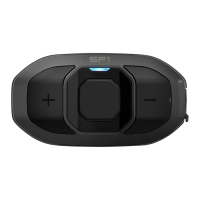
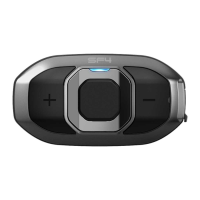
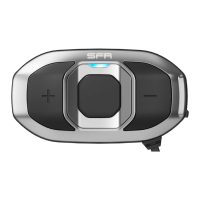
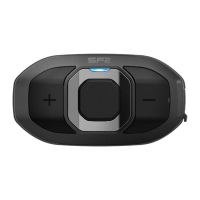
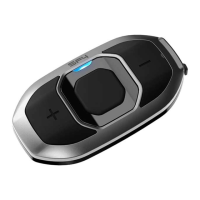
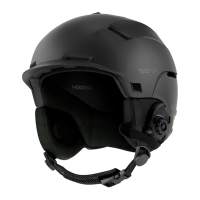
SF Series
15
English
1. Press and hold the Center Button and the (+) Button for 1 second
until you hear a voice prompt, “Phone pairing.”
2. Search for Bluetooth devices on your smartphone. Select the
Sena SF Series in the list of devices detected on your phone.
3. Enter 0000 for the PIN. Some mobile phones may not ask for the
PIN.
Note:
• The phone pairing mode lasts for 3 minutes.
• To cancel phone pairing, tap the Center Button.
5.1.2 Pairing When the Headset is Turned Off
1. While the headset is off, press and hold the Center Button and the
(+) Button until you hear a voice prompt, “Phone pairing.”
2. Search for Bluetooth devices on your smartphone. Select the
Sena SF Series in the list of devices detected on your phone.
3. Enter 0000 for the PIN. Some mobile phones may not ask for the
PIN.
5.1.3 Pairing When the Headset is Turned On
1. While the headset is on, press and hold the Center Button for
10 seconds until you hear a voice prompt, “Conguration menu.”
2. By tapping the (+) Button, you will hear a voice prompt, “Phone
pairing.”
3. Search for Bluetooth devices on your smartphone. Select the
Sena SF Series in the list of devices detected on your phone.
4. Enter 0000 for the PIN. Some mobile phones may not ask for the
PIN.
5.2 Second Mobile Phone Pairing - Second Mobile
Phone, GPS, and SR10
Typical Bluetooth headsets can connect with only one Bluetooth
device, but a second mobile phone pairing allows the headset to
connect with another Bluetooth device such as a second mobile
phone, an MP3 Player, or the Sena SR10, the Bluetooth adapter.
1. To enter the voice conguration menu, press and hold the
Center Button for 10 seconds until you hear a voice prompt,
“Conguration menu.”
2. Tap the (+) Button until you hear a voice prompt, “Second mobile
phone pairing.”



 To Next Page