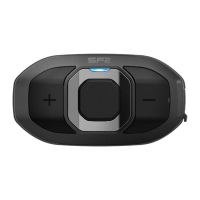
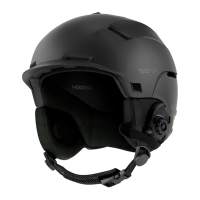
SF Series
20
4. After selecting the last number redial menu, you will hear a voice
prompt, “Last number redial.” Then, to redial the last phone call
number, tap the Center Button.
5. To call one of the speed dials, tap the (+) Button or the (-) Button
to navigate between the menus until you hear a voice prompt
saying “Speed dial (#).” Then, tap the Center Button.
6. If you want to exit the speed dial immediately, tap the (+) Button
or the (-) Button until you hear a voice prompt saying “Cancel”,
and tap the Center Button. If you do not press any button within
15 seconds, the SF Series will exit the voice speed dial menu and
go back to stand-by mode.
Note:
1. Make sure that you connect the mobile phone and the headset to use the
speed dial function.
2. You need to assign speed dial numbers before using the speed dial
(please refer to section 15.1, “Assigning Speed Dial”).
6.3 GPS Navigation
6.3.1 GPS Pairing
1. Turn on the headset and press the Center Button for 10 seconds
until you hear high-toned double beeps. You will also hear a voice
prompt saying “Conguration menu.”
2. Triple tap the (+) Button and you will hear a voice prompt saying
“GPS pairing.”
3. Search for Bluetooth devices on the GPS navigation screen. Select
the Sena SF Series in the list of the devices detected on the GPS.
4. Enter 0000 for the PIN.
5. The GPS conrms that pairing has completed and the SF Series
are ready to use. You will hear a voice prompt saying “Your
headset is paired.”
6. If the pairing process is not completed within three minutes, the
SF Series will return to stand-by mode.
Note:
When Audio Multitasking is enabled, if you pair your GPS device via GPS
Pairing, its instructions will not interrupt your intercom conversations, but
will overlay with them.



 To Next Page