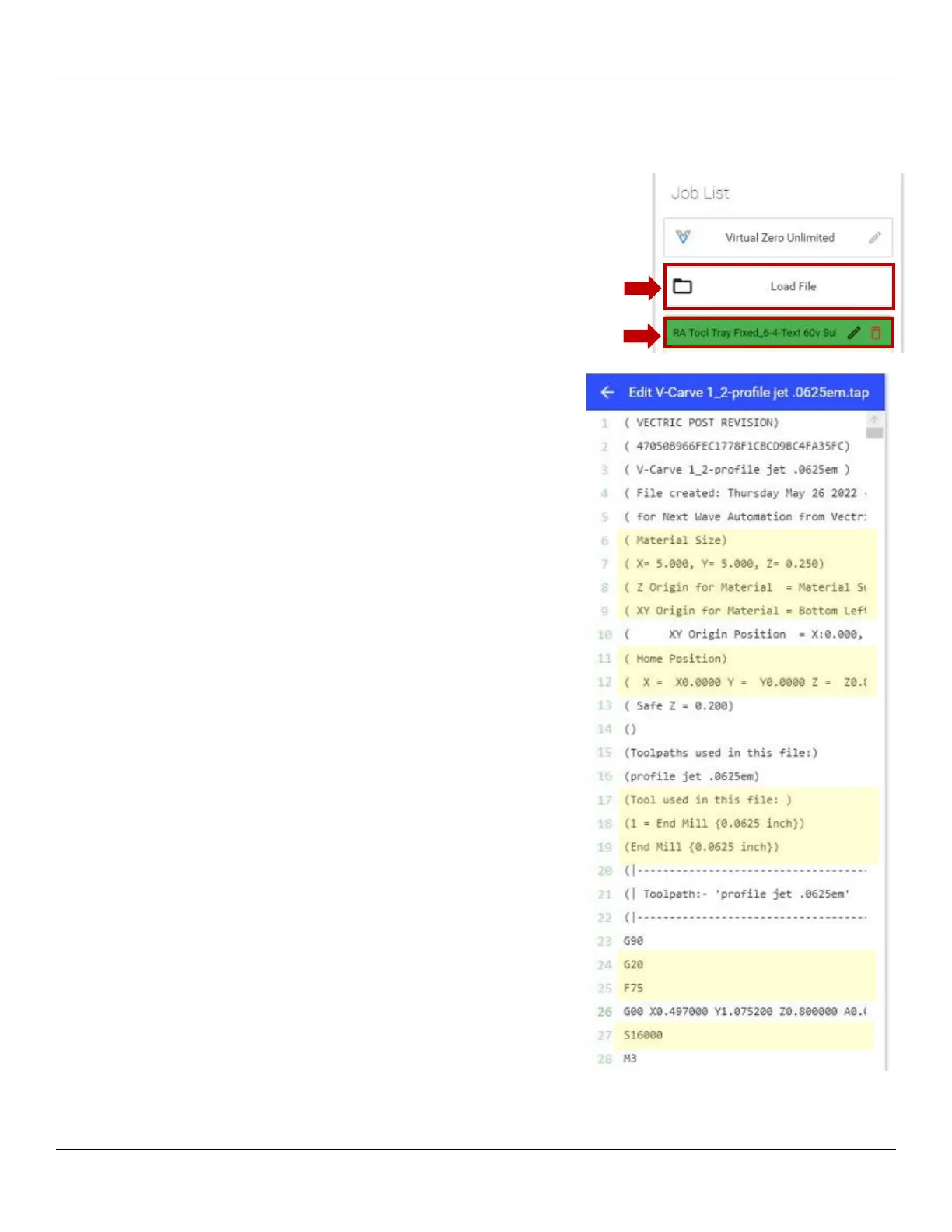
1) At the Ready2Control screen, click on the Load File button and the
contents of the GCODE folder is displayed.
2) Select the .tap file you want to run.
3) The filename will now appear under the Job List panel. Hover the
mouse pointer over the filename and a pencil icon will appear. Click on
the pencil icon so that you can examine the G-Code.
4) The GCODE Screen will now be displayed in the Job List panel.
5) Review the G-Code and confirm it matches your job sheet data. The
main settings to verify should include:
• Material Size
• Z Origin
• Home Position (X=0, Y=0, etc.)
• Tools used in this file (End Mill, V-Grove, etc.)
• G20 (Imperial/inches)
• Fxxx (Feed Rate)
• Sxxxxx (Spindle Speed)
6) If you notice any discrepancies, you will need to do the following:
- Go back to VCarve Pro and make the necessary changes.
- Re-calculate your toolpaths if changes were made to re-
generate the GCode.
- Save the Toolpath and copy the new file to your thumb drive.
- Copy/Paste the new G-Code file(s) to the GCODE folder on the
Windows Desktop and delete any obsolete file(s).
- Go back to the beginning of this procedure to load the new G-
Code.
7) Once you are satisfied with the G-Code, click on left pointing arrow
to the left of the filename in the blue area at the top of the panel.
This completes the procedure, continue to the next section.


 To Next Page