How to Use the Shark HD510 CNC Machine for First Time Users (Ready2Control)
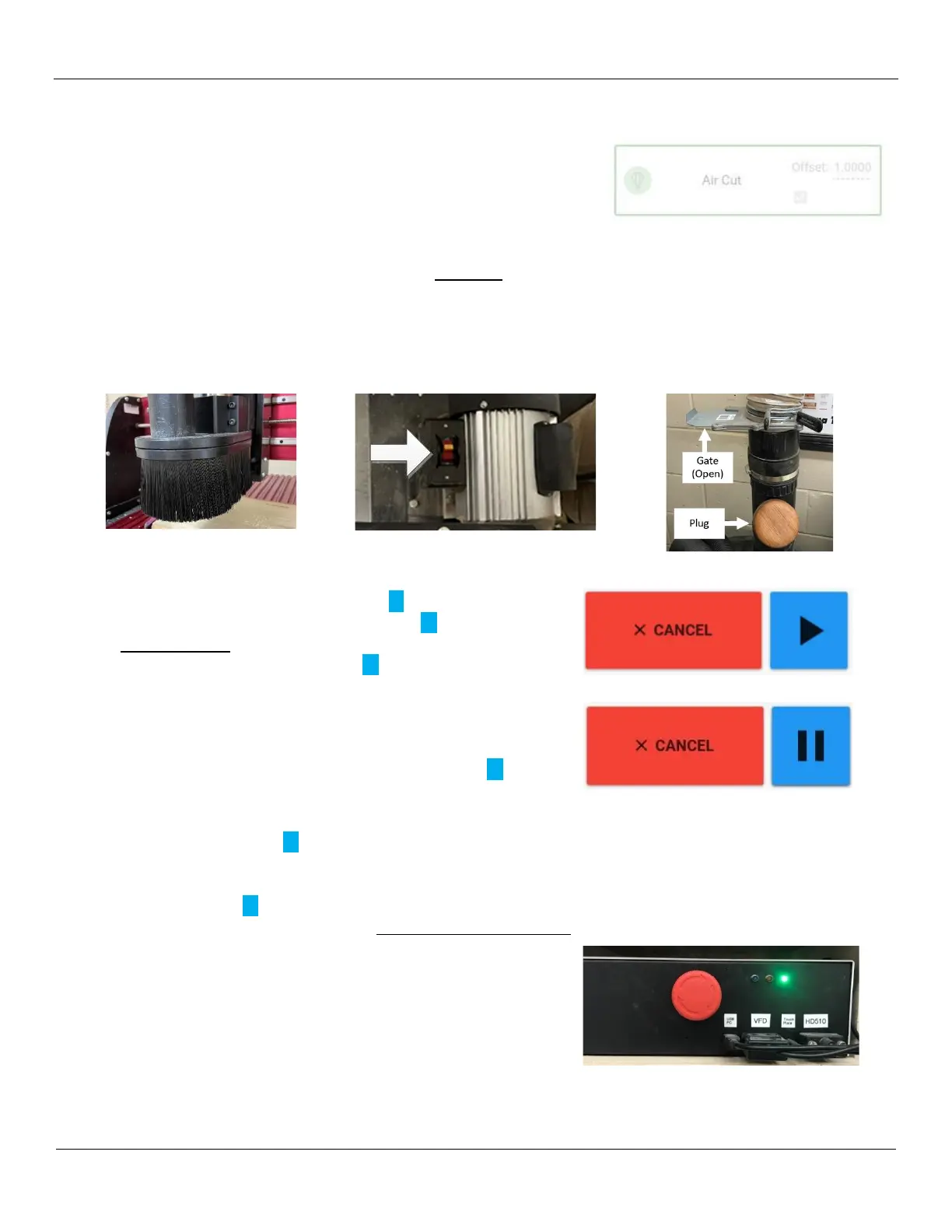
Prior to running your project, there is an Air Cut option that you can select.
When activated, the system will move the spindle to a predetermined
number of inches above the bed (noted by the Offset: X.XXXX value). The
system will then execute the selected toolpath file but not actually touch
the material.
This gives you the opportunity to check and see if the job works as intended. Once you are satisfied with the
movements you will need to restart the job from the beginning.
Note: If you deactivate the Air Cut feature and then start the job, the job will continue from where Air Cut stopped!
1) When you are ready to run your project, raise the spindle high enough to install the Dust Boot. Make sure the
Dust Boot is securely fastened. Also make sure the gate is open and the plug is in place on the dust hose.
Start the dust collection system
2) On the Ready2Control screen, please note the following:
• When you click on the large blue Run () icon, your job will
start – the icon will not change to a Pause (||) symbol for
several seconds. Be patient and wait for the icon to change!
After the icon changes to a Pause (||) symbol, the spindle will
move to a starting position, then start spinning the tool – again
this can take several seconds so be patient. Verify the VFD is
displaying the specified RPMs and that the spindle is actually
rotating
• While the job is running, you can click on the Pause (||) button
to stop the movement of the spindle (X, Y & Z) at any time.
Warning: The spindle DOES NOT stop rotating while it is paused!
If you click on the Run () button after pausing it, the job will continue from where it left off (assuming you
haven’t changed anything)
• If you click on the CANCEL button the job is aborted – the gantry will stop moving and the spindle will stop. If
you click on Run (), after a few seconds all progress indicators will reset to 0 and the spindle will move back
to X&Y=0. The job will restart at the beginning of the G-Code file, not where you stopped it!
3) If an emergency situation occurs at any time while you are running
the project, you can push in the large red button on the front of the
controller to stop the gantry movement.
Warning: the spindle will NOT stop turning.
Note: After pressing this button, you will need to reset X/Y/Z axis
and restart the job.


 To Next Page