How to Use the Shark HD510 CNC Machine for First Time Users (Ready2Control)
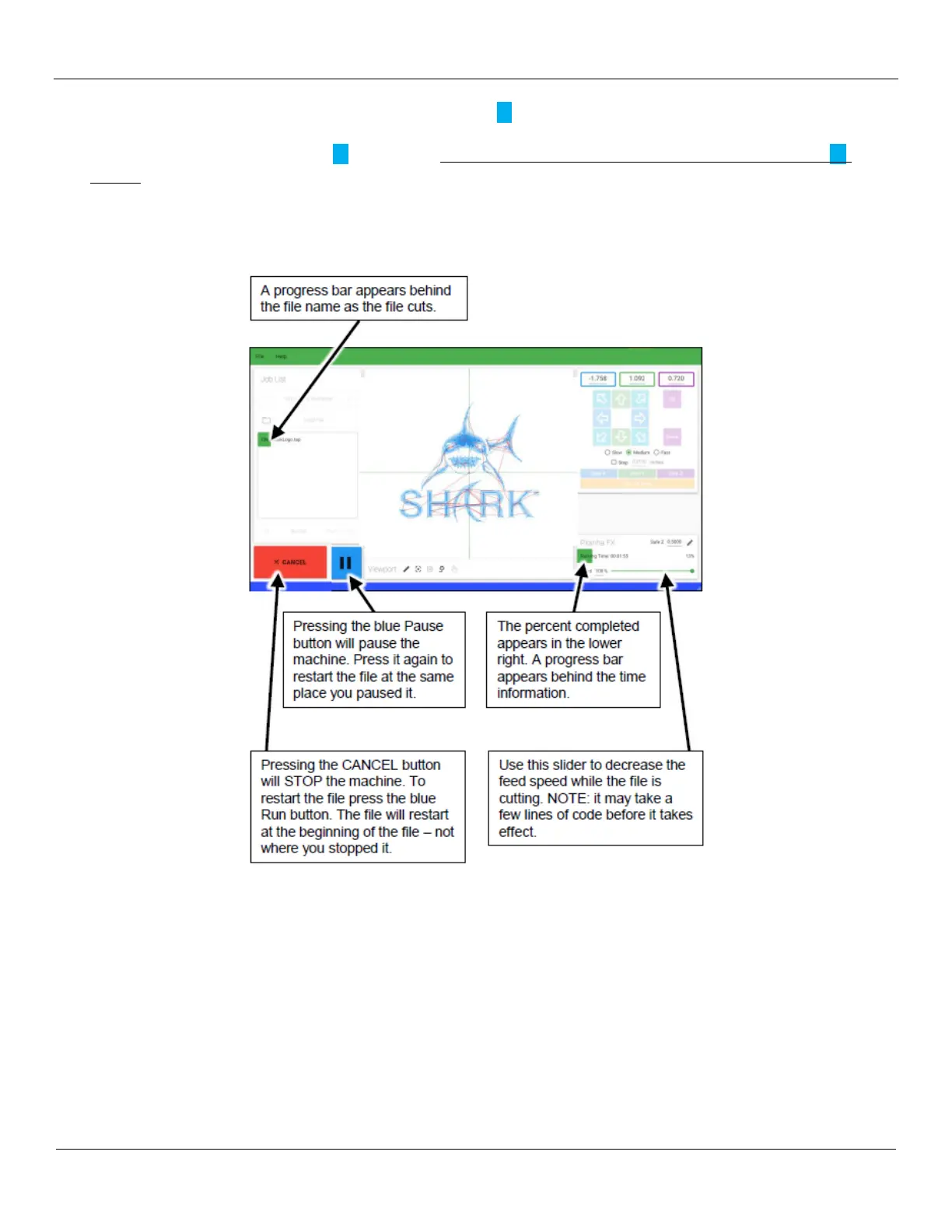
4) Once you are ready to run your job, click on the blue Run () button. The image below shows you how to
monitor the progress of the job.
Note: When you click on the Run () icon, it will take several seconds before it will change to the Pause (||)
symbol - be patient and wait for it to change. The spindle will start a few seconds after that and then the spindle
will move to start cutting the material.
Caution: Hover the mouse pointer over the CANCEL button while the job is running. Be prepared to click on it if a
problem occurs.
The job will continue until it completes all G-Code and will show a screen indicating 100%, All Files Sent and Lines
Ignored=0.
At this point, if there are additional toolpath jobs to run, you will need to do the following for each new toolpath file:
• Shut off the dust collection system and remove the Dust Boot.
• Delete the current G-Code file from the Ready2Control Job List (to prevent accidental restart).
• Switch out your tool for the next job and reset the Z position.
• Load the new .tap file and check its G-Code
• Press the Run button to run the new G-Code file as described in the above section.
• Repeat this procedure for each toolpath until the project is completed


 To Next Page