1) Find and open your project, then review the Job Setup to double check all of your settings are correct.
NOTE: If your project is going to cut through the material into the spoil board, use a digital caliper to verify the
true thickness of the material and set it in the Job Setup
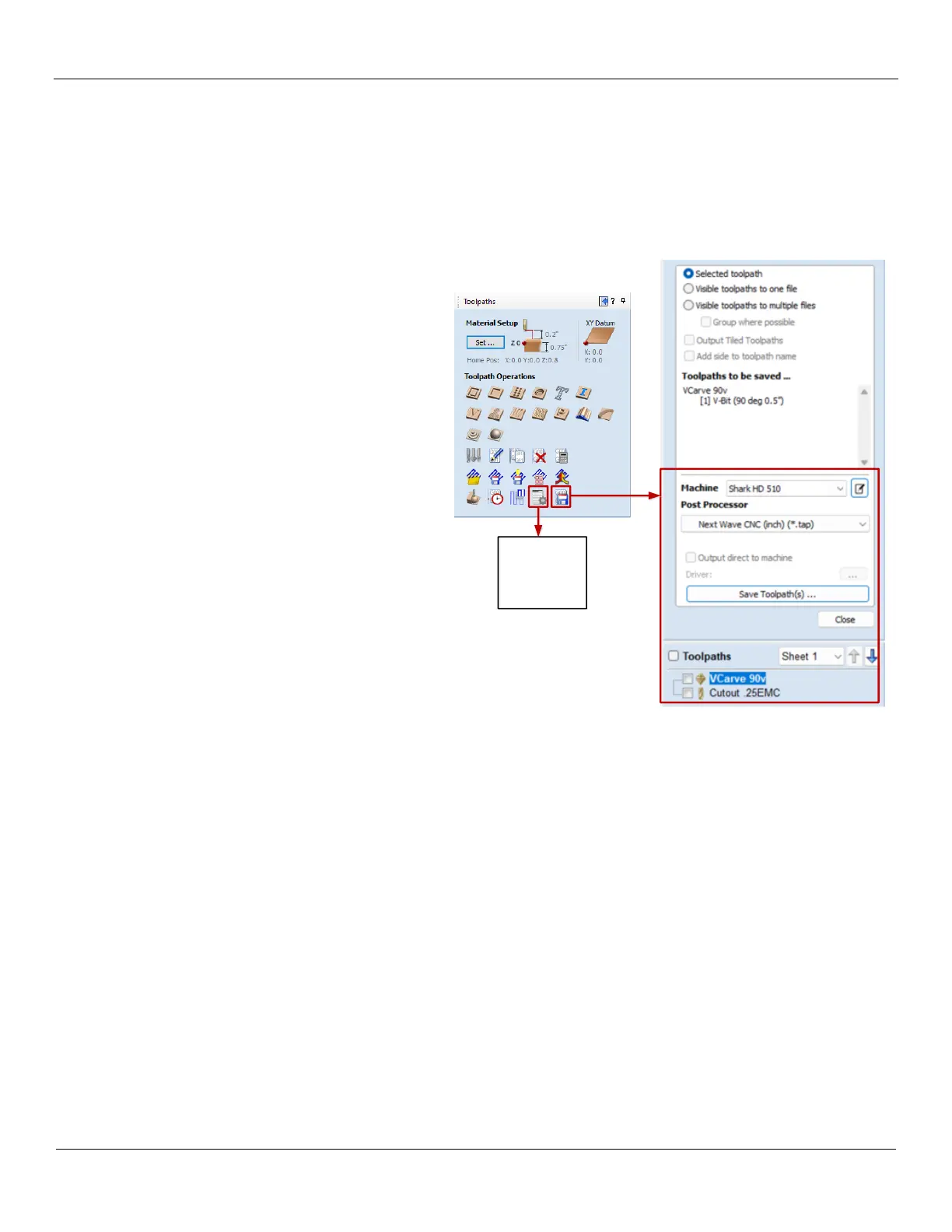
2) Open the Toolpaths window located at the right
side of the screen. Click on the Save Toolpaths
icon.
3) Under Save Toolpaths, make sure:
• the Machine is set to Shark HD 510
• the Post Processor is set to
Next Wave CNC (inch) (*.tap).
4) Select the first toolpath by clicking on the
Toolpath name to highlight it (do not use the
checkboxes). Click on the Save Toolpath(s)
button and save the file to your USB drive.
Repeat this step for each toolpath.
5) After saving all of the toolpaths you need to
generate a Job Sheet. Click on the Create Job
Sheet icon (to the left of the Save Toolpaths
icon). You will be prompted to save an HTML
file. Save it to your USB drive. Open the file
with your browser and print the document.
Keep the Job Sheet as a reference while running
the job.
6) When done, close the VCarve Pro program.
NOTE: If you are using the 11.55 VCarve Pro Makerspace application, a message will appear informing you that
you need to logout. Click on the Yes button to logout.
7) Eject your USB drive and signoff the computer (DO NOT shut it down).


 To Next Page