EasyManua.ls Logo

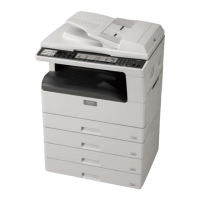
Sharp AR-5520S - User Manual

Sharp AR-5520S
67 pages
Print Icon
To Next Page IconTo Next Page
Loading...
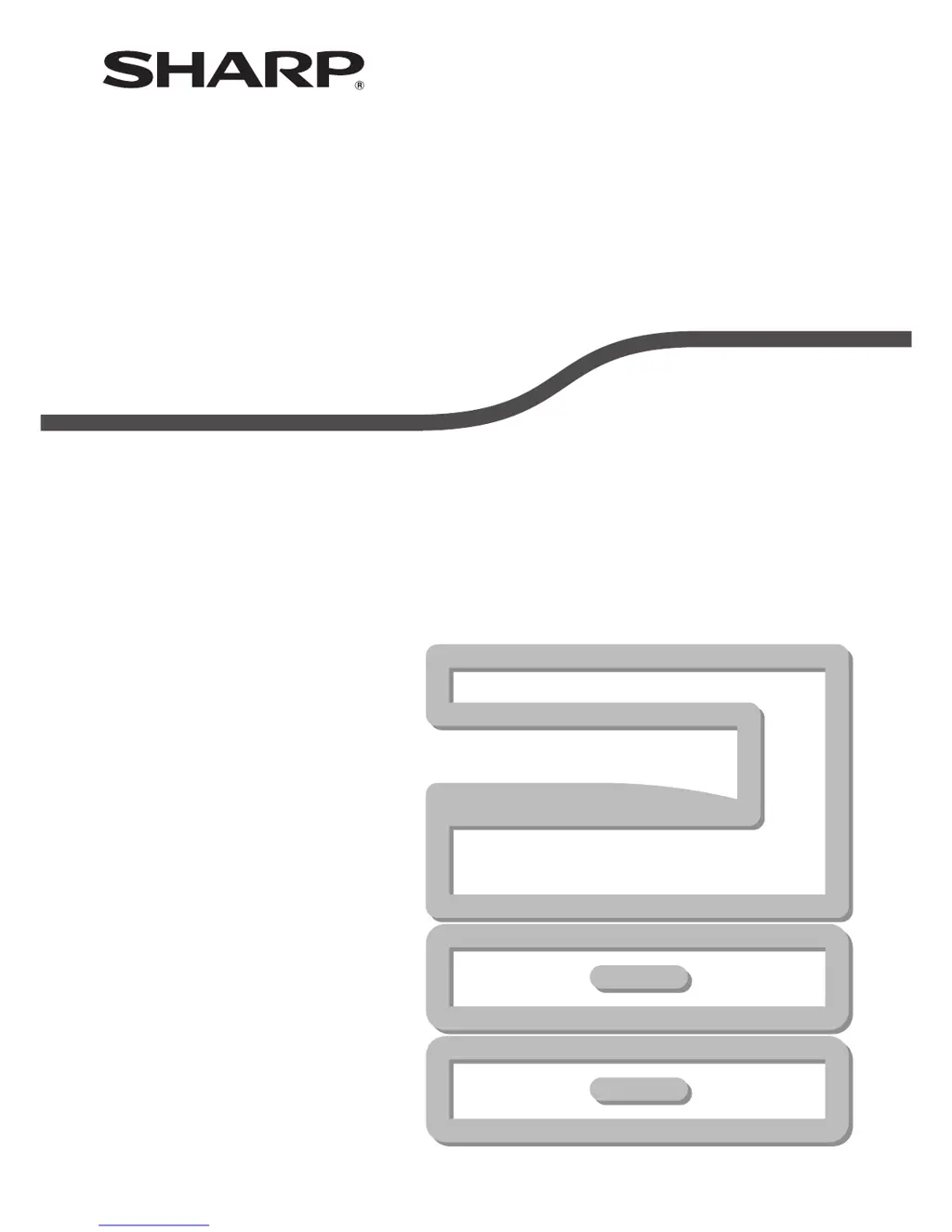
MODEL: AR-5516S
AR-5520S
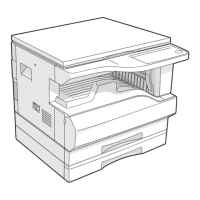
DIGITAL MULTIFUNCTIONAL SYSTEM
OPERATION GUIDE

Table of Contents

Other manuals for Sharp AR-5520S

Questions and Answers

  • D
    Dwayne LewisSep 14, 2025
    Why can't I set the paper size for a paper tray on my Sharp All in One Printer?
    • J
      jennifer16Sep 14, 2025
      You cannot set the paper size for a paper tray on your Sharp All in One Printer if copying or printing is in progress, the machine has stopped temporarily due to running out of paper or a misfeed, or an interrupt copy job is in progress. Set the paper size after these processes are complete by loading paper or removing the misfeed, and after the interrupt copy job is finished.
  • S
    samantha38Sep 16, 2025
    Why does a copy job stop before it is finished on my Sharp AR-5520S All in One Printer?
    • J
      Jessica BurgessSep 16, 2025
      A copy job might stop before it is finished on your Sharp All in One Printer if the paper output tray is full or the tray is out of paper. Remove the copies in the paper output tray and press the [START] key to resume copying. Load paper if the tray is out of paper.
  • B
    bpearsonNov 20, 2025
    What to do if my Sharp All in One Printer is not printing? (ON LINE indicator does not blink.)
    • D
      Darlene MartinezNov 20, 2025
      If your Sharp All in One Printer is not printing and the ON LINE indicator is not blinking, consider the following: * The machine might be set to off-line mode. Press the [ON LINE] key to turn on the ON LINE indicator. * The machine might not be correctly connected to your computer. Check both ends of the printer cable for a solid connection and try a known good cable. * A copy job might be in progress. Wait until the copy job is complete. * Your machine might not be selected correctly in the current application for the print job. When choosing "Print" from the "File" menu, ensure you have selected "SHARP AR-XXXX" printer in the "Print" dialog box. * The printer driver might not have been installed properly. Check if the printer driver is installed in the Control Panel under Pri...
  • J
    jillianthompsonNov 26, 2025
    What to do if Sharp AR-5520S All in One Printer has a paper misfeed?
    • S
      stephanie64Nov 26, 2025
      If your Sharp All in One Printer is experiencing paper misfeeds, consider the following: * To remove the misfeed, see "MISFEED REMOVAL". * Ensure you are using copy paper within the specified size and weight range. * Do not use curled or crimped paper. Replace with dry copy paper. During periods when the machine is not used for a long time, remove the paper from the tray and store it in a dark place in a bag to prevent moisture absorption. * Make sure the paper is properly installed. * Remove all pieces of misfed paper. * If the stack of paper is higher than the indicator line on the tray, remove some of the paper and reload so that the stack does not exceed the line. * Fan the paper well before loading it. * Adjust the guides on the bypass tray to match the width of the p...

Summary

Introduction

Before Using the Machine

Part Names and Functions

Identifies and describes the various physical components of the multifunctional system.

Operation Panel

Details the controls, keys, indicators, and display on the machine's operation panel.

Power On and Off

Instructions for powering the machine on and off, including power save modes.

Loading Paper

Guides on how to load paper into the standard paper trays and the bypass tray.

Changing a Trays Paper Size Setting

Explains how to adjust the paper size settings for each paper tray.

Operation in Copy and Printer Modes

Describes simultaneous operations and limitations when using copy and printer modes.

Copy Functions

Normal Copying

Basic steps for making a regular copy from the document glass or SPF.

Making a Copy Darker or Lighter

Adjusting copy exposure levels for different original types and brightness.

Selecting the Tray

How to select paper trays for copying, including automatic paper selection.

Setting the Number of Copies

How to set the desired quantity of copies using the numeric keys.

Reduction;Enlargement;Zoom

Options for resizing copies using automatic or manual zoom functions.

Automatic Ratio Selection

Using the AUTO IMAGE key for automatic copy ratio adjustments.

Manual Ratio Selection

Manually selecting copy ratios using preset keys or zoom keys.

Selecting the Vertical and Horizontal Copy Ratios Separately (XY ZOOM Copying)

Independently adjusting horizontal and vertical copy ratios.

Two-Sided Copying Using the Bypass Tray

Performing manual two-sided copying using the bypass tray.

Dual Page Copying

Copying two pages of an original onto separate sheets.

Interrupting a Copy Run (Interrupt Copying)

Temporarily pausing a copy job to perform another task.

Printer Functions

Basic Printing

Step-by-step guide to printing a document from an application.

Opening the Printer Driver From the Start Button

Accessing printer driver settings via the Windows Start menu.

Printer Driver Setting Screen

Explains the interface and options within the printer driver setup screen.

Setting Advanced Print Functions

Advanced printing features like N-Up printing and border settings.

Printing Multiple Pages on One Page (N-Up Printing)

Printing multiple pages on a single sheet to save paper.

Fitting the Printed Image to the Paper (Fit To Paper Size)

Automatically resizing print output to fit the selected paper size.

Rotating the Print Image 180 Degrees (Rotate 180 degrees)

Rotating the print image for specific paper loading orientations.

Enlarging;Reducing the Print Image (Zoom)

Adjusting the print image size by percentage.

Printing Faint Text and Lines in Black (Text To Black;Vector To Black)

Enhancing faint text and graphics by printing them in black.

Adjusting the Brightness and Contrast of the Image (Image Adjustment)

Modifying image brightness and contrast for print output.

Adding a Watermark to Printed Pages (Watermark)

Embedding text or images as watermarks on printed documents.

Saving Frequently Used Print Settings

Saving and managing custom print settings for later use.

Outline of the Print Status Window

Overview of the window that monitors print job status and errors.

User Settings

Adjusting the Automatic Exposure Level

Fine-tuning automatic exposure for copies based on original type.

Customising Settings (System Settings)

Overview of system settings for machine customization.

Selecting a Setting for a System Setting

Procedure for selecting and configuring specific system settings.

Selecting Auditing Mode Settings

How to configure settings related to auditing and account tracking.

Copying When Auditing Mode is Enabled

Steps to enter account number for copying when auditing is active.

Troubleshooting

Machine;Copying Problems

Common issues related to machine operation and copy quality.

Printing Problems

Troubleshooting steps for issues preventing printing.

Indicators and Display Messages

Explains machine indicators and error messages.

Misfeed Removal

Procedures for removing paper jams from various locations.

Replacing the Toner Cartridge

Steps for replacing the toner cartridge when prompted.

Routine Maintenance

Checking the Total Output Count and Toner Level

How to view page counts and approximate toner levels.

Checking the Toner Level

Detailed steps to check the remaining toner quantity.

Cleaning the Document Glass and SPF;Document Cover

Instructions for cleaning the glass surfaces for clear copies.

Cleaning the Original Scanning Glass (Only When an SPF is Installed)

Specific cleaning for SPF-related scanning glass issues.

Cleaning the Bypass Tray Paper Feed Roller

Cleaning the roller to prevent bypass tray misfeeds.

Cleaning the Transfer Charger

Cleaning the transfer charger to resolve streaky or blotchy copies.

Peripheral Devices and Supplies

Peripheral Devices

Lists optional peripheral devices that can be installed on the machine.

Single Pass Feeder

Specifications and details for the Single Pass Feeder option.

250-Sheet Paper Feed Unit;2 X 250-Sheet Paper Feed Unit

Details on paper feed units for increased paper capacity.

Storage of Supplies

Guidelines for properly storing paper and toner cartridges.

Proper Storage

Specific recommendations for storing supplies to prevent issues.

Sharp AR-5520S Specifications

General IconGeneral
FunctionsPrint, Copy, Scan
Print Resolution1200 x 1200 dpi
Copy Resolution600 x 600 dpi
Scan Resolution600 x 600 dpi
Original SizeA3
Max Paper SizeA3
Warm-up Time30 seconds
Monthly Duty Cycle150, 000 pages
Print Speed55 ppm
Copy Speed55 pages per minute
InterfaceUSB 2.0
Network ConnectivityEthernet
Operating System CompatibilityWindows, macOS, Linux

Related product manuals