EasyManua.ls Logo

Sharp FO-A660 - User Manual

Sharp FO-A660
103 pages
Print Icon
To Next Page IconTo Next Page
Loading...
MODEL
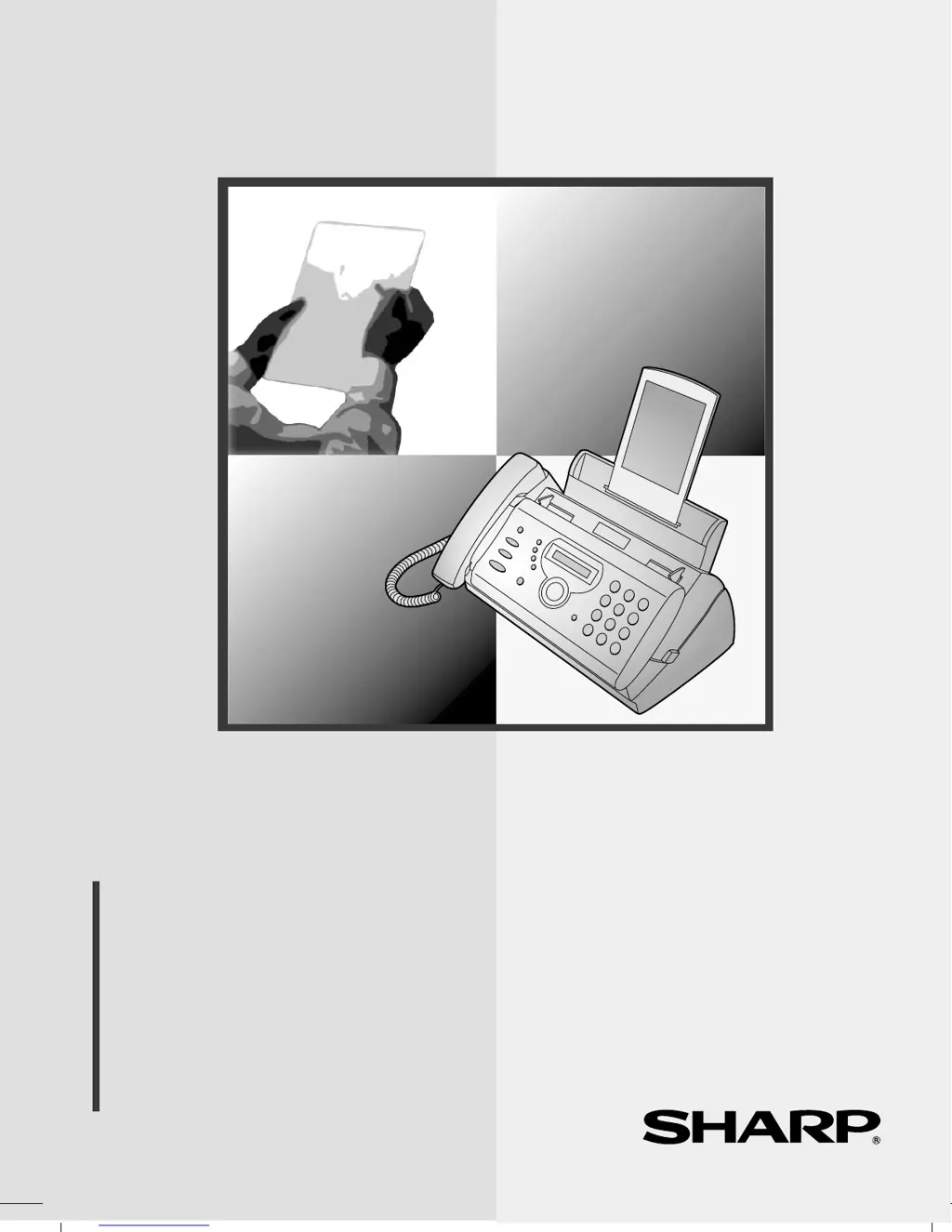
FO-A660
OPERATION MANUAL
FACSIMILE
1. Installation
2. Using the Answering Machine
3. Sending Faxes
4. Receiving Faxes
5. Making Copies
6. Special Functions
7. Printing Lists
8. Maintenance
9. Troubleshooting

Table of Contents

Questions and Answers

  • D
    David CraneAug 28, 2025
    Why is the received document faint on my Sharp FO-A660?
    • S
      Sheila ThomasAug 28, 2025
      If the received document is faint on your Sharp Fax Machine, ask the sender to send higher contrast documents. If the contrast is still too low, your fax machine may need service. Make a copy or print a report to check your machine’s printing ability.
  • J
    Jeremiah PalmerAug 29, 2025
    Why does my Sharp FO-A660 print in strips?
    • M
      michaelmarksAug 29, 2025
      If a received document or copy prints out in strips on your Sharp Fax Machine, make sure the operation panel is completely closed by pressing down on both sides of the panel.
  • W
    williamsrebeccaAug 29, 2025
    Why is the copy quality poor on Sharp FO-A660 Fax Machine?
    • A
      Ashley StrongAug 30, 2025
      If the copy quality is poor and/or dark vertical lines appear on your Sharp Fax Machine, dirt or material on the scanning glass may be the cause. Clean the scanning glass.
  • K
    Karen WrightAug 30, 2025
    Why is reception interrupted on Sharp FO-A660?
    • B
      Brian JensenAug 30, 2025
      If reception or copying is interrupted on your Sharp Fax Machine, it might be due to the print head overheating from continuous use. Turn off the power and allow it to cool down. If this frequently occurs, try setting the print contrast to LIGHT.
  • R
    rodriguezsharonAug 25, 2025
    What to do if Sharp FO-A660 Fax Machine says MEMORY IS FULL?
    • J
      James MillerAug 25, 2025
      If the display of your Sharp Fax Machine shows 'MEMORY IS FULL/ SEE MANUAL', it indicates that the memory is full. This can occur if there are too many messages recorded in the answering machine. Erase some messages. This message may also appear during fax reception if too much data is received before pages can be printed. If faxes have been received to memory because printing isn't possible, resolve the printing problem.
  • E
    Erica CarterSep 1, 2025
    Why can't I store auto-dial numbers on Sharp FO-A660 Fax Machine?
    • C
      Craig RiosSep 1, 2025
      If auto-dial numbers cannot be stored in your Sharp Fax Machine, ensure the fax is plugged in and the imaging film has been loaded. Auto-dial numbers cannot be stored if the imaging film has not been loaded.
  • B
    Brian RossSep 1, 2025
    Why is nothing appearing on Sharp FO-A660 Fax Machine display?
    • D
      Derrick ThompsonSep 1, 2025
      If nothing appears in the display of your Sharp Fax Machine, ensure the power cord is properly plugged into a power outlet. You can also connect another electrical appliance to the outlet to verify it has power.
  • N
    Nicole RodriguezSep 2, 2025
    What to do if Sharp Fax Machine keys are not responding?
    • D
      Debra JohnsonSep 2, 2025
      If your Sharp Fax Machine does not respond when you press any keys, and no beep sound is made, unplug the power cord and plug it back in after several seconds.
  • D
    Dustin RomeroSep 2, 2025
    Why is automatic document feeding not working on Sharp FO-A660 Fax Machine?
    • J
      Jordan ThompsonSep 3, 2025
      If automatic document feeding does not work for transmission or copying on your Sharp Fax Machine, check the size and weight of the document.
  • M
    Michelle WalkerSep 3, 2025
    What does 'ADD PAPER & PRESS START KEY' mean on Sharp FO-A660?
    • K
      Kristina PerezSep 3, 2025
      If your Sharp Fax Machine displays the alternating messages 'ADD PAPER & / PRESS START KEY', check the printing paper. If the tray is empty, add paper and press the START/MEMORY key. If there is paper, take out the stack, align the edges evenly, reinsert it, and then press the START/MEMORY key.

Summary

Installation Guide

Connections

Details for connecting handset, power cord, and telephone line.

Loading Imaging Film

Instructions for installing the film roll for printing output.

Loading Printing Paper

Guide on how to properly load paper into the tray for printing.

Entering Name and Fax Number

Steps to input personal identification for outgoing faxes.

Setting Reception Mode

How to select the mode for receiving faxes and calls.

Using the Answering Machine

Recording Outgoing Message

Guide to record the greeting message for callers.

Activating Answering Machine

Steps to enable the answering machine function for receiving calls.

Sending Faxes

Sending Fax by Normal Dialling

Step-by-step guide for sending faxes manually.

Sending Fax by Automatic Dialling

Instructions for storing and using auto-dial numbers.

Sending Fax From Memory

Transmitting documents stored in the machine's memory.

Receiving Faxes

Special Functions

Troubleshooting

Problems and Solutions

General guide to resolving common issues.

Dialling and Transmission Problems

Solutions for issues related to making calls and sending faxes.

Reception and Copying Problems

Fixes for issues with receiving faxes and making copies.

Messages and Signals

Explains display messages and audible alerts.

Clearing Paper Jams

Steps to remove jammed paper or documents.

Sharp FO-A660 Specifications

General IconGeneral
TypePlain Paper Fax
Print TechnologyThermal Transfer
DisplayLCD
Memory512 KB
Paper SizeA4, Letter

Related product manuals