
 Need help?
Do you have a question about the Siemens SIMATIC IPC and is the answer not in the manual?
Outlines the document's objective and intended audience for managing the Edge Device OS.
Lists essential technical knowledge including PCs, Linux, IP networks, and Docker.
States that this manual is valid for Industrial Edge operations.
Explains the usage of 'Edge Device' as a shorthand for the hardware.
Details how figure components are marked with position numbers.
Lists the prerequisites for connecting an Edge Device.
Details the procedure for connecting the device using a USB flash drive.
Lists the file systems and partition schemes supported by the system.
Provides a table detailing LED status changes during various processes.
Step-by-step guide for formatting a USB stick for Windows.
Instructions for preparing a USB stick for Linux using command line tools.
Provides a warning about powering off the device during a hard reset process.
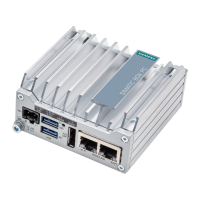
The SIMATIC IPC Industrial Edge Device, detailed in this Operation V1.3 manual (A5E51396302-AA, 09/2021), serves as a hardware platform configured with the Industrial Edge Device OS. This documentation provides essential information for managing and operating the device, targeting operators who commission and operate Edge Devices, install and run Edge Apps, and service and maintenance technicians performing error analysis.
The SIMATIC IPC Industrial Edge Device is designed to connect to the Industrial Edge Management (IEM) system, enabling the deployment and operation of Edge Apps. Connection to the IEM can be established through two primary methods: via a USB flash drive or through the IPC Edge Device UI. Both methods require a pre-configured IPC Edge Device configuration file. The device supports various file systems and partition system combinations for USB flash drives, including FAT32, NTFS, and ext4 for file systems, and MBR and GPT for partitions. This flexibility ensures compatibility with different operating environments for preparing the USB stick.
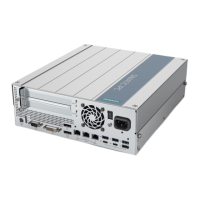
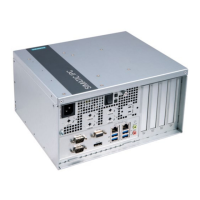
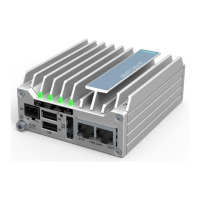
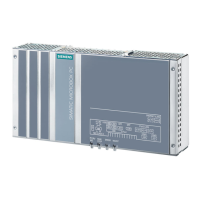
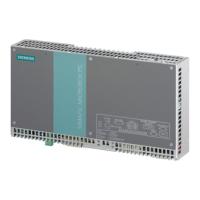
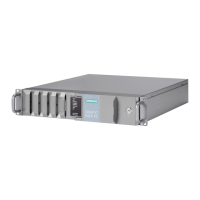
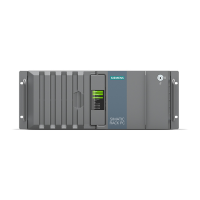
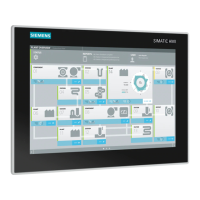
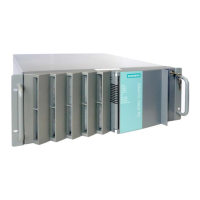
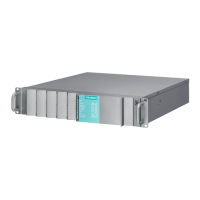
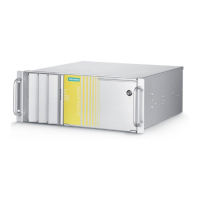
The manual references two specific models:
The LED status indicators are crucial for monitoring the device's operational state and diagnosing issues. For instance, a green "Run" LED indicates successful connection to the IEM, while a red flashing "Error" LED signifies a failed connection. During connection via a USB flash drive, the "Run" LED flashes green and the "Maintenance" LED flashes yellow. For IED-OS updates, the "Maintenance" LED flashes orange.
The device's usage revolves around its integration into an Industrial Edge ecosystem. Key usage features include:
https://192.168.80.123).lsblk, searching for unallocated space with fdisk, creating a new partition, formatting it as ext4 using mkfs.ext4, labeling it "USBONBOARD" with e2label, and finally copying the configuration file.conf-usb.log and services.log files are created on the USB flash drive. These logs are invaluable for troubleshooting, providing detailed information on errors and the success status of each service step.Maintenance aspects are primarily indicated through the LED status and the provision of log files for diagnostics.
conf-usb.log and services.log files generated during the connection process are critical for detailed error analysis, allowing technicians to identify and resolve issues by examining the step-by-step service execution status.The documentation emphasizes the importance of industrial security, recommending a holistic, state-of-the-art industrial security concept. It advises customers to implement appropriate security measures (e.g., firewalls, network segmentation) when connecting systems to enterprise networks or the internet. Siemens also stresses the importance of applying product updates and using the latest product versions to mitigate cyber threats. Users are encouraged to subscribe to the Siemens Industrial Security RSS Feed for updates and to consult the "Industrial Edge - Security overview" manual for additional security statements.
The target audience for this manual is expected to have solid knowledge of personal computers, Linux-based operating systems, IP-based networks, Docker, and general IT, with a recommendation for general knowledge in automation technology. This ensures that users can effectively understand and apply the instructions provided for the safe and efficient operation of the SIMATIC IPC Industrial Edge Device.
 General
| Brand | Siemens |
|---|---|
| Model | SIMATIC IPC |
| Category | Industrial PC |
| Language | English |

 To Next Page
