EasyManua.ls Logo

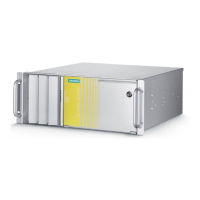
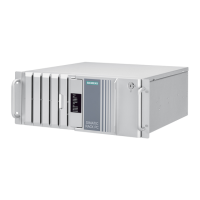
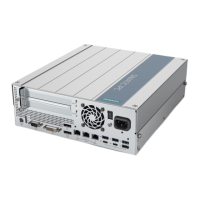
Siemens Simatic IPC527G - User Manual

Siemens Simatic IPC527G
123 pages
Print Icon
To Next Page IconTo Next Page
Loading...
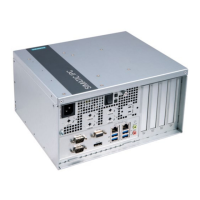
SIMATIC IPC527GSIMATIC IPC527G
SIMATIC
Industrial PC
SIMATIC IPC527G
Operating Instructions
03/2019
A5E45491226
-AA
Preface
Overview
1
Safety instructions
2
Installing and connecting the
device
3
Commissioning the device
and device functions
4
Expanding and assigning
parameters to the device
5
Maintaining and repairing the
device
6
Technical specifications
7
Appendix Motherboard
A
Technical support
B
Markings and symbols
C
List of abbreviations
D

Table of Contents

Questions and Answers

  • B
    brian36Aug 3, 2025
    Why is the time and date still wrong on my Siemens Industrial PC even though the BIOS setting is OK?
    • J
      Jill CrosbyAug 4, 2025
      If your Siemens Industrial PC shows the wrong time and date even after setting it in BIOS, the backup battery is likely dead. Replace the backup battery to resolve this issue.
  • M
    Michelle ChaseAug 9, 2025
    What to do if the Siemens Simatic IPC527G monitor remains dark?
    • J
      james44Aug 9, 2025
      If your Siemens Industrial PC monitor remains dark, first, ensure the monitor is switched on and not in 'power save' mode by pressing any key. Then, check the brightness setting and increase it if necessary. Finally, verify that the power cord and monitor cable are properly connected to both the monitor and the system unit or grounded outlet.
  • D
    David LucasAug 15, 2025
    How to troubleshoot a Siemens Industrial PC that is not operational?
    • M
      Melissa FrazierAug 15, 2025
      If your Siemens Industrial PC is not operational, check the power supply, power cord, and power plug to ensure they are correctly connected and functioning. Also, verify that the On/Off switch is in the correct position. If the device has been transported in cold weather, allow approximately 12 hours before switching it on. Lastly, ensure the device is being operated within the specified ambient conditions.
  • G
    gonzalezalisonAug 21, 2025
    What to do if the mouse pointer does not appear on the screen on Siemens Simatic IPC527G Industrial PC?
    • C
      Cynthia NelsonAug 21, 2025
      If the mouse pointer does not appear on the screen of your Siemens Industrial PC, first check whether the mouse cord is properly connected to the system unit, including any adapters or extensions. Then, verify that the mouse driver is properly installed and available when you start the user program.
  • B
    Brandy RobertsonAug 27, 2025
    How to correct wrong time and/or date on Siemens Simatic IPC527G?
    • K
      Kelly AndersonAug 27, 2025
      To correct the wrong time and/or date on your Siemens Industrial PC, open the BIOS Setup and set the correct time and date.

Summary

Safety Instructions

General Safety Instructions

Details essential safety precautions for operation, expansion, and handling.

Installing and Connecting the Device

Commissioning the Device and Device Functions

Initial Commissioning

Guides through the initial setup process after powering on the device.

Maintaining and Repairing the Device

Installing and Removing Hardware

Provides detailed procedures for replacing components like fans and batteries.

Technical Specifications

Technical Data

Lists detailed technical specifications, including electrical, environmental, and EMC data.

Hardware Descriptions

Details the motherboard features and external/internal interfaces.

BIOS Description

Explains BIOS setup utility, navigation, and configuration options.

Technical Support

Troubleshooting

Offers solutions for common problems encountered during operation.

Siemens Simatic IPC527G Specifications

General IconGeneral
Protection ClassIP20
Power Supply24 V DC
Operating Temperature0 °C to 50 °C
RAMUp to 16 GB DDR4
StorageSSD or HDD
Operating SystemWindows 10 IoT Enterprise
DisplayDisplayPort
Connectivity2 x Gigabit Ethernet, USB 3.0, USB 2.0, DisplayPort
Expansion Slots1 x PCIe x16
MountingDIN rail or wall mounting
ProcessorIntel Core i5-6500TE (4 cores, 2.3 GHz)

Related product manuals