EasyManua.ls Logo

Siemens Simatic IPC547G - User Manual

Siemens Simatic IPC547G
194 pages
Print Icon
To Next Page IconTo Next Page
Loading...
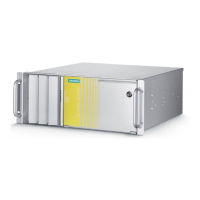
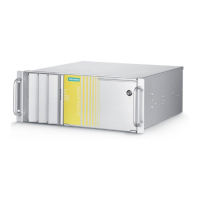
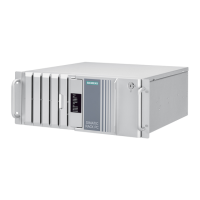
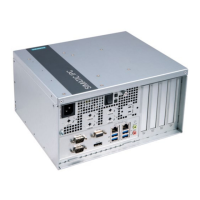
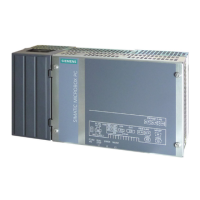
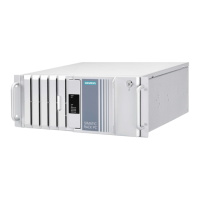
SIMATIC IPC547G
SIMATIC
Industrial PC
SIMATIC IPC547G
Operating Instructions
04/2020
A5E49948632
-AA
Preface
Overview
1
Safety instructions
2
Installing and connecting the
device
3
Commissioning the device
4
Expanded device functions
5
Expanding and assigning
parameters to the device
6
Device maintenance and
repair
7
Technical specifications
8
Technical support
A
List of abbreviations
B
Markings and symbols
C

Table of Contents

Other manuals for Siemens Simatic IPC547G

Questions and Answers

  • B
    Barbara KellyAug 5, 2025
    What to do if Siemens Industrial PC is not operational?
    • K
      Kathy GuerreroAug 5, 2025
      If your Siemens Industrial PC is not operational, first, check the power supply, power cable, and power plug to ensure they are correctly connected and functioning. Also, verify that the on-off switch is in the correct position. Another potential cause is operation outside of specified ambient conditions; ensure these conditions are within the device's specifications. If the device was transported in cold weather, allow it to warm up for approximately 12 hours before turning it on.
  • J
    James HansenAug 9, 2025
    What to do if mouse pointer does not appear on Siemens Industrial PC screen?
    • A
      Andrew ThompsonAug 9, 2025
      If the mouse pointer does not appear on the screen of your Siemens Industrial PC, first verify that the mouse cable is properly connected to the system unit. If you are using an adapter or extension cable, check those connections as well. Also, check whether the mouse driver is properly installed and available when you start the user program.
  • S
    Sara BlackAug 14, 2025
    What to do if the monitor remains dark on Siemens Industrial PC?
    • W
      William SchneiderAug 14, 2025
      If the monitor of your Siemens Industrial PC remains dark, ensure the monitor is switched on. If it's in power save mode, press any key on the keyboard. Check the brightness button and increase the brightness if it has been set too low. Verify that the power cord is properly connected to both the monitor and the power outlet, and that the monitor cable is securely connected to the system unit and the monitor.
  • N
    Nichole MirandaAug 18, 2025
    What to do if USB device not responding on Siemens Industrial PC?
    • J
      Jennifer MillerAug 18, 2025
      If a USB device is not responding on your Siemens Industrial PC, the USB ports may be deactivated in the BIOS Setup. Try using a different USB port or activate the port in the BIOS. If the operating system does not support XHCI, activate the "PS/2 Emulation" setup parameter in the "Advanced > USB Configuration" menu of the BIOS Setup. If you connected USB-2.0/3.0 device, make sure that USB-2.0/3.0 is activated. If the operating system does not support the USB interfaces, activate the "Legacy USB Support" setup parameter in the "Advanced > USB Configuration" menu of the BIOS Setup. For other devices, ensure you have the necessary USB device drivers for your operating system.
  • Q
    qdavenportAug 22, 2025
    What to do if DVD drive does not open on Siemens Industrial PC?
    • B
      Brittany FrancisAug 22, 2025
      If the DVD drive on your Siemens Industrial PC does not open, it could be switched off or the open/close button may be disabled by a software application. To manually remove the data medium in an emergency: first, switch off the device. Then, insert a straightened paper clip or similar pointed object into the emergency eject opening of the drive and gently press until the front loader opens. Finally, pull the loader out further by hand.
  • J
    John KimAug 27, 2025
    How to set correct time and date on Siemens Industrial PC?
    • J
      Joseph MartinezAug 27, 2025
      To correct the time and/or date on your Siemens Industrial PC, press during the booting process to access the BIOS Setup. Then, set the correct time and date in the setup menu.
  • C
    Charles AllenAug 31, 2025
    Why time and data are still wrong on Siemens Industrial PC?
    • M
      mhughesAug 31, 2025
      If the time and date are still incorrect on your Siemens Industrial PC even after setting them in the BIOS, the backup battery is likely dead. You will need to replace the backup battery.

Summary

Overview

1.1 Product description

Details the SIMATIC IPC547G as a powerful industrial PC in 19" rack format for high-performance applications.

Safety instructions

2.1 General safety instructions

Provides essential safety information, including risks of physical injury and electric shock.

Installing and connecting the device

3.3 Connecting the device

Explains connection information, power supply, peripheral equipment, and network connectivity.

Commissioning the device

4.2 Switching on the device

Guides through the initial power-on procedure and operating system setup.

Device maintenance and repair

Technical specifications

Technical support

A.2 Troubleshooting

Provides solutions for common problems related to the device's operation.

Siemens Simatic IPC547G Specifications

General IconGeneral
TypeIndustrial PC
Operating Temperature0°C to 50°C
Protection ClassIP20
ProcessorIntel Core i3/i5/i7
RAMUp to 32 GB DDR4
Operating SystemWindows 10 IoT Enterprise
GraphicsIntegrated Intel HD Graphics
USB PortsMultiple USB 3.0
Ethernet2x Gigabit Ethernet ports (RJ45)
Serial PortsRS-232/422/485
Expansion SlotsPCIe, PCI
Power Supply100-240 V AC
WeightApprox. 15 kg
ConnectivityEthernet, Serial, USB
Relative Humidity5% to 85% (non-condensing)

Related product manuals