EasyManua.ls Logo

Siemens SIMATIC IPC127E - User Manual

Siemens SIMATIC IPC127E
100 pages
Print Icon
To Next Page IconTo Next Page
Loading...
___________________
___________________
___________________
___________________
___________________
___________________
___________________
___________________
___________________
___________________
___________________
___________________
SIMATIC
Industrial PC
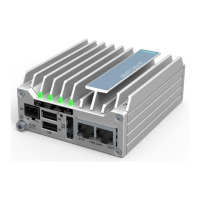
SIMATIC IPC127E
Operating Instructions
01/2019
A5E44296915
-AA
Preface
Overview
1
Safety instructions
2
Mounting and connecting the
device
3
Commissioning the device
and device functions
4
Device maintenance and
repair
5
Technical specifications
6
Certificates and approvals
7
Directives and declarations
8
Dimension drawings
9
Hardware description
10
Technical support
A
Markings and symbols
B
List of abbreviations
C

Table of Contents

Questions and Answers

  • G
    Gail GrayAug 3, 2025
    What to do if the Siemens Industrial PC monitor remains dark?
    • W
      wmorrisAug 3, 2025
      If your Siemens Industrial PC monitor remains dark, first, ensure the monitor is switched on and not in 'power save' mode by pressing any key. Then, check the brightness setting. Also, verify that both the power cord and monitor cable are properly connected to the system unit, the monitor, and a grounded outlet. If the issue persists, contact your technical support team.
  • L
    Lawrence GreenAug 10, 2025
    Why is my Siemens Industrial PC not operational?
    • A
      Amber McculloughAug 10, 2025
      If your Siemens Industrial PC is not operational, check the power supply, cord, and plug to ensure they are correctly connected and functioning. Also, verify that the On/Off switch is in the correct position. Ensure the device is operating within specified ambient conditions; if it was transported in cold weather, allow approximately 12 hours before turning it on.
  • P
    parkerkevinAug 15, 2025
    How to fix a USB device not responding on a Siemens Industrial PC?
    • V
      valeriearellanoAug 15, 2025
      If the USB device is not responding on your Siemens Industrial PC, ensure that USB Legacy Support is enabled in the BIOS settings for mouse and keyboard. For other devices, ensure that you have installed the appropriate USB device drivers for your operating system.
  • J
    Jessica WilsonAug 21, 2025
    What to do if the mouse pointer does not appear on the screen of Siemens Industrial PC?
    • M
      Mr. James SnyderAug 21, 2025
      If the mouse pointer does not appear on the screen of your Siemens Industrial PC, ensure the mouse driver is properly installed and available when you start the user program. Also, check that the mouse cord is correctly connected to the system unit, including any adapters or extensions. If the issue persists, contact your technical support team.
  • N
    nadkinsAug 27, 2025
    Why are the time and date still wrong on my Siemens Industrial PC?
    • M
      Megan OrtizAug 27, 2025
      If the BIOS setting is OK, but the time and date are still wrong on your Siemens Industrial PC, the backup battery is likely dead. Replace the backup battery to resolve this issue.

Summary

Preface

Basic knowledge required

Knowledge of PCs and Microsoft OS required for understanding the manual.

Scope of validity of this document

Defines that the operating instructions are valid for all SIMATIC IPC127E versions.

Scope of this documentation

Lists documentation components for SIMATIC IPC127E.

Conventions

Explains document terminology and abbreviations.

History

Lists previous editions of operating instructions.

Overview

Product description

High-level overview of SIMATIC IPC127E functionality and design.

Design of the devices

Interfaces and connections of Basic device

Details interfaces and connections for the basic device.

Safety instructions

General safety instructions

Essential safety guidelines for installers and users.

Industrial security

Notes on use

Usage notes and cleaning instructions.

Mounting and connecting the device

Preparing for mounting

Steps before mounting: package check, identification data.

Identification data of the device

Permitted mounting positions

Mounting the device

Mounting instructions

General notes on mounting and possible mounting types.

Mounting on a standard rail

Wall mounting

Upright mounting

Vertical mounting standard rail

Connecting the device

Notes on connecting

Important notes and warnings for connecting the device.

Connecting the protective conductor

Connecting the power supply

Connecting the device to networks

Commissioning the device and device functions

General information on commissioning

Requirements and precautions for initial device setup.

Switching the device on;off

Extended device functions

Monitoring functions

Details display, monitoring, and control functions.

Temperature monitoring;display

Watchdog (WD)

Battery monitoring

Device maintenance and repair

Maintenance

Recommends preventative component replacement.

Repair information

Replace the backup battery

Replacing the SSD

Installing the software

Backing up data

Configuring firmware;BIOS

Recycling and disposal

Technical specifications

General technical specifications

Lists general specs: article number, voltage, protection class.

Ambient conditions

Power demand of the components

Direct current supply (DC)

Certificates and approvals

CE marking

Confirms EU directive compliance; provides declaration link.

DIN ISO 9001 certificate and software license agreements

Details quality management and software license terms.

UL61010 approval

Lists UL approvals and relevant standards.

FCC (USA) compliance

Canada

Australia

Eurasion Customs Union EAC

Korea

Directives and declarations

Electromagnetic Compatibility, Industrial and Residential Areas

Details EMC requirements for different application areas.

ESD guideline

Dimension drawings

Dimension drawing basic device

Shows dimensional drawings for the basic device in various mounting positions.

Dimension drawing Extended device

Hardware description

Technical features of the motherboard

Details CPU, BIOS, memory, and graphics specifications.

External interfaces

Overview of USB, Ethernet, and DisplayPort interfaces.

System resources

Input;output address areas

Watchdog register

MMIO GPIO addresses for LEDs and battery monitoring

Technical support

Service and support

Provides links for technical support, documentation, and local representatives.

Troubleshooting

Markings and symbols

Overview

Shows symbols found on the device and their meanings.

Safety

Explains safety-related symbols like warnings and attention notices.

Operator controls

Illustrates symbols for operator controls like power buttons.

Certificates, approvals and markings

Interfaces

List of abbreviations

Abbreviations

Provides a comprehensive list of abbreviations used in the manual.

Glossary

Index

Siemens SIMATIC IPC127E Specifications

General IconGeneral
TypeIndustrial PC
Operating SystemWindows 10 IoT Enterprise
Ethernet2 x Gigabit Ethernet
USB4 x USB 3.0
DisplayPort1 x DisplayPort
Power Supply24 V DC
StorageSSD up to 512 GB
Serial Ports2 x COM ports
Operating Temperature0 °C to 50 °C

Related product manuals