66
7
With a double click on the right side of the window select the target folder; the
dictation recording will be copied into this as a.wav le.
Should the target folder be a located in a sub-folder: Open the superordinate
le and then double click on the preferred sub-folder.
To leave a sub-folder and return to the superordinate le: Double click on the
folder
.
8
On the le of the window, click on the dictation recording to be copied onto
the PC.
Should it be that you have saved the required dictation recording into one of
the folders A to E: Double click on the le on the respective folder, to display
its content. en click on the required dictation recording.
To return from one of the folders A to E back to the higher memory level of
the voice recorder: Double click on the folder
.
9
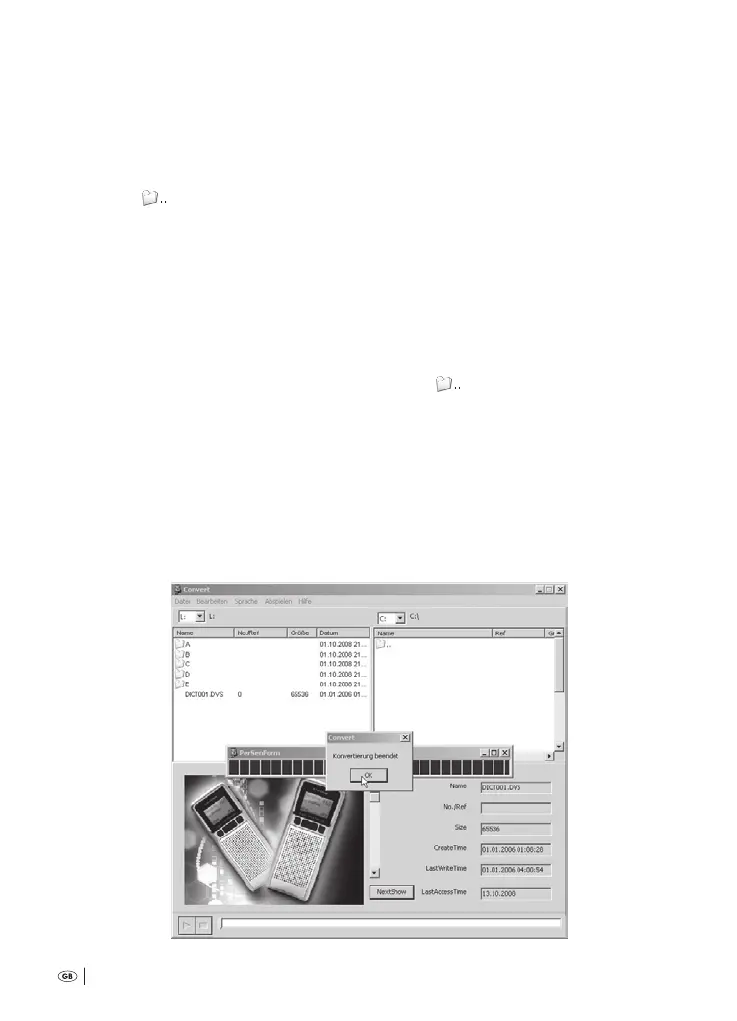
Click in the menu bar at the upper edge of the window on »Process« and sub-
sequently on »Convert«. e dictation recording is now converted to a.wav le
and copied into the target folder. is can – subject to the size of the dictation
recording – take a few minutes. You can follow the progress of the conversion
on the blue beams in the middle of the window.
10
As soon as the conversion is completed, the message »Conversion nished«
is displayed:
Bedienungsanleitung KH 2450 EN.indd 66 23.12.2008 23:09:48


 To Next Page