28
6. Click the % box to change dimensions as a percentage value. A check
mark will appear in the box.
• 100% is the default setting
• 150% will increase size by 50%
• 80% will decrease size by 20%
7. Click the Mirror Icon to flip the design horizontally.
8. Click the Invert Icon to flip the design vertically.
9. Rotate in increments of 1 degree; type the Rotation Angle, then click the
direction of rotation.
10. The Offset X and Y cannot be accessed.
11. Click OK.
ADDING A COLOR STOP
1. File: New.
2. Open Image dialog box: New.
3. New dialog box: OK.
4. From the Vertical tool bar, select the Library icon.
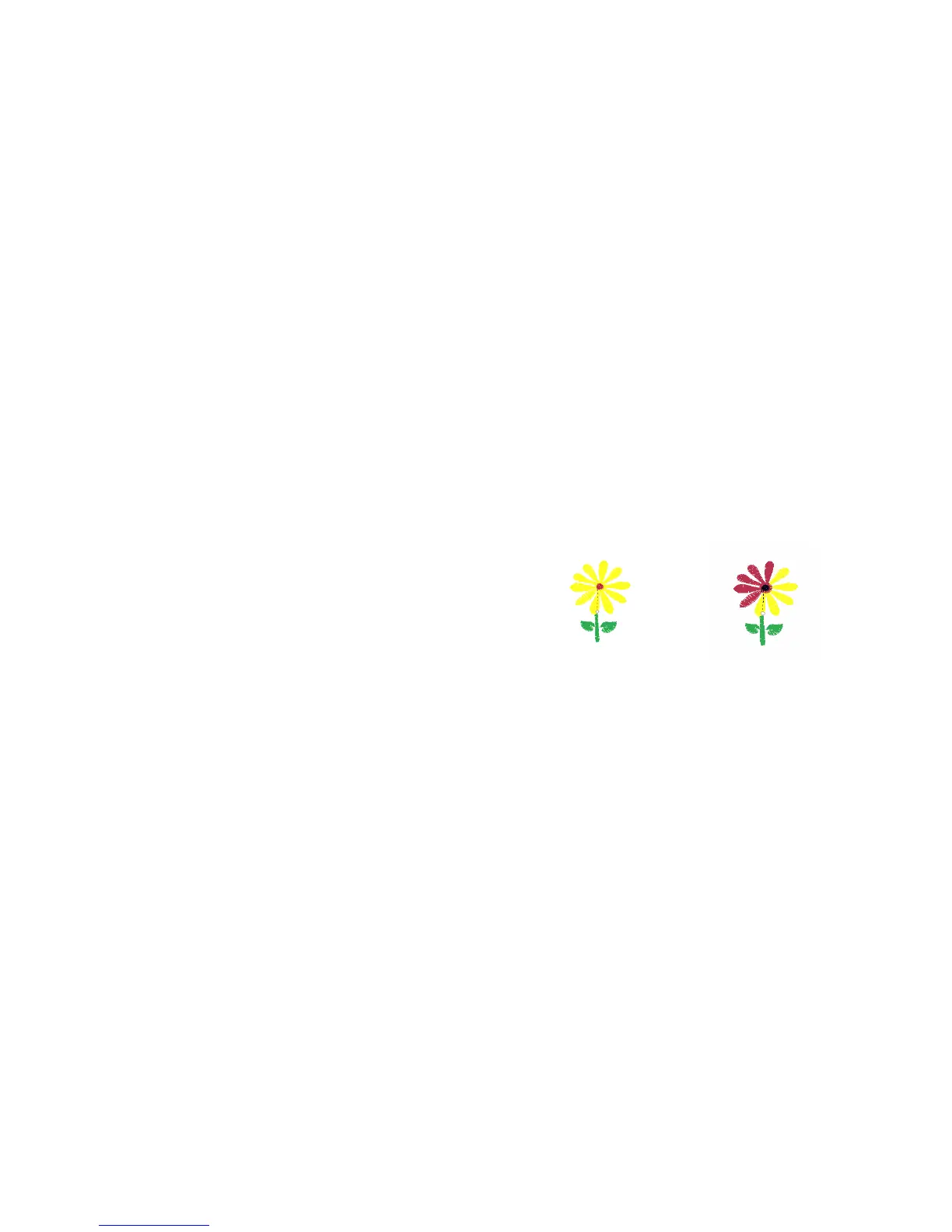
5. Select the Flowers Category; double-click on #041. Right click to access
pop-up menu, then left click on Finish.
6. From the Main Menu, click Edit: Edit Outlines. Lower left corner:
(Eod = end of design).
7. Place the mouse pointer within the top petal; click the left mouse once to
show the outline of the selected petal block. Lower left corner give detail
about the block: Branches, Satin.
8. From the Horizontal tool bar, click on Next Color icon (Stop sign), and a
color stop is automatically inserted at the beginning of selected Block.
9. From the Horizontal tool bar. Click CANCEL.



 To Next Page