30
AUTO SORT COLORS
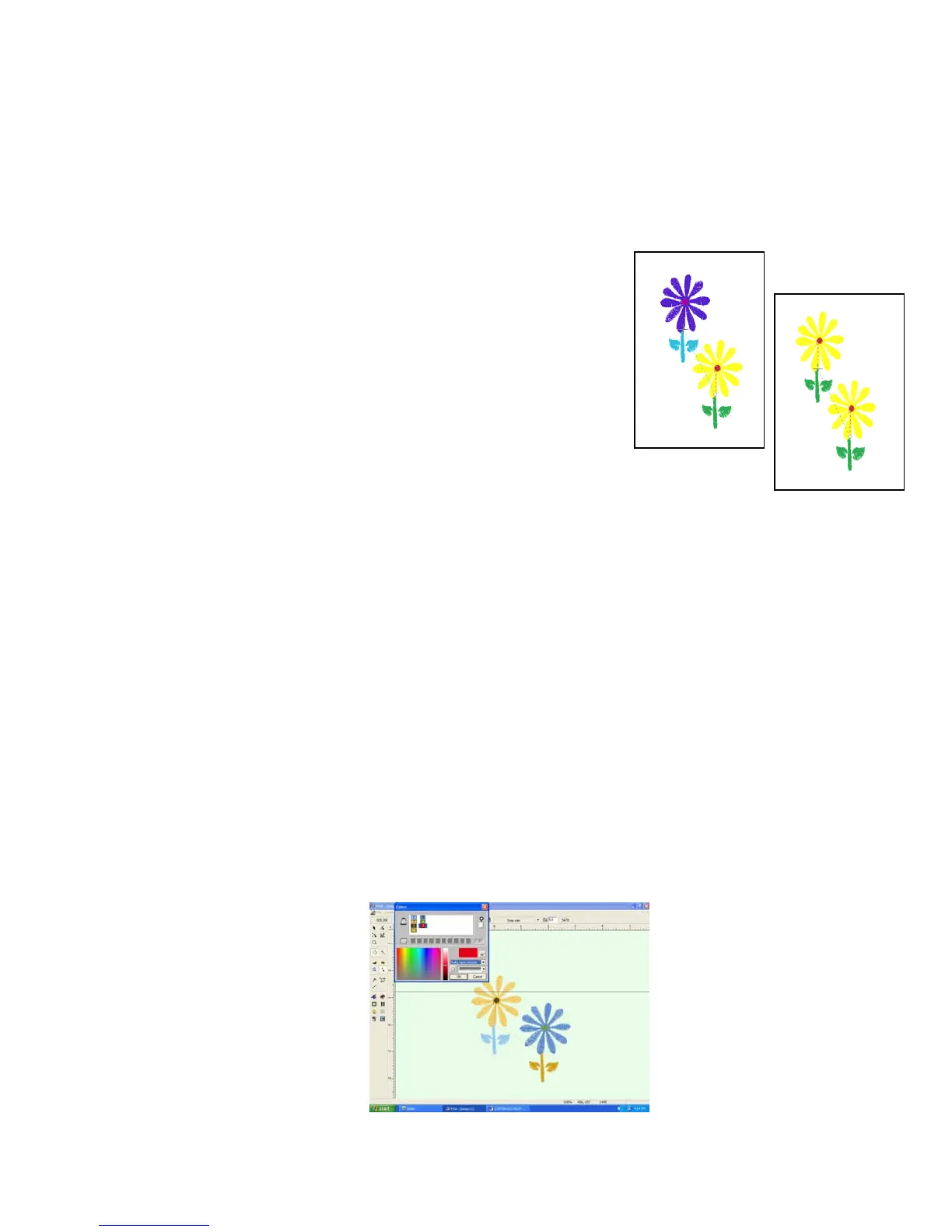
The Auto Sort Colors feature has been added to the PSW 2.00a program. The
‘same’ colors are placed into one color group, reducing the overall number of
color changes for the entire design. (NOTE: This function only works with either
designs created in the software or designs that have had “stitches converted to
block”.)
1. Click on File: New > New > OK.
.
2. From Vertical toolbar, click on the Library icon.
3. Select Flowers Category; double-click design
#041.
4. Right click to access pop-up menu, and then
left click on Finish.
5. From Horizontal toolbar, click Next Color icon to insert a color stop.
6. From Horizontal toolbar, click Copy then click Paste.
7. Click and drag second flower, above the first flower.
8. Right click to access pop-up menu, and then left click on Finish.
9. There are two flowers – each with 3 colors.
10. From the Vertical toolbar; click on the Stitch Colors icon; six color boxes
appear in the color palette.
11. In the Colors box, left click on the down arrow below the “glasses”. Select
Sulky Rayon. Left click on the first color in the box, and then left click on
the down arrow in the box below the color to have the software select the
closest Sulky number. (Select the Sulky number for each color.)



 To Next Page