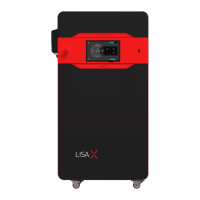
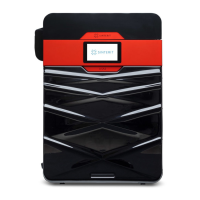
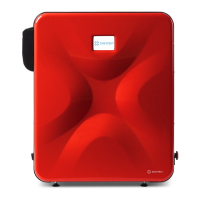
Sinterit Lisa printer SHORTENED USER GUIDE | 11
4. Information and tasks while printing
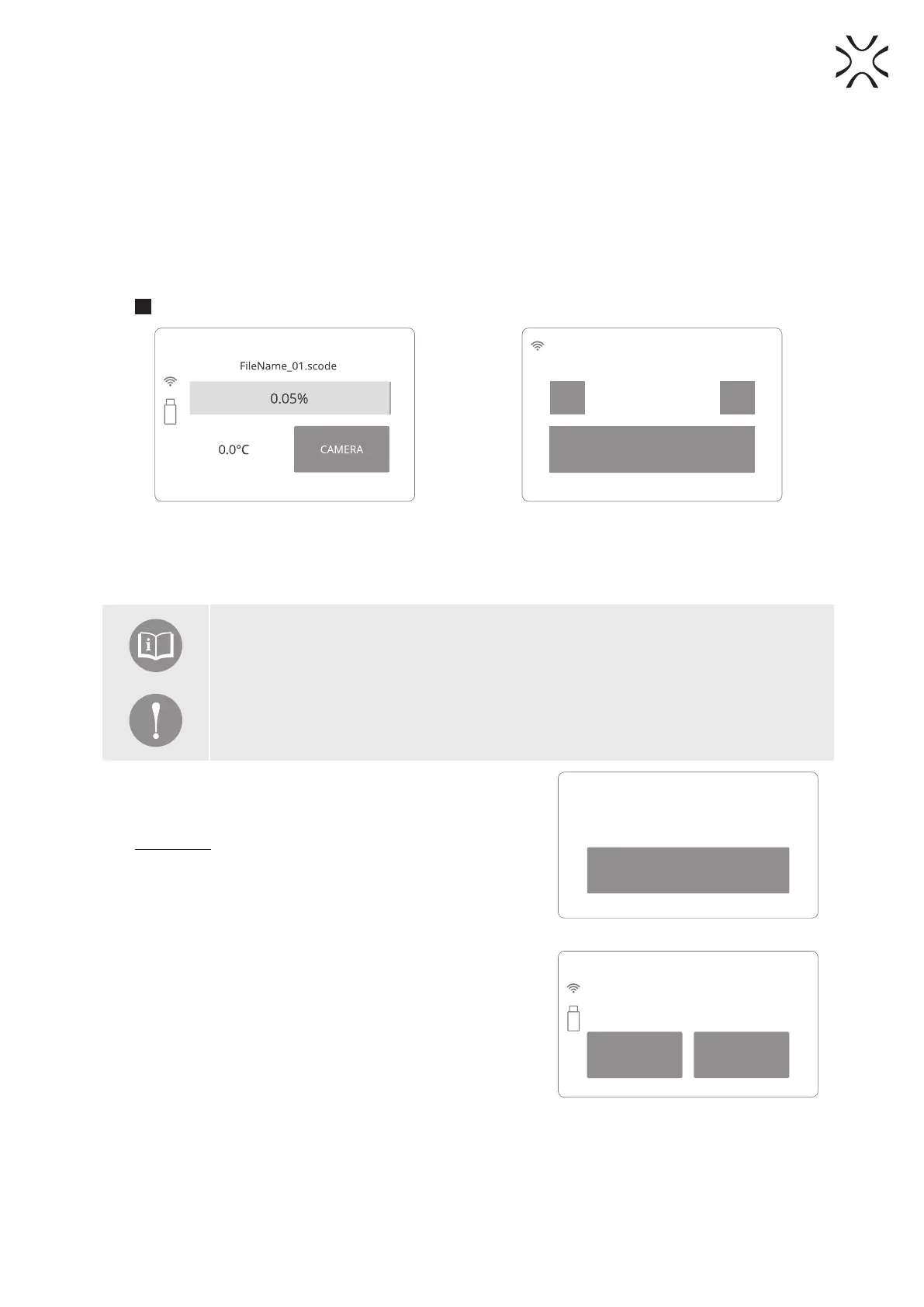
1. The information displayed on the main screen while printing (in real-time):
• the status of the print (in percents),
• the current temperature of the PRINT Bed,
• warming and cooling states,
• the remaining time of laser sintering (Image 31).
2. Clicking on the “CAMERA” button activates the internal camera view, which will be displayed for 10 seconds.
After that, the display will return to the main screen (Image 31).
3. During printing, if visible problems appear, observed by means of the internal camera or top Viewing window
3
. User can ne-tune the temperature by clicking the “TEMP” button and adjusting +/- 5 [°C] (Image 32).
Image 31. The main screen during printing.
FileName_01.scode
- +
177.5 C
BACK
Image 32. Temperature control screen.
5. Finishing the print
IMPORTANT!
• The Lid’s electrolock will stay active until the print chamber temperature will not drop
below 50 [°C].
• There is no possibility to open the Lid before the temperature drops below an acceptable
value.
• Remember that the content of the PRINT Bed may still be hot, despite the fact that the
printer has cooled down!
1. When the printing process is complete, a message appears
that the Lid must be opened (Image 33).
2. Press “UNLOCK LID” button on the LCD screen to open the Lid.
Remember: The Lid’s electrolock deactivates for 10 seconds.
After this time, it will re-activate).
3. Softly press the Lid and then lift it.
4. By clicking the “REMOVE PRINT” button and then “REMOVE
PRINTOUT”, the cleaning process will begin (Image 34).
• By clicking “MAIN MENU” the system will return to the rst
screen.
5. Check that the way of the RECOATER is not obstructed.
Conrm with the “DONE” button.
6. The BEDs and the RECOATER will change position. The PRINT
Bed will raise, enabling the printout to be taken out from the
chamber.
7. When this process is complete, “YOU CAN NOW REMOVE THE
PRINT FROM PRINTER” message will appear on the screen.
Click “DONE” to complete the printing process (Image 35).
UNLOCK LID
Printer lid has to be opened to operate the printer.
Unlock and open the lid.
25.9°C
Image 33. Unlock lid screen.
MAIN MENU REMOVE PRINT
FileName_01.scode
Printing nished
Image 34. Removing a printout screen 1.


 To Next Page