Pocket Printer A6 User’s Guide
SiPix Technical Support http://www.sipixdigital.com/support/
12
1. From the Installer Menu, click on “Install Pocket PC printer application”
2. On the Pending Application Install Screen, click OK to continue installing your
Pocket PC Printer Driver
3. The Pocket PC Printer Driver will be installed the next time you Active-Sync
your Pocket PC device.
Note: Installing the Pocket PC Printer Driver will automatically install Pocket PC
Capture software.
How To Print a File:
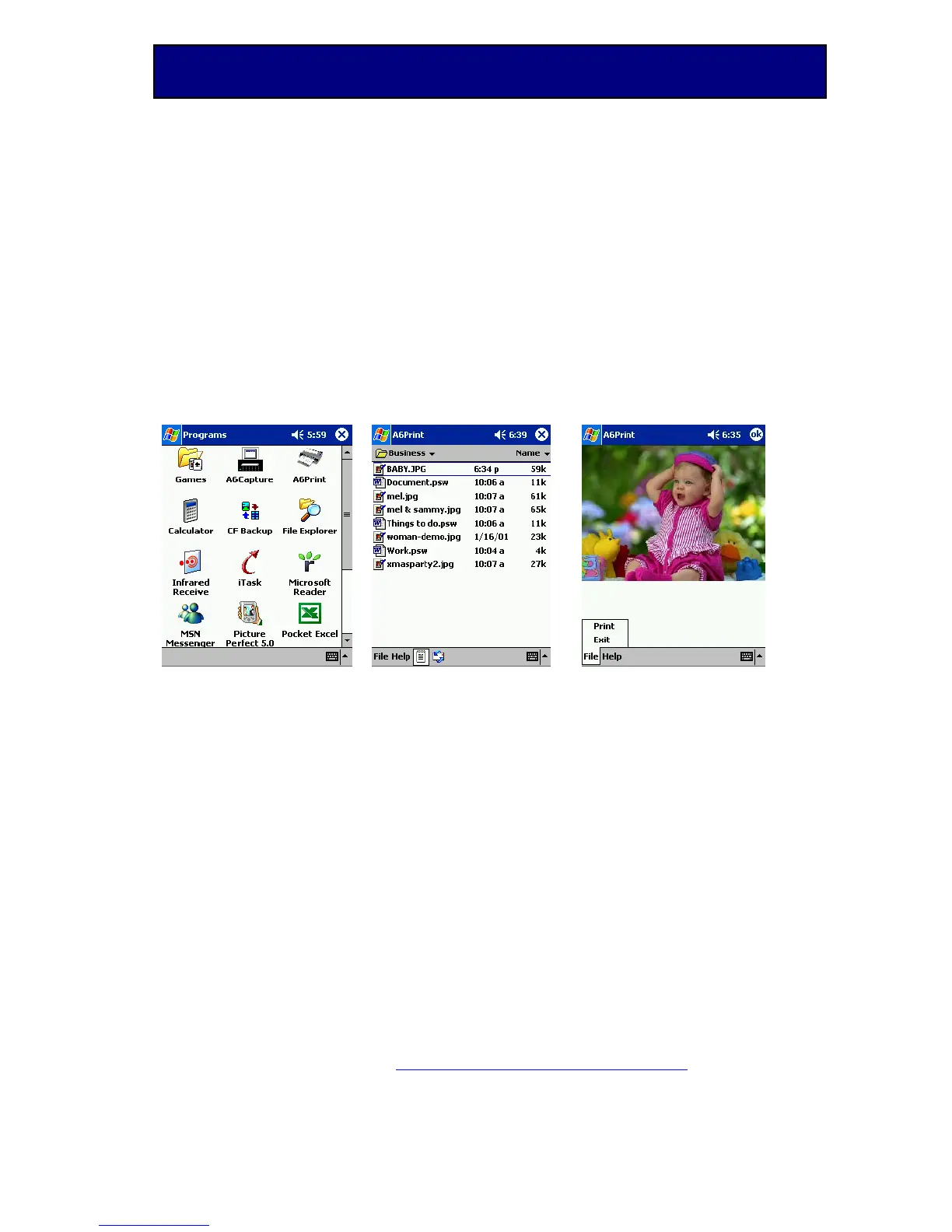
Figure 1 Figure 2 Figure 3
1. Tap Start Æ Programs Æ A6Print (see Figure 1).
2. From Figure 2 Tap on a file to print. (Example – BABY.JPG).
3. The image will display (Figure 3), from the File menu at the bottom click
Print.
Note: This step is only for image files
4. If all settings are correct, tap to Print, the image should now print from your
A6 printer.
Note: The small “Note Pad Page” icon at the bottom of Figure 2 is for printing text and
image files. Next to this icon is a small envelope with a blue arrow coming around the top
and the bottom of the envelope, depress this to have a list of your e-mails for printing.
Default Printer Settings
The following are default settings from the print screen are: (Figures 4-6)
1. Port: Infrared (Figures 4-5)
2. Paper Size: “Sheet Paper” (Figures 4-5)
3. Orientation: Portrait (Figures 4-5)
4. Halftone: None (“None” is for printing Text only. To print an image file, set
this box to “Dither 4 x 4” or “Dither 8 x 8”) (Figure 6)


 To Next Page