Pocket Printer A6 User’s Guide
SiPix Technical Support http://www.sipixdigital.com/support/
8
How to Install A6 Printer Driver (Windows 2000/XP)
Insert the SiPix Pocket Printer A6 CD into the CD-ROM drive. The CD should auto
run, otherwise, go to Start Æ Run; enter D:\ SiPixMenu.exe (where D:\ is your
CD-ROM drive)
From the Installer Menu click on “Install Windows 2000/XP Printer Driver”
The Welcome screen will appear, click “Next” to continue setup
On the Add Printer Wizard screen, select “Local Printer Attached to this Computer”
and uncheck “Automatically detect and install my Plug and Play printer” and click
“Next”
Select “Use the following port” and select “COM1: (Serial Port)” from the drop down
list and click “Next”
On the Add Printer Software screen, click the “Have Disk” button that is located on
the lower right of the screen.
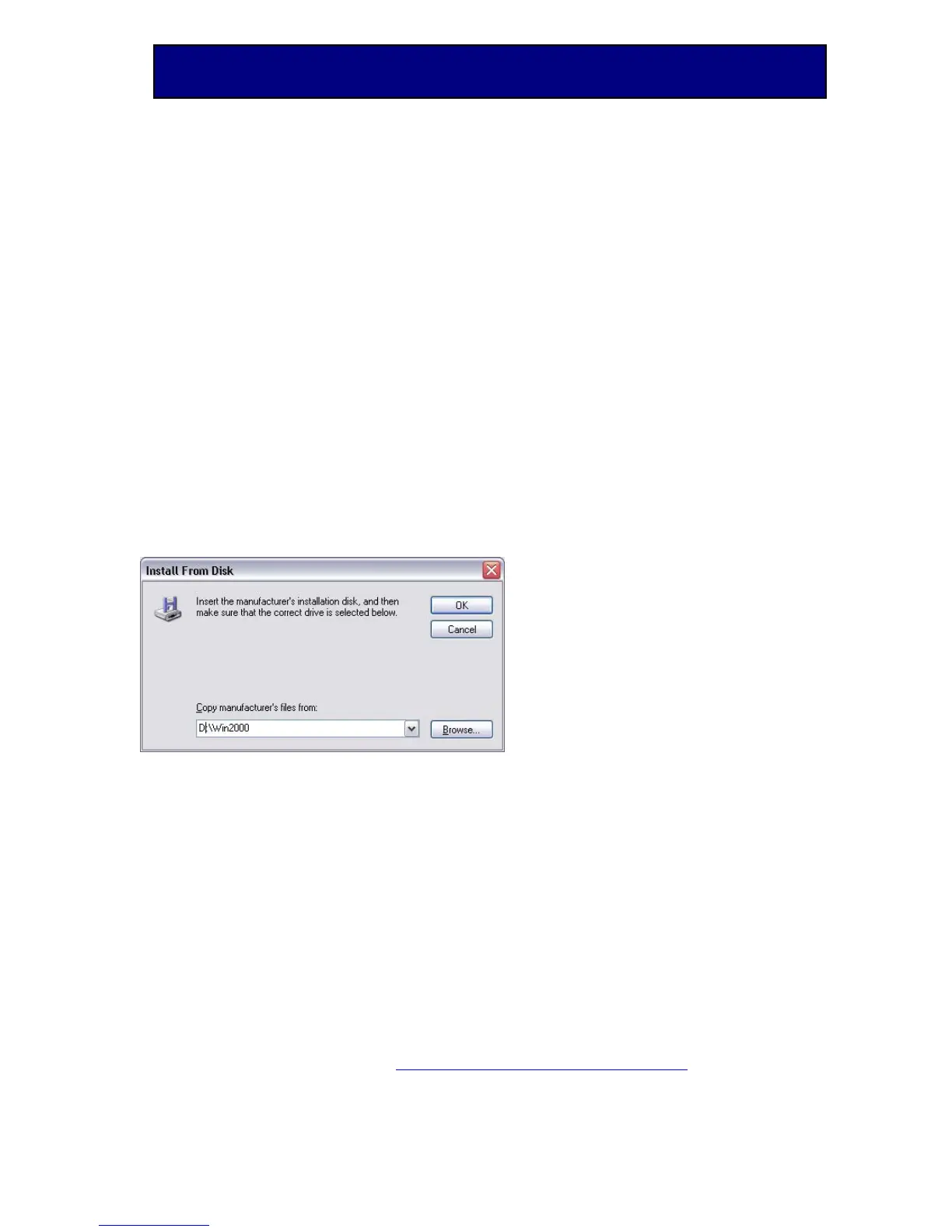
In the Install From Disk screen, type in D:\Win2000 (where D:\ is your CD-ROM
drive) and click “OK”
Highlight “SiPix Pocket Printer A6” and click “Next”
On the Name Your Printer screen, type in SiPix Pocket Printer A6, select whether
or not you want this to be your default printer, and then click “Next”
On the Printer Sharing Screen, select “Do not share this printer” and click “Next”
On the Print Test Page Screen, select “No” and click “Next”
Click “Finish” to complete Printer Driver setup.
A Microsoft Hardware Installation warning message may appear, you can ignore this
message by clicking “Continue Anyway” (Ignoring this message will not effect your
computer or printer driver)


 To Next Page