Pocket Printer A6 User’s Guide
SiPix Technical Support http://www.sipixdigital.com/support/
9
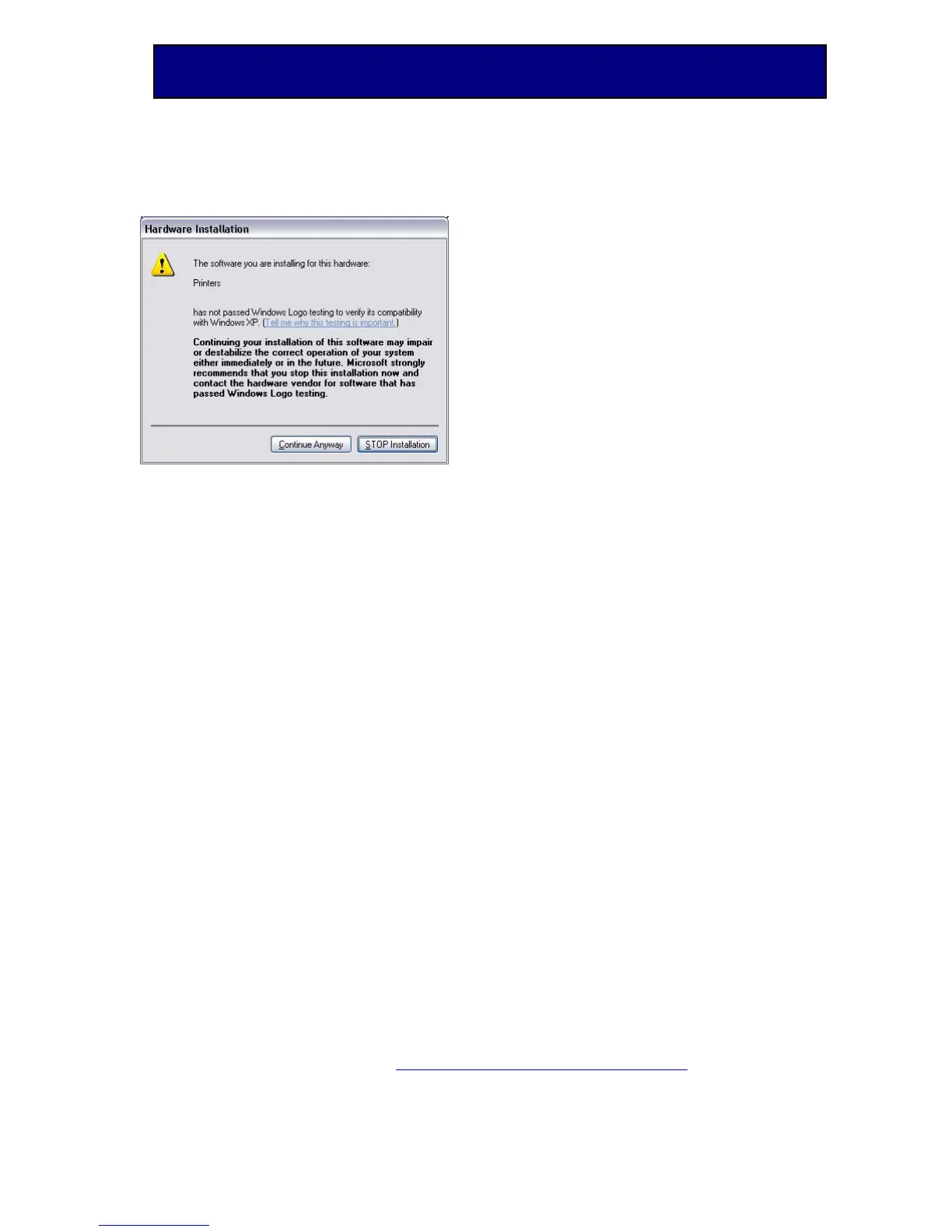
An installation bar will appear, when it completes processing, your Pocket Printer A6
Printer Driver will be installed on your computer.
Configuring the RS-232 Serial Port
Note: If you are using COM 2 please substitute below for Com 1.
Highlight the “My Computer” icon on your desktop and use the right mouse button
to right click on the icon, then pull down to “Properties” and left click
“Properties” on this menu.
Choose the “Device Manager” tab on the “Computer Properties” screen. (See Figure
A)
Highlight “Communications Port (COM 1) and press the “Properties” button, this will
bring up the “Com 1 Properties” screen. (See Figure B)
Change the port settings:
From: Bits per second “9600” – Stop Bits “1” – Flow Control “Xon/Xoff.”
To: Bits per second “115200” – Stop Bits “2” – Flow Control “Hardware.” (See
Figure B)


 To Next Page