GB 4
5. The OSD menu: the most important functions
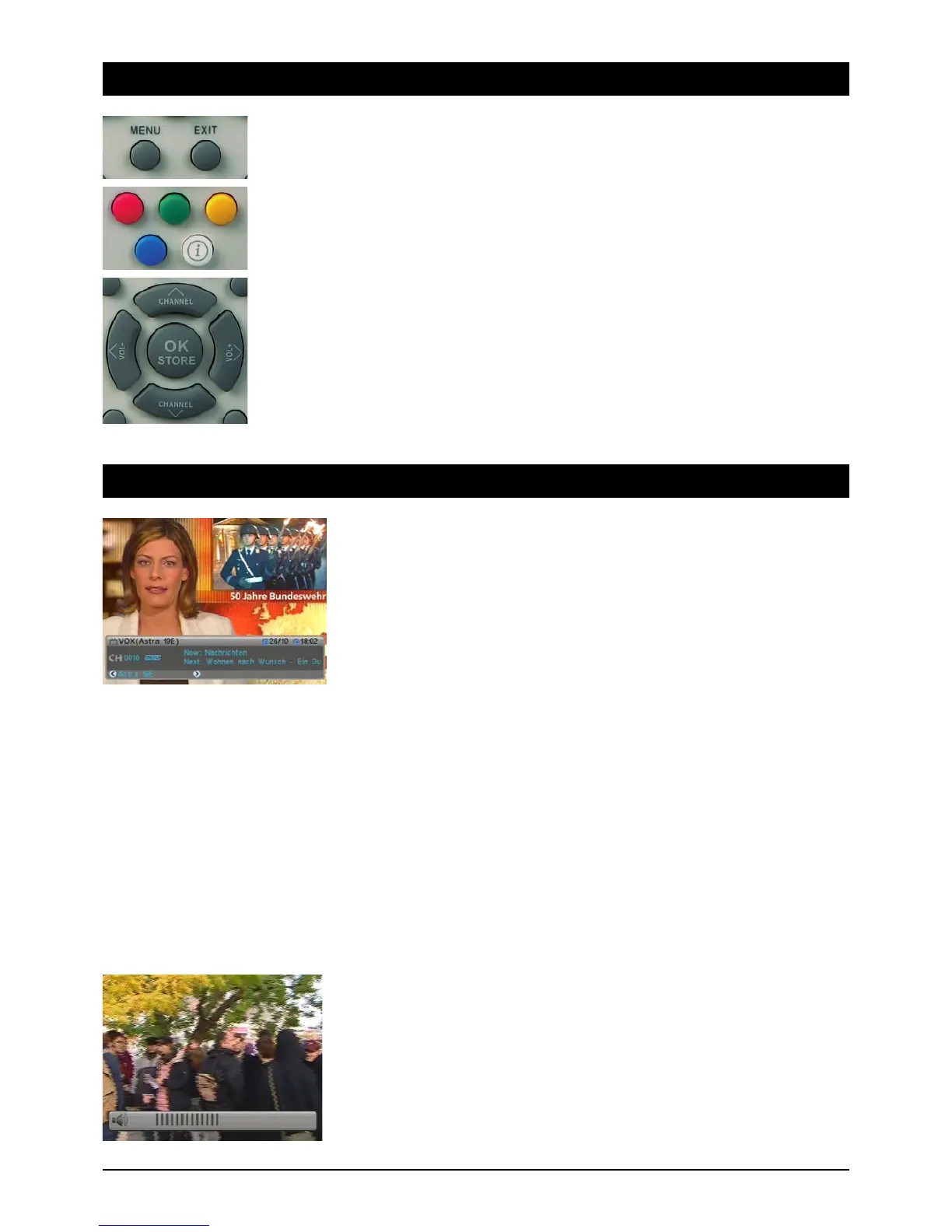
Call up and exit the OSD: you can control all your satellite receiver's settings via the on screen
display. Access it up pressing the MENU button. To exit the OSD press the MENU or EXIT button
until all the menus are closed.
Navigating the OSD: navigation within the OSD is carried out using the blue control buttons or
directly with specific buttons. These buttons and functions are displayed on screen. In most cases
you use the number buttons on the remote control. In case you have problems with some of the
technical information in the OSD, you will find a glossary at the back of the operating instructions.
General information on the OSD: the receiver is preconfigured so there is no need to make any
changes or hardly any at all. The OSD is clearly laid out and the buttons you have to use to make
specific changes are displayed on screen. Fortunately, this means you can put the operating
instructions to one side and take them out only when you need them, e.g. after a satellite system
upgrade.
If digital satellite TV is new territory for you, you should take a little time to read through the operat-
ing instructions. You will find several options in the instructions for upgrading your antenna system
appropriately.
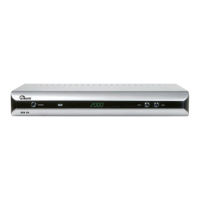
Channel Information:
After switching on or switching channels, an info screen appears, which provides a variety of
information about the channel:
Date/time
Channel name
Title of the program (current and next program)
Teletext available/unavailable
Subtitles
Where saved (e.g. CH 0189)
Satellite name and position
Type of channel list (e.g. All Satellites, Favourites, Sport)
The amount of information displayed depends on the station in question. If no additional information
is transmitted by the channel, you are notified (e.g. “no channel information”). You can call up the
info screen at any time by pressing the OK button. You can change how long it remains on screen
(1 - 10 seconds) (refer to configuration/OSD settings).
Note: If you are unable to select specific channels, the likely reason is that your Favourites or a
group list such as Sport, Music or Movies is active. To select the list you want press the BROWSE
button and press the 왗 or 왘 buttons until the overview you want appears.
Selecting audio channels:
Some broadcasts are transmitted with several channels of audio. These audio channels may include
several languages or different radio stations.
To select an audio channel or a language press the AUDIO button. Choose what you want from the
list and close it by pressing EXIT.
In addition you can specify whether the left or right hand channel is played back. The unit is
preconfigured so you always hear stereo sound.
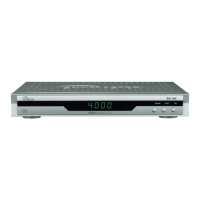
Volume settings / audio mute:
To adjust the volume use the VOL- and VOL+ control buttons. To mute the sound press the button
with the crossed out speaker icon. You can restore the sound by pressing this button again or the
volume buttons.
6.1 The OSD menu: Info screen, audio channels and volume


 To Next Page