GB 5
6.2 The OSD menu: Direct channel selection, etc.
With the ever-growing number of channels this means increasing complexity as well: many channels are only of regional importance (e.g. foreign
languages), many are encrypted and can only be received by paid subscription and with a special receiver or are simply of no interest. In order to
ensure you have a good overview of channel lists, various channel groups and sorting criteria are available. You can select channels in various ways:
Direct channel selection using numbered buttons 0 - 9:
If you know where the channel you want is stored in the channel list, you can enter it directly using the number buttons (e.g. 108 for “sample TV”). In
a few moments the satellite receiver will display the desired channel. TIP: By pressing the ALT button, the receiver switches to and fro between the
current and previous channels.
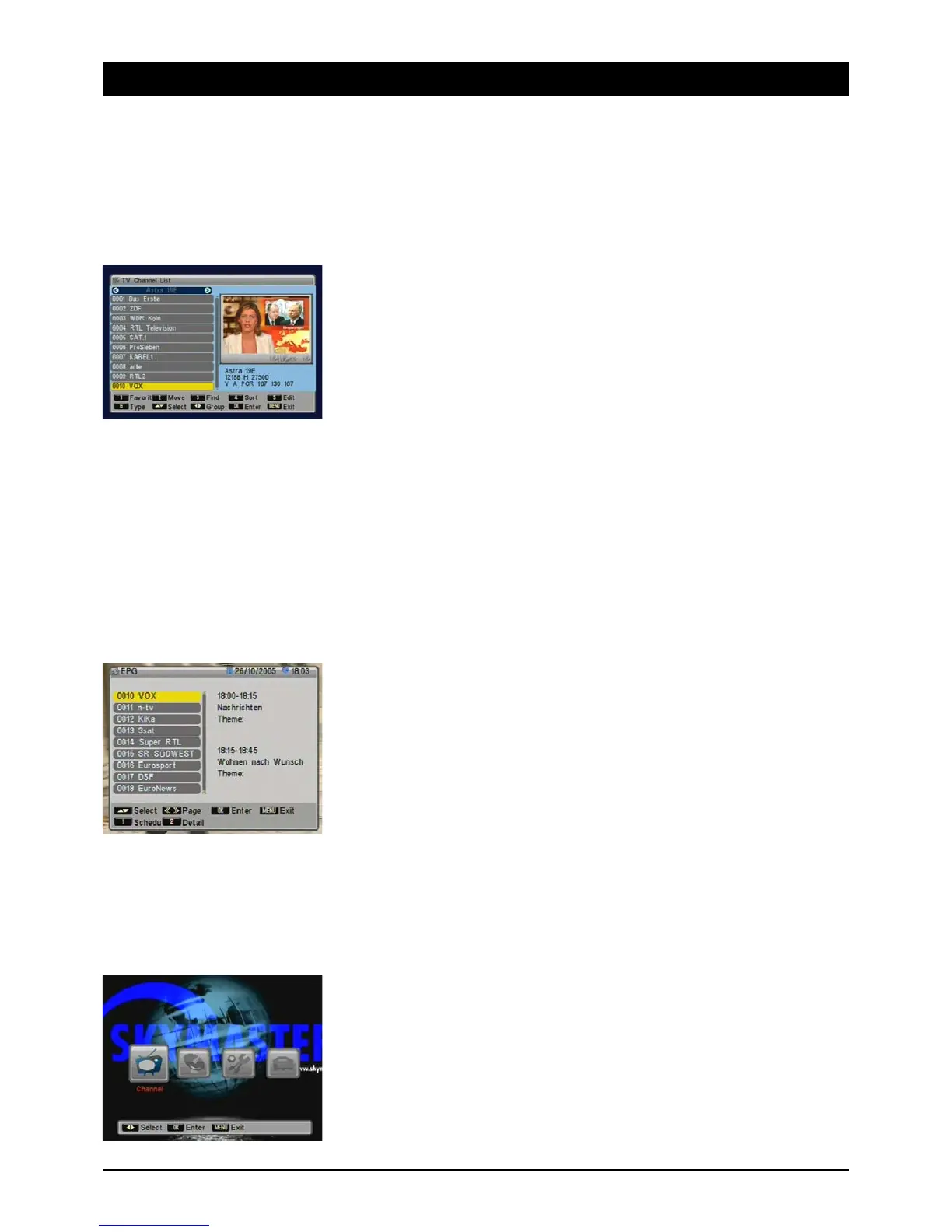
Display channel list:
You can obtain an overview of all the stored channels by pressing the BROWSE button. Navigate this
list by using the CH buttons. Use the two PAGE buttons to “skim through” the list faster. Once you
have found the channel you want, press the EXIT button to quit the list.
A particularly convenient way of accessing specific channels quickly is via channel groups: when you
call up a TV or radio station list, you can select various groups using the 왗 and 왘 buttons:
the “All Satellites” group shows all the stored channels for all available satellites. To transfer chan-
nels to your Favourites or other group lists (Sport, Music, Movies, News, etc.), choose the options
“Favourite” and “Type”. The procedure is explained in the instructions below.
Freezing the image:
By pressing the FREEZE button you can stop the moving picture, similar to the pause function in a
VCR. You can still hear the sound. Press the button again and the normal TV picture is displayed.
Display subtitles:
Occasionally programs are transmitted with subtitles, e.g. for the hard of hearing or in various
languages. To call up the subtitle selection, press the SUB button. If subtitles are not available,
“no subtitles” will be displayed.
Teletext/Videotext:
Many stations transmit additional information and services. Teletext pages are “electronic maga-
zines”, which enable you to see the latest news, sports results, weather forecasts, commercial offers
and much more besides. The amount and content of these are determined by the transmitting sta-
tion. The directory is always on page 100. Here you can get an overview of other sub-pages (e.g.
page 200, sports review). Always enter the page number as three digits or press the control buttons.
Press EXIT to leave the Teletext pages.
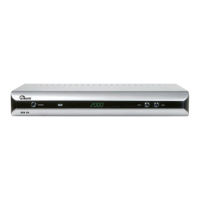
EPG – the electronic program guide:
Like Teletext, the Electronic Program Guide (EPG) is not transmitted by every channel. Its contents
may also vary greatly. Hence, there will be no further reference below to terms such as “if supported
by the channel”.
The EPG shows a daily or weekly overview of current or upcoming programs and their transmission
times. By pressing the [2] button you can access information about the program, which opens in a
new window.
By pressing the [1] button you switch to a weekly overview (max. 14 days) of the selected channel.
Use the control buttons to navigate the calendar bar and an overview of the selected day. When you
find a program that interests you, simply press the [2] button to add it to the timer. The satellite
receiver will switch on at the time you select and the program can be recorded on a VCR. The timer
functions are described in detail below.
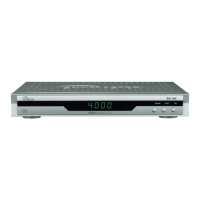
When you press the MENU button, the main menu appears on the screen. You can access sub-
menus from this menu and modify your receiver's settings. You can change the look of the OSD, add
or remove channels, tune the receiver to your SAT system, load new software via satellite and much
more besides. However, you could just as easily mess everything up and the screen would remain
blank. To prevent this from happening, you should read the following pages carefully before doing
any modifications.
Navigating and calling up sub-menus:
After you call up the main menu the left menu item (CHANNEL) is highlighted. You can highlight the
other three using the LEFT/RIGHT control buttons. To access the sub-menus press OK. Using the
UP/DOWN control buttons you can highlight the sub-menu required and open it by pressing OK.
Close menus:
Menus either close automatically after you have confirmed your preferences by pressing OK or you
can close all the open menus one after another by pressing EXIT or MENU.


 To Next Page