SL-10N Cloud
19 20
Network
Basic
Advanced
Wi-Fi
ONVIF
RTSP
Mobile phone
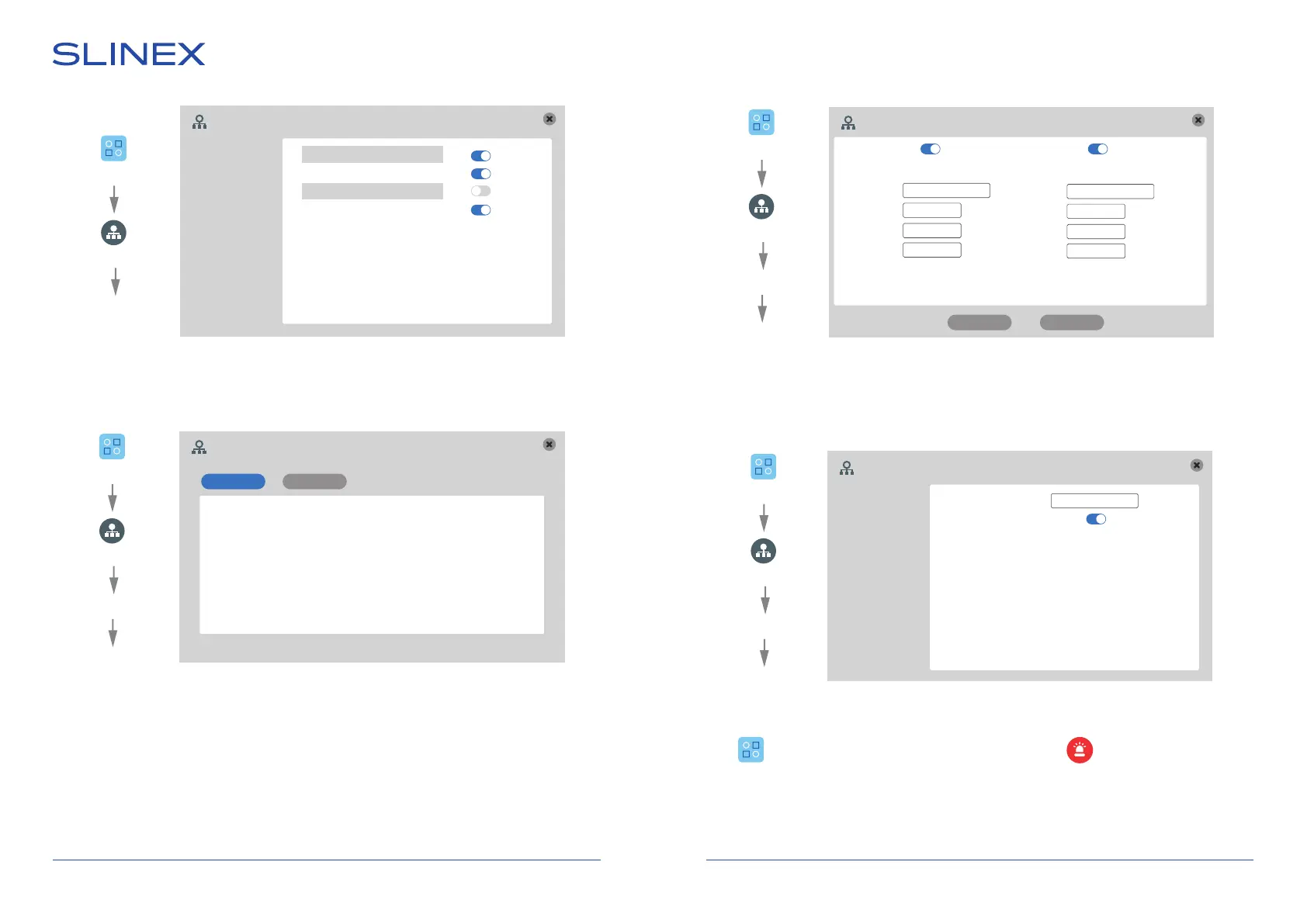
Settings → Network → Advanced → Wi-Fi
Press «Search Wi-Fi» button then choose desired Wi-Fi network from the list, enter the network password
and press «OK» button.
Settings → Network → Advanced → ONVIF
Channel − enable/disable IP camera display for the current video channel;
Device ID − IP camera name;
IP address − camera IP address;
Port − IP camera connection port;
User − user name;
Password − account password;
Status − IP camera connection status.
Settings → Network → Advanced → Mobile phone
Push time (s) − push messages delay time (from 00 to 30 seconds);
Push − enable/disable push-messages.
Wi-Fi
Search WiFi Add
mvalentin 1 (100/100)
TP_LINK_F50C (100/100)
TP_LINK_9656 (78/100)
Robocop (65/100)
IPC Device
Channel 3 4
Device ID IPCAM_1 IPCAM_2
IP address
Port
User
Password
Status Ok Disconnect
Advanced
Phone configuration
00Push time (s)
Push
Network
Advanced
Settings
Wi-Fi
Network
Advanced
Settings
Mobile devices
Network
Advanced
Settings
ONVIF
Network
Advanced
Settings
192.168.001.150
80
Admin
********
192.168.001.155
80
Admin
********
Search Save
6.3.4. Motion detection settings
Press icon on the tool bar to enter monitor settings, then press icon to enter motion
detection settings.
Software motion detector can detect motion without any external sensors using any camera image
changes with the time. Camera power, that is used for motion detection, should be constantly on to let
the monitor observe image changes and detect motion.


 To Next Page