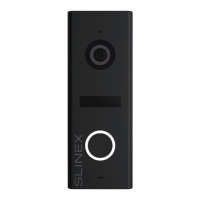
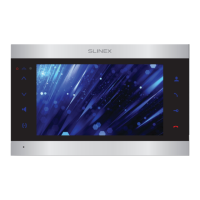
SL-10N Cloud
31 32
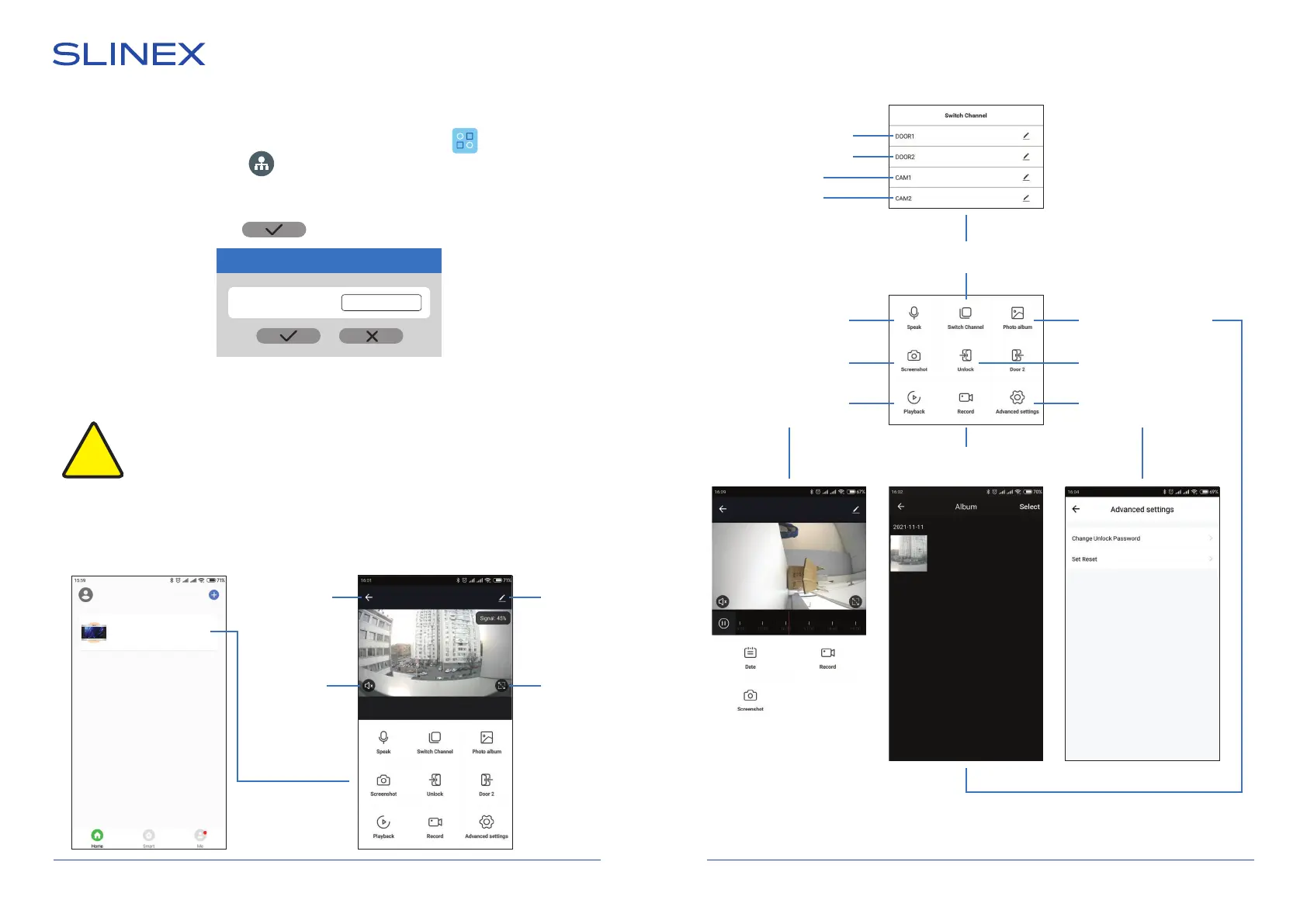
8.3. Wireless Wi-Fi network connection steps
1) Swipe any direction across the moitor screen to enable the tool bar. Press icon on the tool bar to
enter monitor settings, then press icon to enter network settings. Choose «Advanced» bookmark
and enable Wi-Fi adapter by the switch on the right. Enter Wi-Fi settings by clicking on the «Wi-Fi» sign.
Press «Search WiFi» button. You will see the list of available networks. Choose Wi-Fi network from the
list, enter its password and press button:
6) Follow step 2-6, described in the paragraph 8.2. of this manual;
If current device is already paired to some account in
the «Smart Call» application
, then it
is impossible to add this device to any other account. To add this device to some other
account delete this device in the account, it is currently connected to or use device
sharing on the main acount!
!
Password
Skynet
8.4. Operation
Press device icon
to start monitoring
Go to the
main menu
Enable conversation
mode
Outdoor panel 1
Outdoor panel 2
Camera 1
Camera 2
Take a snapshot
Record video
Video channels
switching
Records playback
from the
monitor archive
Mobile phone records
local archive playback
Open lock
(Default password:
888888)
Advanced settings
menu
Enable sound
from the
outdoor panel
Main
settings
Full screen
mode
Main menu Monitoring menu
SL-10N Cloud
Вверх
Просмотр
Ответить
Открыть
Отбой
Вниз
Громкость
Влево
Интерком
Вправо
SL-10N Cloud
SL-10N Cloud


 To Next Page