SL-10N Cloud
25 26
6.3.8. Device information
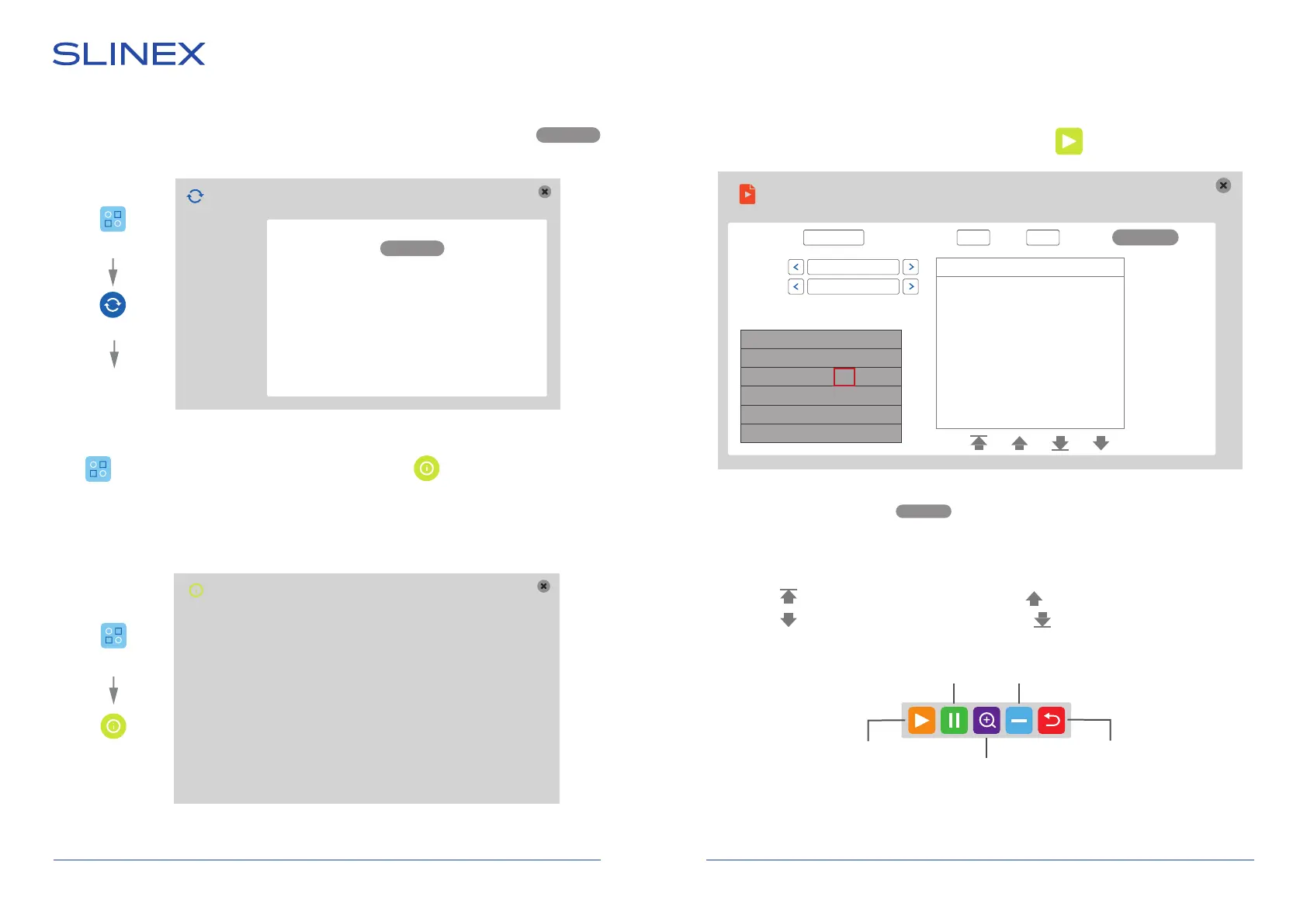
Press icon on the tool bar to enter monitor settings, then press icon to enter device
information menu.
Settings → Information
In this menu you can find device information, such as device ID, software version, production date,
etc.
Information
Device ID
User ID
Recording channel
I/O Alarm
Software version
Release date
MAC
NAT status
cglb099c149d66fa787f
kynwwbiYI0G1wg3mWtB7YM4mhkgoftA3
4
2
V 1.0.1RW
2022-05-28
00:11:4b:c3:d2:e3
Enable
Settings
Information
Settings → Maintenance → Upgrade
Copy upgrade file to the root folder of SD card, insert SD card into the monitor slot and press
button. Do not turn the monitor off till the end of upgrading process.
Upgrade
6.4. Playback
Swipe any direction of the screen to enable the tool bar, then press icon to enter playback menu.
Start/stop
playback
Exit playback
mode
Pause
System maintenance
SD
Default
Upgrade
Upgrade
System upgrade
Playback
Sun. Wed. Sat.
01 02 03 04 05
06 07 08 09 10 11 12
13 14 15 16 17 18 19
20 21 22 23 24 25 26
27 28 29 30 31
Channel Time Size
01 06:33:30-06:34:26 10.3M
01 06:34:26-06:35:31 11.4M
01 06:35:31-06:36:48 11.3M
1/1
Date 08/09/2022 Time 00:00 -- 23:59
Media Video
Rec type All
Search
Enter date and time and then press button to nd reccords specied in your request.
Channel column shows the channel number of the record source. «Time» and «Size» columns shows
current record starting time and its size in MB.
Click on the le to start playback in full screen mode. When the playback ends the monitor returns to the
le list. Press button to go to the rst page of the list or button to go to the previous page of
the list. Press button to go to the next page of the list or button to go to the last page of the
list. Following toolbar controls playback:
When you disabled the playback panel in playback mode and want to enable it again then press and hold
the touch on any part of the screen.
Search
Zoom
Disable
playback panel
Settings
Maintenance
Upgrade


 To Next Page