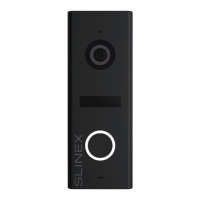
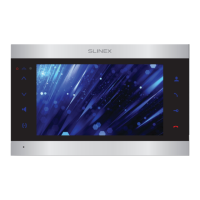
SL-10N Cloud
13 14
6.2. Tool bar
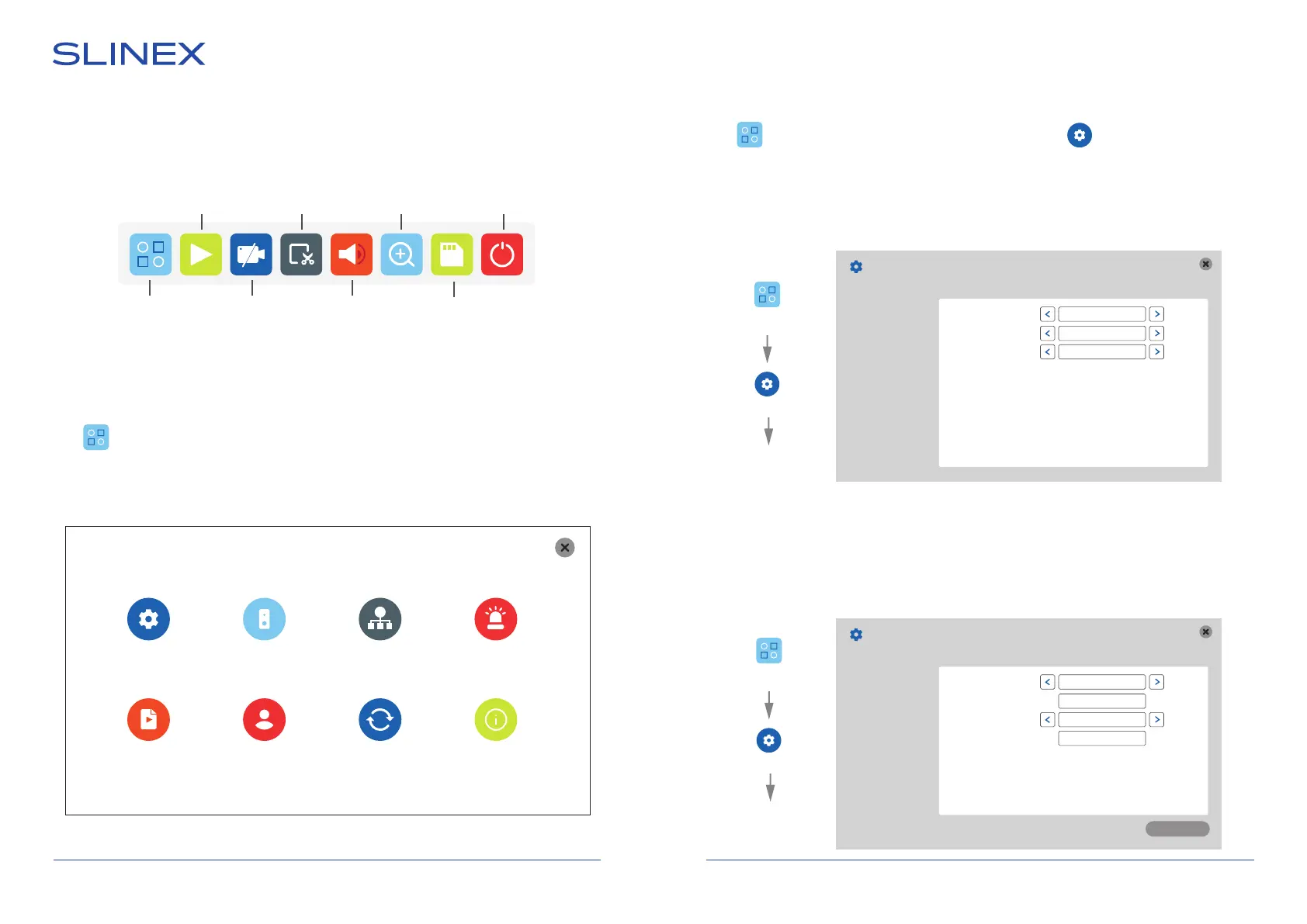
In standby or monitoring mode swipe any direction of the screen to enable the tool bar:
6.3. Settings
Press icon on the tool bar to enter monitor settings. If “Login with password” option is enabled then
user authorization menu appears. Choose user name Admin. Default password: 888888. Press «OK»
button to enter monitor settings:
6.3.1. System settings
Press icon on the tool bar to enter monitor settings, then press icon to enter system settings.
Settings → System → Basic
Language − monitor menu language;
CVBS out − additiaonal monitors video stadard: HD(AHD) or D1(CVBS);
Screensaver − clock display in standby mode (Digital - digital clock, Clock - analog clock or Disable).
Settings → System → Time
Date format − date displaying format (MM/DD/YY, DD/MM/YY or YY/MM/DD);
Date − current date setting;
Time format − time displaying format (24 Hour or 12 Hour);
Time − current time setting.
Choose image zooming icon on the tool bar then swipe the part of the image to enlarge it. Press and hold
any part of the screen to exit zooming mode.
Alarm
Maintenance
Configuration
System Door Network
Scheduling
Information
User
System
Basic
Time
Encode
Display
Language
CVBS out
Screensaver
English
HD
Digital
Settings
System
Basic
Time
Basic
Time
Encode
Display
Date format
Date
Time format
Time
DD/MM/YY
18/10/2022
24 Hour
12:00:06
Save
Settings
Playback
Start/stop
recording
Image
zooming
Snapshot
Volume
Reboot
SD card
extracting
Settings
System
Time


 To Next Page