54
D 725 | snom 720 User Manual Using the Phone
Call waiting
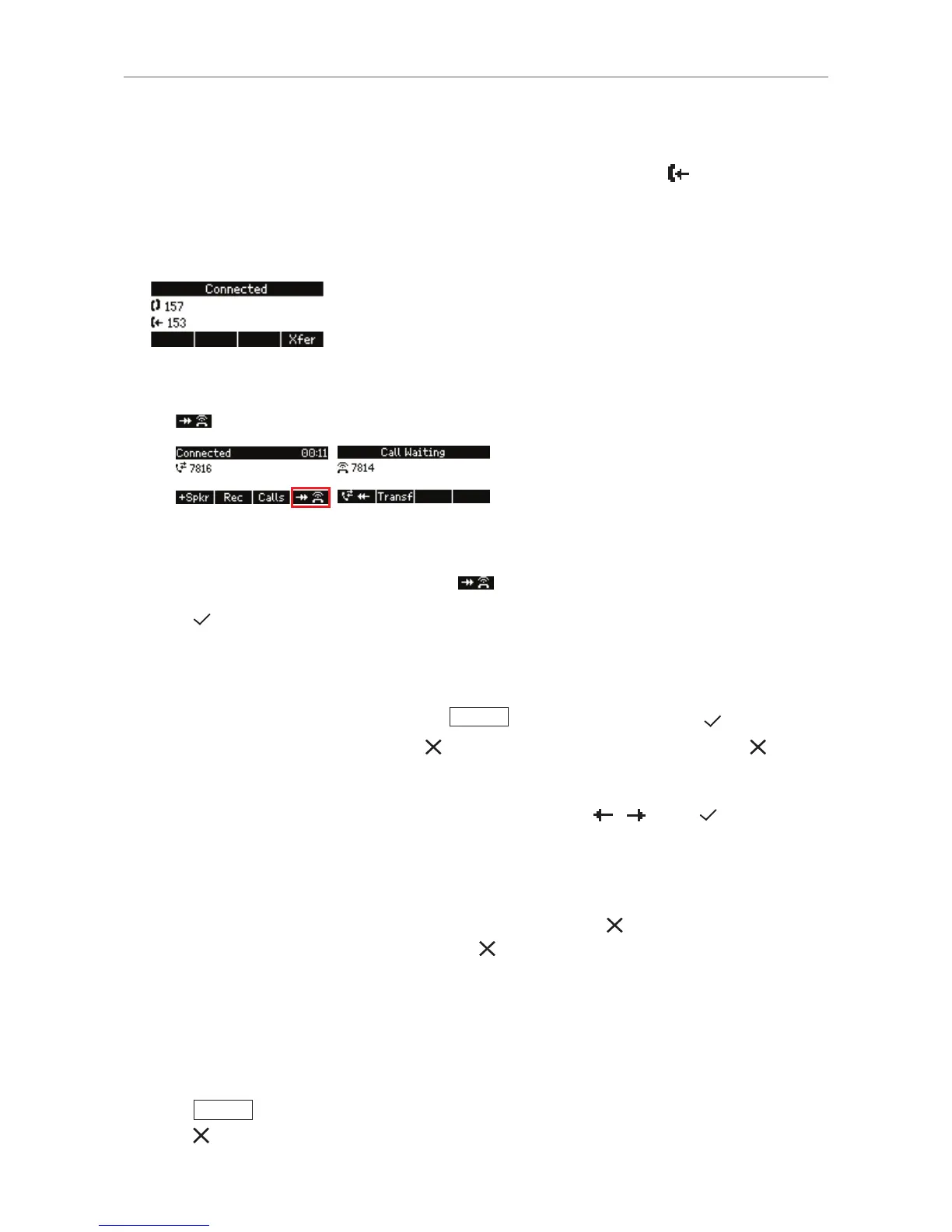
When you are in a call, another incoming call will be announced visually by the symbol and
acoustically by the sound of a double beep; you will also see caller ID on-screen if it is being
transmitted. Switch to visual or acoustic announcement only or turn call waiting o in the drop-
down menu on the phone’s web interface, Advanced > Audio > Call Waiting Indication. See also "Call
waiting" on page 73.
Note: In FW versions 8.7.3.15 and higher, 8.7.4.5 and higher, 8.7.5.1 and higher (please
check which branch applies to your phone), waiting calls are announced visually by the
symbol in the function key line (Fig. 1).
Fig. 1 Fig. 2
To accept or reject the waiting call, you must first open the Call waiting screen (Fig. 2)
by pressing the function key underneath . Continue as described below.
• Press
to accept the second call and put your current call on hold.
• If you do not wish to accept the call, you can:
◦ ignore the announcement. If you have set call forwarding when busy, the call will be
transferred to that phone.
◦ transfer the call (blind transfer). Press
Xfer
, dial the number, and press .
◦ reject the incoming call by pressing
. The caller hears the busy signal. Pressing for
three seconds will also put the caller on the Deny list of the phone's directory. Future calls
from this number will not ring on the phone; the caller hears the busy signal.
• If there is more than one call waiting, view and select them with
/ . Press to connect to
the on-screen call and put the current call on hold; the other call(s) waiting will remain waiting.
Terminating calls
• When using the handset: Place the handset in the cradle or press .
• When using speakerphone or a headset: Press
.
Missed Calls
Missed calls are indicated by the lit call LED and by the number of missed calls in the status line and/
or on the Status info screen.
• Press
Info
to open the "Status info" screen.
• Press
to turn call LED off.



 To Next Page