67
D745 User Manual Configuring the Function Keys
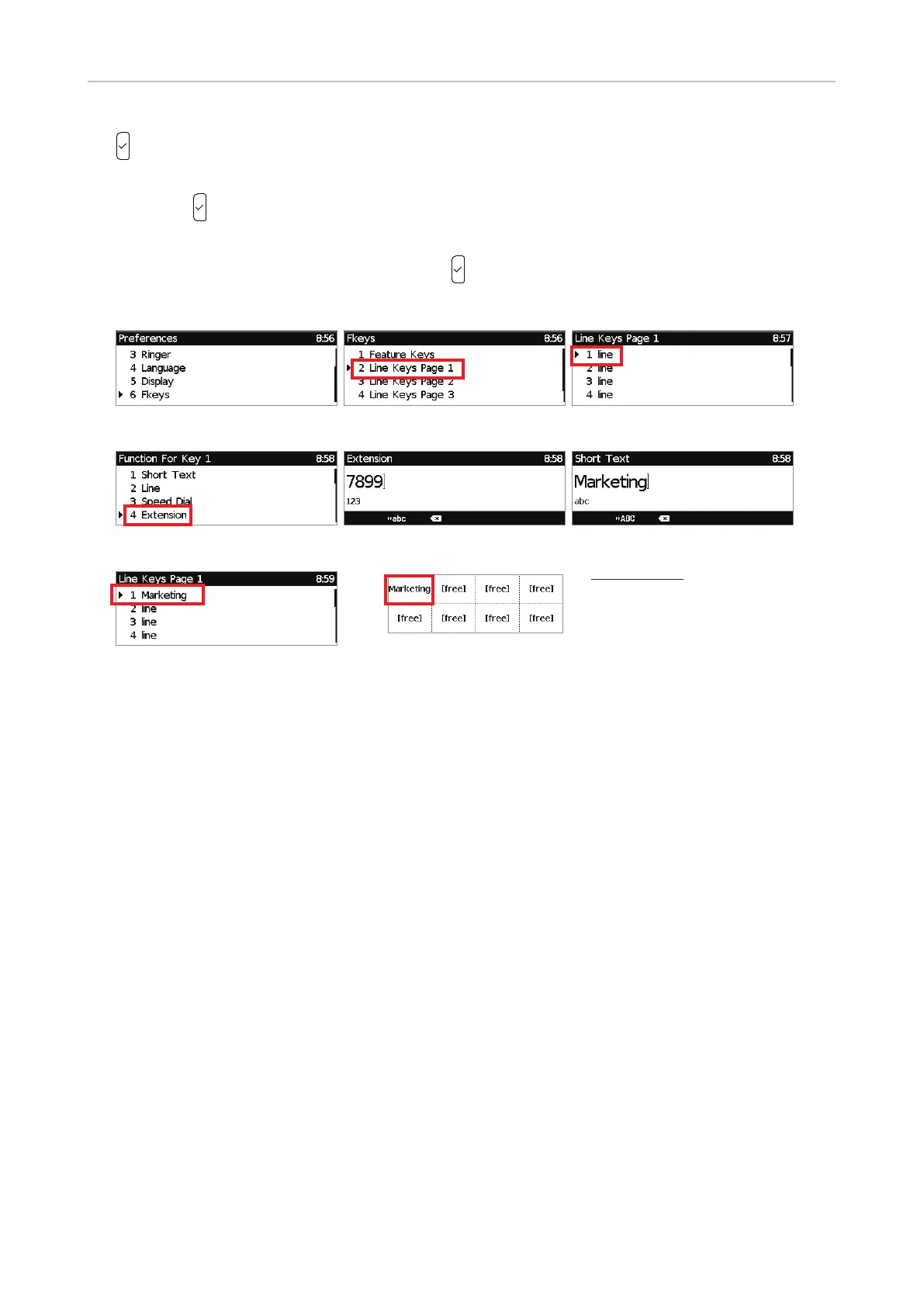
(Fig. 4).
5. The information you will then be prompted to enter depends on the selected functionality. Enter it
and press
(Fig. 5).
6. You will then be prompted to enter a Short Text. This is the label that will be displayed on the
function key screen. Enter the text and press
(Fig. 6). If you do not enter a text, the label area
will display the Number.
Fig. 1 Fig. 2 Fig. 3
Fig. 4 Fig. 5 Fig. 6
Fig. 7
Settings on the web interface
1. On the phone's web interface, click on Function Keys in the menu on the left.
2. Under Context of the key, select "Active" or one of the configured identities from the drop-down
list.
3. Under Type of the key, select the functionality from the drop-down list.
4. Depending on the selected functionality, there will be a text field or a drop-down menu in the
Number column. Enter the number or select an item from the list.
5. Optional: In the Short Text text field of the key, enter a name or descriptive text. This is the text
that will be displayed in the key's label area on the phone's function key screen or on the D7's
display. If the text field is empty, the label area will display the number.
6. Click on Apply and Save.
Example setting: Page 1, key 1,
functionality on key: extension,
extension number: 7899,
label text: Marketing


 To Next Page