13
iPDU - Ref.: IOMPDUXXXX02-GB 00
ENGLISH
3. GETTING STARTED
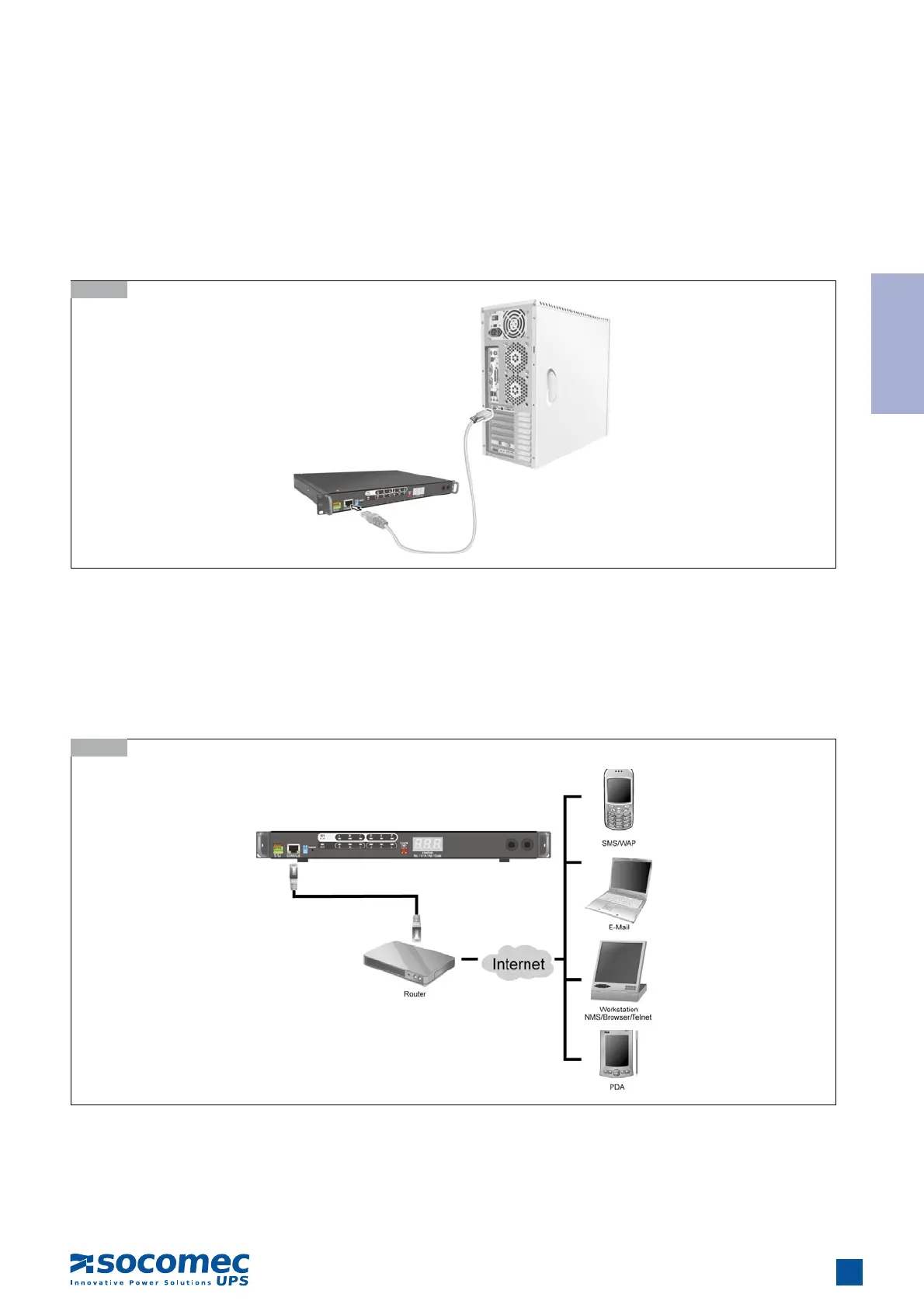
3.9. Connecting the Console
Users can control the output devices and manage the power status through a console or serial connection with a PC. Use the serial
cable provided in the iPDU package to connect the COM port of the PC and the CONSOLE port of the iPDU as shown.
Refer to Using the Console Menu on page 17 to learn how to use the console with a console application such as HyperTerminal
or Telnet.
3.9-1
3.10-1
3.10. Connecting to a LAN/WAN
The iPDU has an RJ-45 LAN connection that enables users to monitor and manage the power outlets and digital outputs over the
network. The iPDU has a graphic user interface that allows users to control the device through a web browser. Connect the iPDU
to a free port on the router using an Ethernet cable as shown. Users can then control the iPDU from a PC, laptop, mobile phone,
or PDA which is connected to the router network. Refer to page 19 for details on how to control the iPDU and its output devices
through the web.


 To Next Page