19
iPDU - Ref.: IOMPDUXXXX02-GB 00
ENGLISH
5. USING THE WEB INTERFACE
The iPDU provides a graphic user interface that can be viewed from a web browser such as Internet Explorer. This enables users to
access and control the iPDU outlets and then its output devices remotely from users’ desktop, laptop, PDA, or even users’ mobile
phone. This section provides instructions about how to use the web interface to configure and control the iPDU remotely.
5.1. Overview
Start a web browser such as Internet Explorer from the host PC or laptop and enter the IP address of the iPDU in the address bar. For
details about setting the IP address of the system see Setting the IP Address on page 18. You will be prompted to enter a Username
(admin) and Password (default password is public). Click Go and the main status page of the iPDU web interface will be displayed.
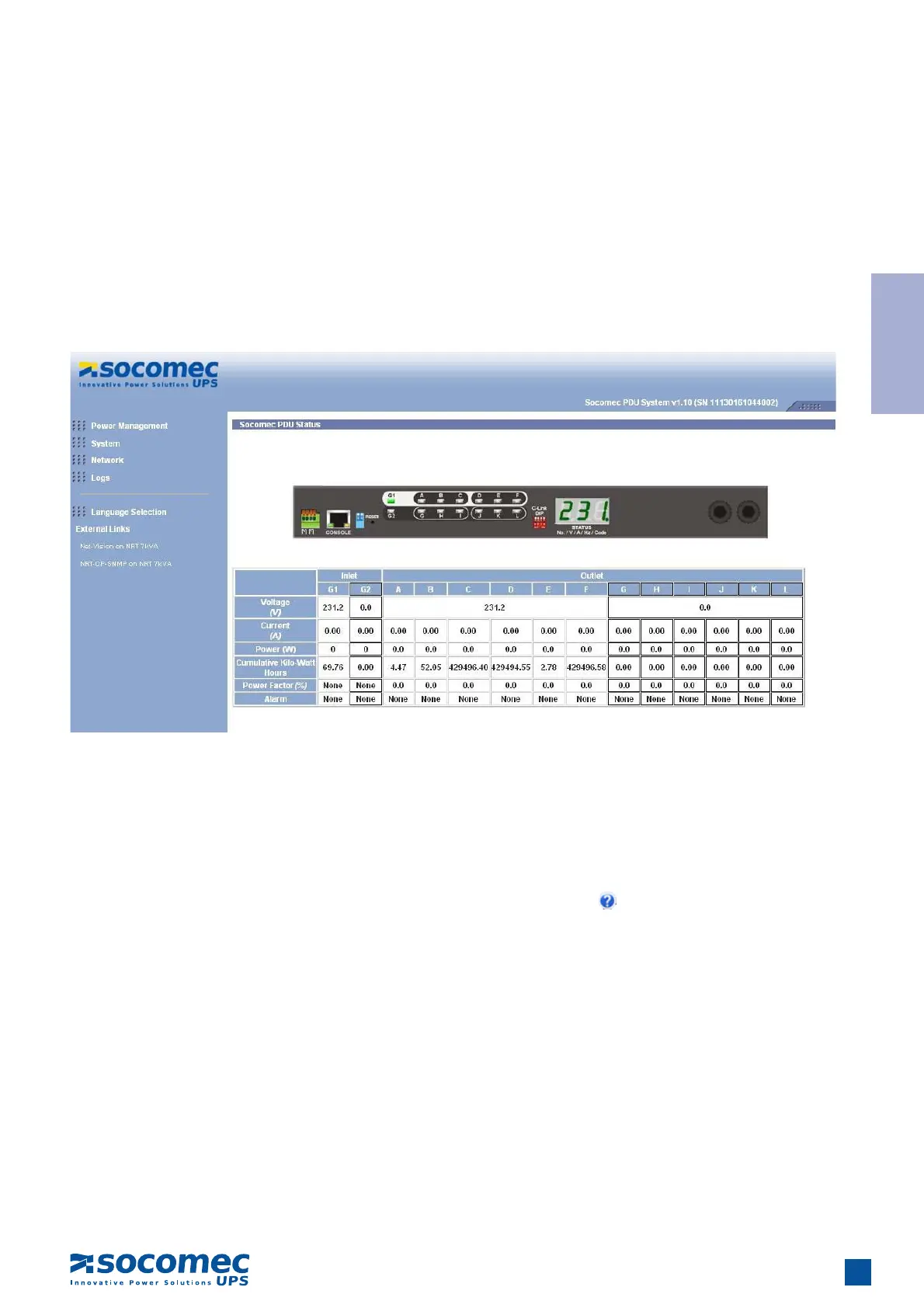
The main page shows a graphical representation of the iPDU outlets and inputs status as described below:
• The left pane shows the various menus and submenus for the iPDU. Click any menu to display the menu options, expand the menu
items, and modify the menu options as required.
• The front panel displayed in the right pane shows the status of the outlets, input power, input current and Cumulative Kilo-Watt
Hours. Click anywhere on the front panel to see detailed information about the iPDU input and output status.
Note:
• Each menu page provides online help to assist users in configuring the iPDU. Click the
icon at the top of each page to view
the help menu.


 To Next Page