17
iPDU - Ref.: IOMPDUXXXX02-GB 00
ENGLISH
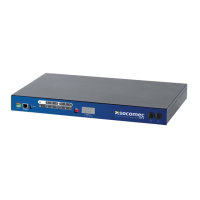
The iPDU is provided with a serial port that enables users to configure and control the system through the PC’s RS-232 serial (COM)
port. Use the serial cable provided to connect the console port to the PC’s COM port as described in Connecting the Console
on page 13. This section describes how to use a console application to control the iPDU and configure its settings such as the IP
address, outlet control parameters, access control table, and trap receivers table.
4.1. Using HyperTerminal
HyperTerminal is a console application in Windows that enables users to configure or control a device through command line param-
eters. Users can configure the iPDU parameters and its outlets through simple numerical commands from a PC keyboard. Users can
also use Telnet or any other console application to control the device in a similar manner.
4. USING THE CONSOLE MENU
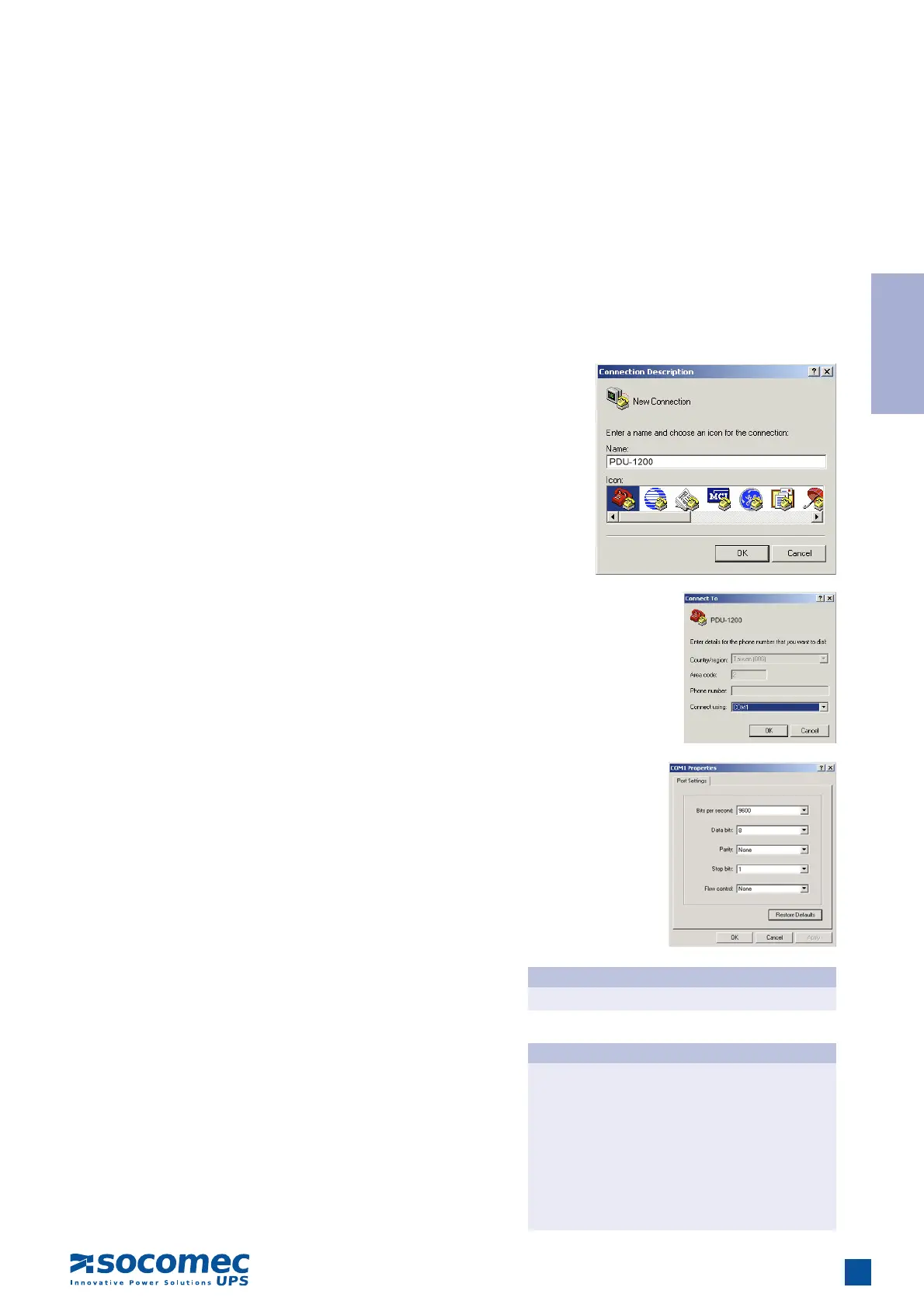
4. The Properties window will open. Click Restore Defaults to
use the default settings. Make sure that the Bits per second =
”9600”, Data Bits = “8”, Parity = “None”, Stop bits = “1” and
Flow Control = “None”. Click OK when completed.
Follow these steps to start HyperTerminal and communicate
with the iPDU:
1. To start HyperTerminal click Start, Programs, Accessories,
Communications, and HyperTerminal from the Windows
Start button.
2. A New Connection opens. Type a name for the connection
in the Name field and select an icon for the connection. Click
OK when completed.
3. From the Connect using drop-down box, select the COM
port that users have connected to the iPDU. Click OK when
completed.
5. Press any key. The iPDU Configuration Utility Main menu
will open and users will be prompted for a password. Type the
default password (public) and press Enter to continue.
The main menu options are displayed
iPDU Confi guration Utility Main menu
1. iPDU Confi guration
2. Outlet Control
3. Digital Output Control
4. EMD Control
5. Access Control Table
6. Trap Receiver Table
7. Reset Confi guration To Default
8. Restart iPDU
0. Exit
Please Enter Your Choice
iPDU Confi guration Utility Main menu
Enter Password: *****


 To Next Page