20
iPDU - Ref.: IOMPDUXXXX02-GB 00
5. USING THE WEB INTERFACE
5.2. Modifying the Basic Settings
The System menu enables users to configure the iPDU system parameters such as the administrator name, password, IP address,
date, time etc.. Some of these settings have been described here for users’ reference.
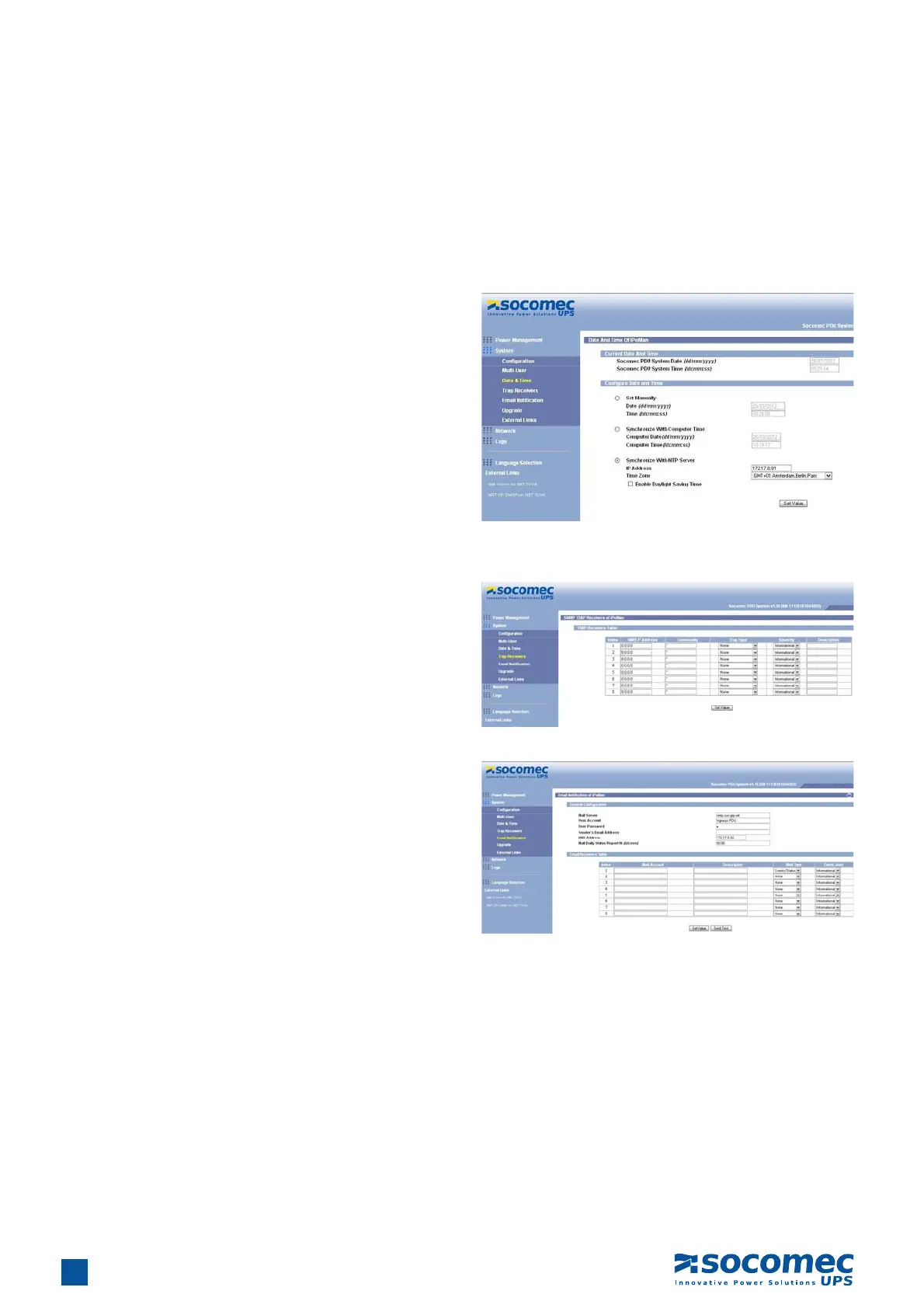
5.2.1. Setting the Date and Time
Click Date & Time under System to view and modify the system
date and time. This menu page displays the current iPDU date
and time. Select one of the options to configure the date and time
by setting it manually, synchronising with a computer’s time, or
synchronising it with an NTP server.
Note: When users change the system date and time it affects
various other system settings such as schedule, e-mail, traps,
and logs.
5.2.2. Changing Event Alert Settings
The iPDU sends email or SNMP trap alerts to specified users
when specific events occur. Use the following steps to set the
alerts:
• Click Trap Receivers under System to set up a list of users or
workstations who will be alerted with an SNMP trap message.
Use this menu page to specify the IP addresses of up to 8 trap
receivers, community information, type of trap, severity of trap,
and description of the events that cause the traps.
• Click Email Notification under System to set up a list of up
to 8 users who will be alerted with an email. Use this menu to
specify the mail server, user account, DNS, and other informa-
tion necessary to set up a mail server for sending mail alerts.
Use the Email Receivers Table to add the Email addresses.
(Note: Mail Server, DNS server, and User’s email must be
entered correctly in order to receive email notification)


 To Next Page