Version 6.2, February 2025
SolarEdge Solution Connection and Configuration Guide for Australia 8
Use the following cable type:
Communication - CAT6
ead all handling and safety instructions in the installation guides that comes with the Backup
Interface and the inverter.
WARNING!
Before connecting the Backup Interface to the inverter, ensure the battery and inverter power is off.
Only x7 cores are required for all Backup Interface to Home Hub connections, therefore a single
CAT6 cable with a minimum of x4 twisted pairs can be used.
CT Connections
Ensure that the following polarity for the CT connections are made:
Connection inside Backup Interface:
L1 – Positive
CT – Negative
Connection inside DCD Inbuilt Meter
L1 – Positive
C – Negative
Single Phase Home Hub Inverter
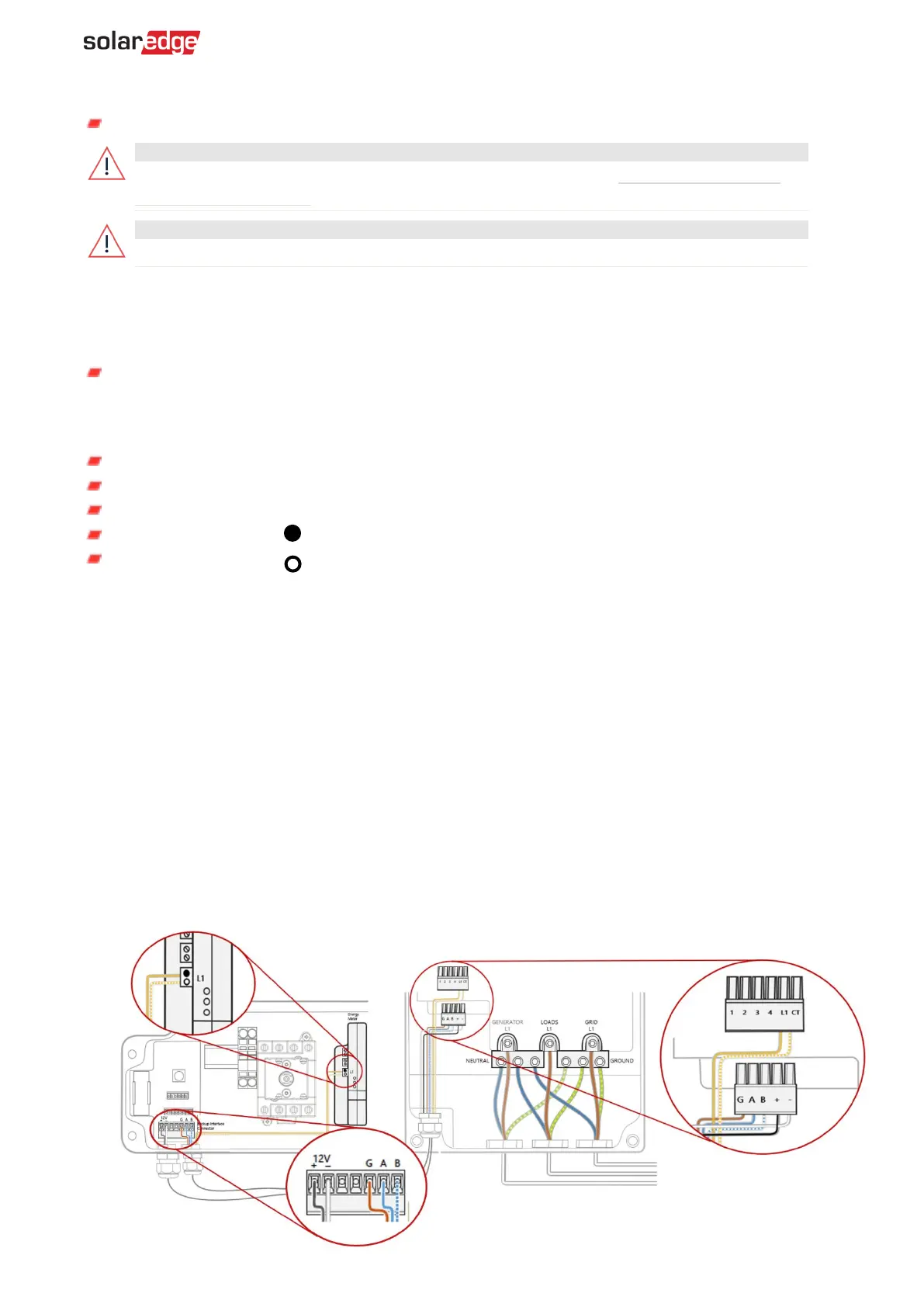
To connect communication between the Backup Interface and the inverter:
1. Open the communication gland at the bottom of the Backup Interface and feed one end of the
communication cable through one of the gland openings at the bottom of the Backup Interface.
2. Connect the communication cable to the Backup Interface's RS485 connector as displayed
below.
3. Connect the 12V power supply connection to the Backup Interface's Modbus connector as
displayed below.
4. Connect the CT connection to the Backup Interface's CT terminal connector as displayed below.
5. Open the communication gland at the bottom of the inverter's Connection Unit.
6. Feed the other end of the communication cable through one of the gland openings.
7. Remove the connector from the port labelled Backup Interface on the communication board.
8. Connect the RS485 communication cable to the connector, as displayed below.
9. Connect the 12V power supply connection to the connector, as displayed below.



 To Next Page