•
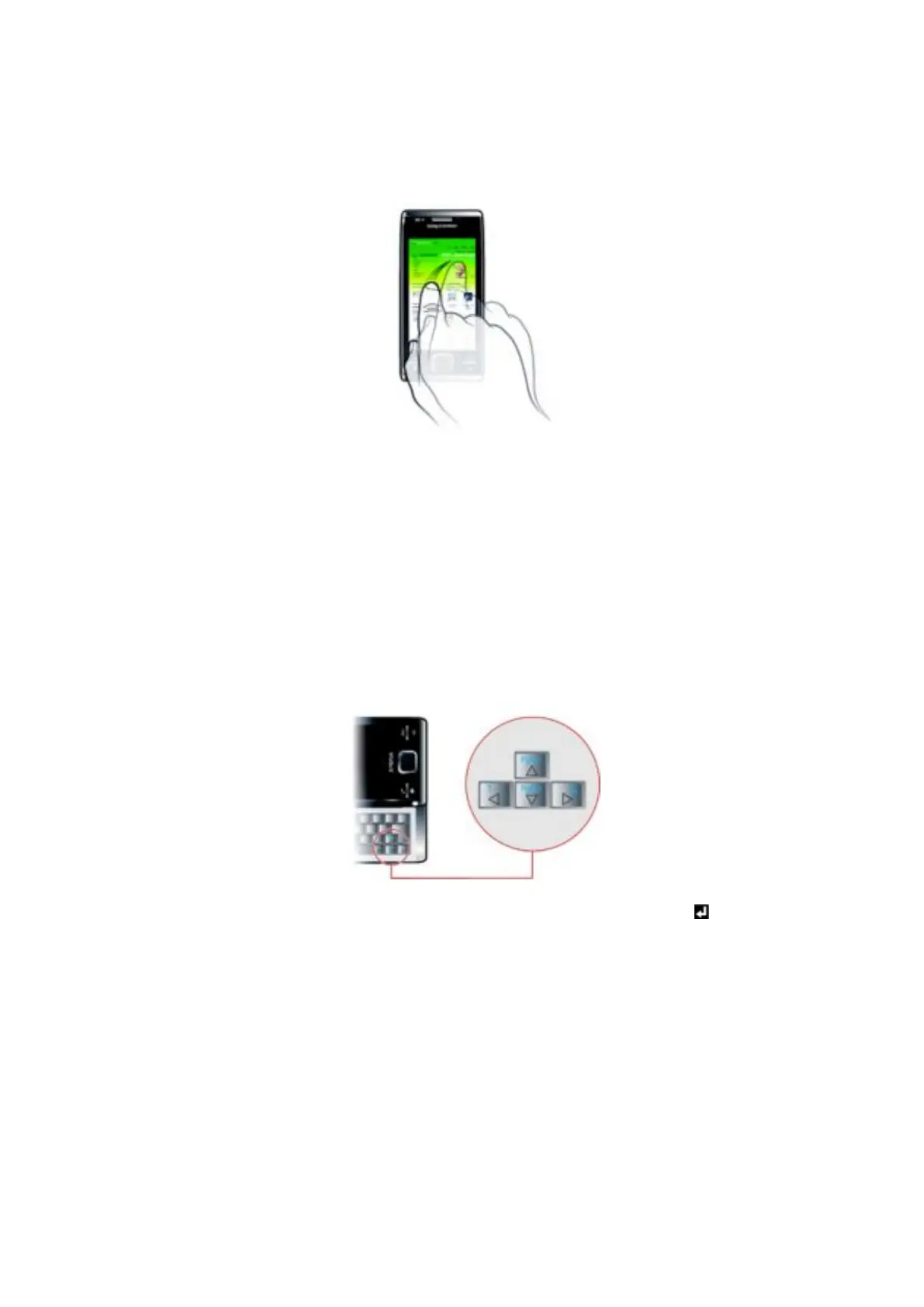
The stylus, or your finger, on the touch screen
•
The arrow keys on the keyboard
•
The optical joystick
Using the touch screen
•
To highlight or open an item, tap the item.
•
To copy, rename or send a file, tap and hold down the file or folder. Select the preferred
action from the options dialog.
•
To scroll, tap the screen and slide up or down. On some pages you can also slide to the
side.
•
To stop the screen from scrolling, tap the screen.
•
To pan a page, touch and hold on the screen, then drag your finger.
•
To pan continuously, drag your finger towards the outer limits of a page and hold. Release
your finger to stop panning.
Using the arrow keys
To use the arrow keys
•
Press the arrow keys left, right, up or down to move around the screen. Press
to
select an item.
Using the optical joystick
You can move the highlighted marker in any direction by letting your finger glide over the
navigation key. In Microsoft® Internet Explorer®, Messaging and Contacts, you can use
the optical joystick to scroll instead.
10
This is an Internet version of this publication. © Print only for private use.










 To Next Page