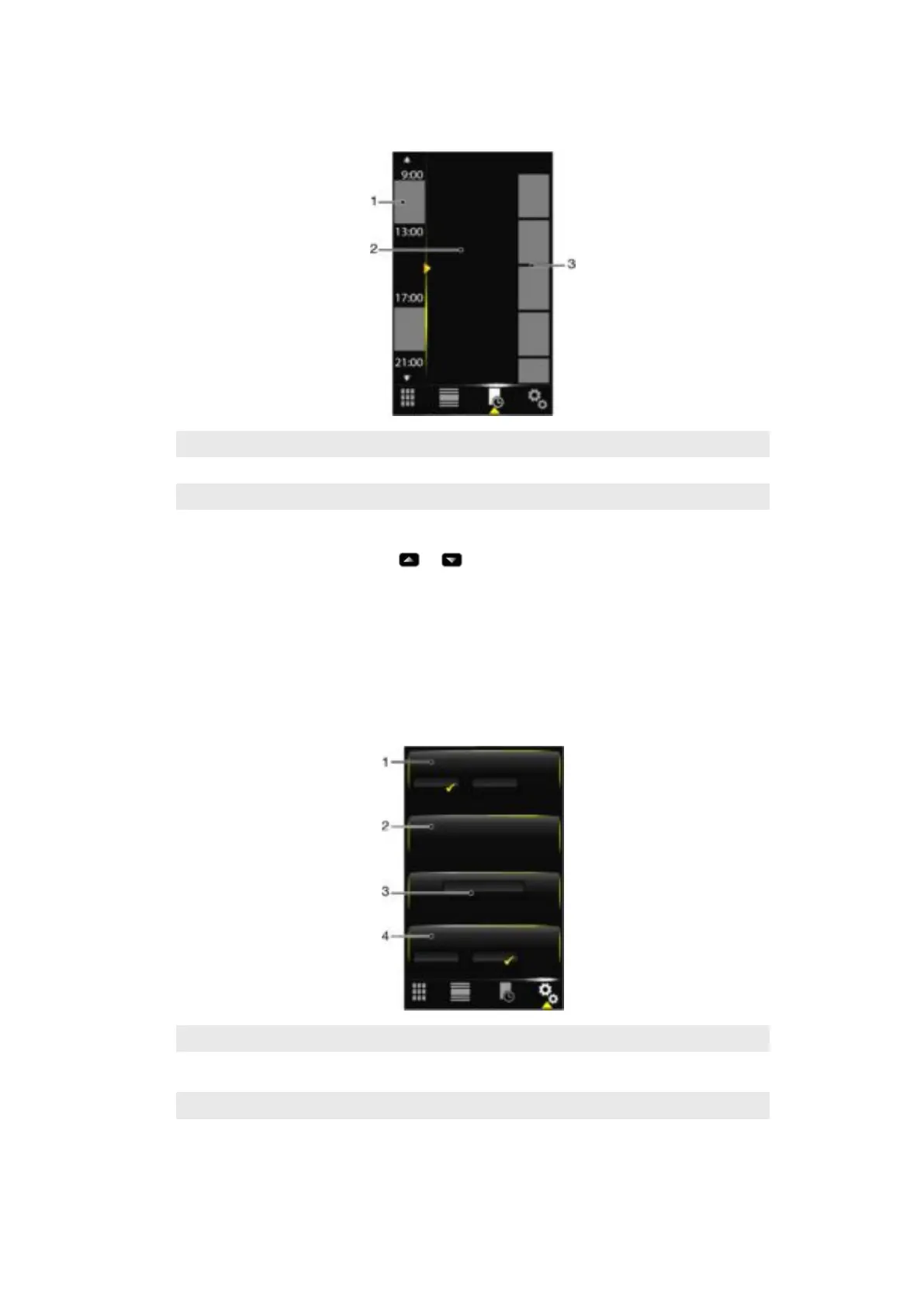
Auto panel switching
Auto panel switching changes the current panel automatically at a selected time.
1 Timeline
2 Added panels in timeline
3 Available panel list
To change the time in the timeline
•
In Auto panel switching view, tap
or .
To add panels to the timeline
•
Drag the panels you want from the available panel list to the timeline.
To remove panels from the timeline
•
Drag the panels you want to remove from the timeline to the available panel list.
Panel manager settings
1
Auto panel switching on/off - Turn Auto panel switching on or off
2 Release information/Update - Download the latest version of the Panel manager application. If the current
Panel manager application is the latest version, the Update is disabled
3 Get more panels - Download new panels for your device
4 Use Data Connection - Enable or disable data connection to be used to update information about the
panels from PlayNow
22
This is an Internet version of this publication. © Print only for private use.










 To Next Page