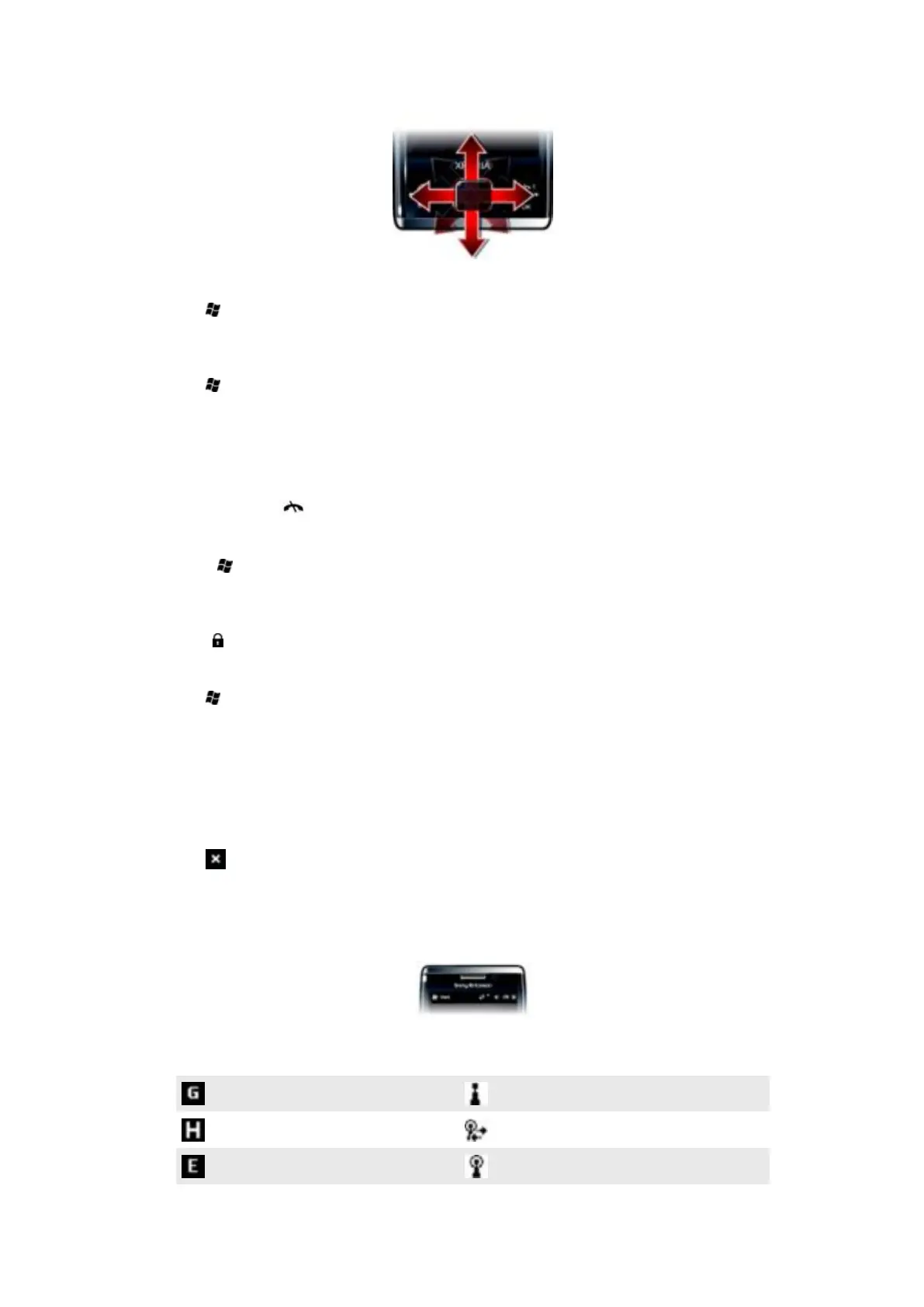
To enable key press simulation
1
Tap > Settings > System > Optical Joystick.
2
Mark or unmark the Enable key press simulation check box.
To enable mouse simulation
1
Tap
> Settings >System > Optical Joystick.
2
Mark or unmark the Enable Mouse Simulation check box.
Screen lock
To lock the screen
•
Press and hold .
To lock the screen when the slideout keyboard is open
1
Press
on the slideout keyboard.
2
Tap Lock.
To unlock the screen
•
Slide
to the left or right on the screen.
To use a screen lock code
1
Tap
> Settings > Lock.
2
Checkmark the Prompt if phone unused for box, select a time interval, and enter
a code for unlocking the screen.
3
Tap OK > Yes.
Closing an application
To close an application
•
Tap
in any application window to close the application.
Status icons
You can tap an icon in the status bar to get more information or to start an application.
The following status icons may appear on your screen:
GPRS available
Wi-Fi function enabled
HSDPA available Scanning for available Wi-Fi connections
EDGE available Wi-Fi connected
11
This is an Internet version of this publication. © Print only for private use.










 To Next Page