32
GB
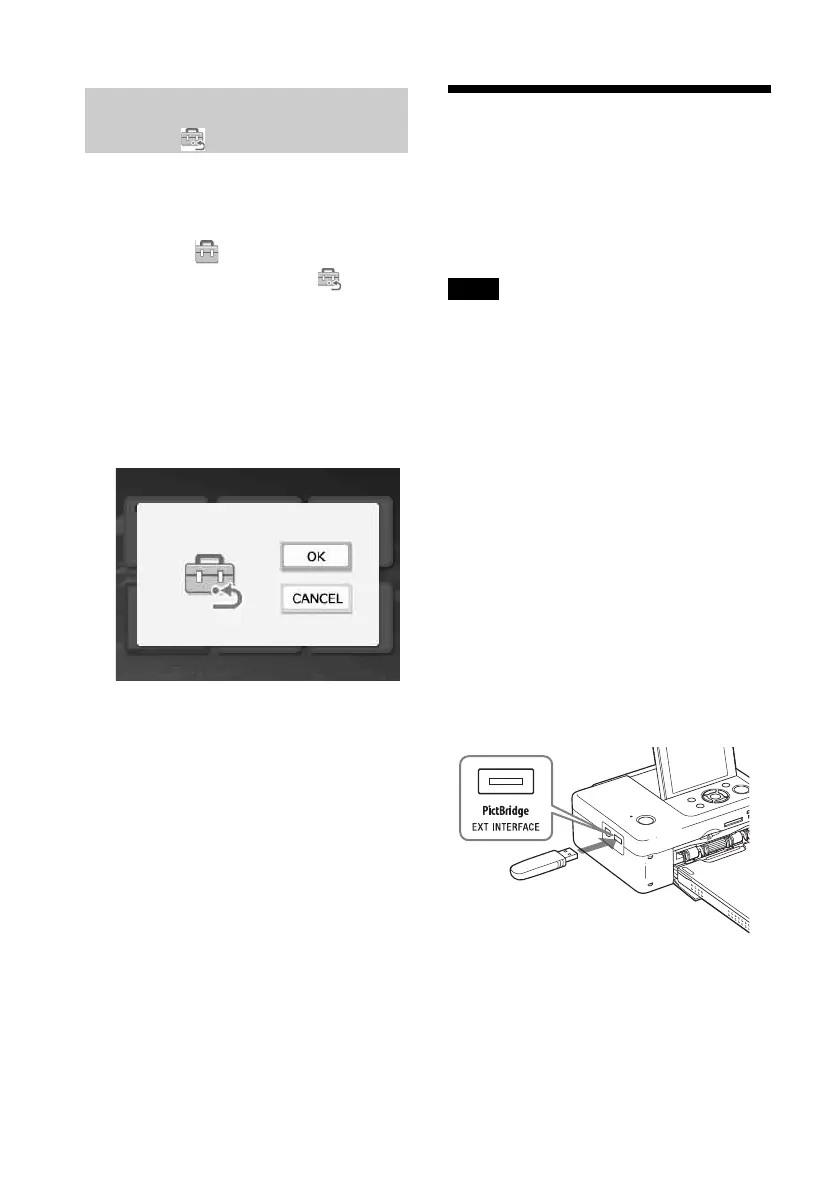
You can reset all the settings to the default
settings.
1 From the (Print setup) menu,
press g/G/f/F to select
(Default Setting) and then press
ENTER.
The confirmation window is displayed.
2 Press f/F to select “OK” and press
ENTER.
The printer settings are reset to their
default settings.
Printing from a USB
memory
You can connect a USB memory and the
printer, and print an image directly from the
USB memory.
Notes
• We cannot guarantee connection with all types of
USB memory.
• We cannot guarantee connection with a mass
storage-compliant digital camera or photo storage.
• If a memory card is inserted in the printer, the
printer cannot read the signal from a USB memory
connected to the PictBridge/EXT INTERFACE
connector of the printer. Remove the memory card,
if any.
1 Connect the printer to the AC power
source (page 12).
2 Press the 1 (on/standby) button to
turn on the printer.
3 Connect a USB memory into the
PictBridge/EXT INTERFACE
connector of the printer.
Resetting to the Default
Setting
To PictBridge/EXT
INTERFACE connector
USB memory



 To Next Page