Item Settings
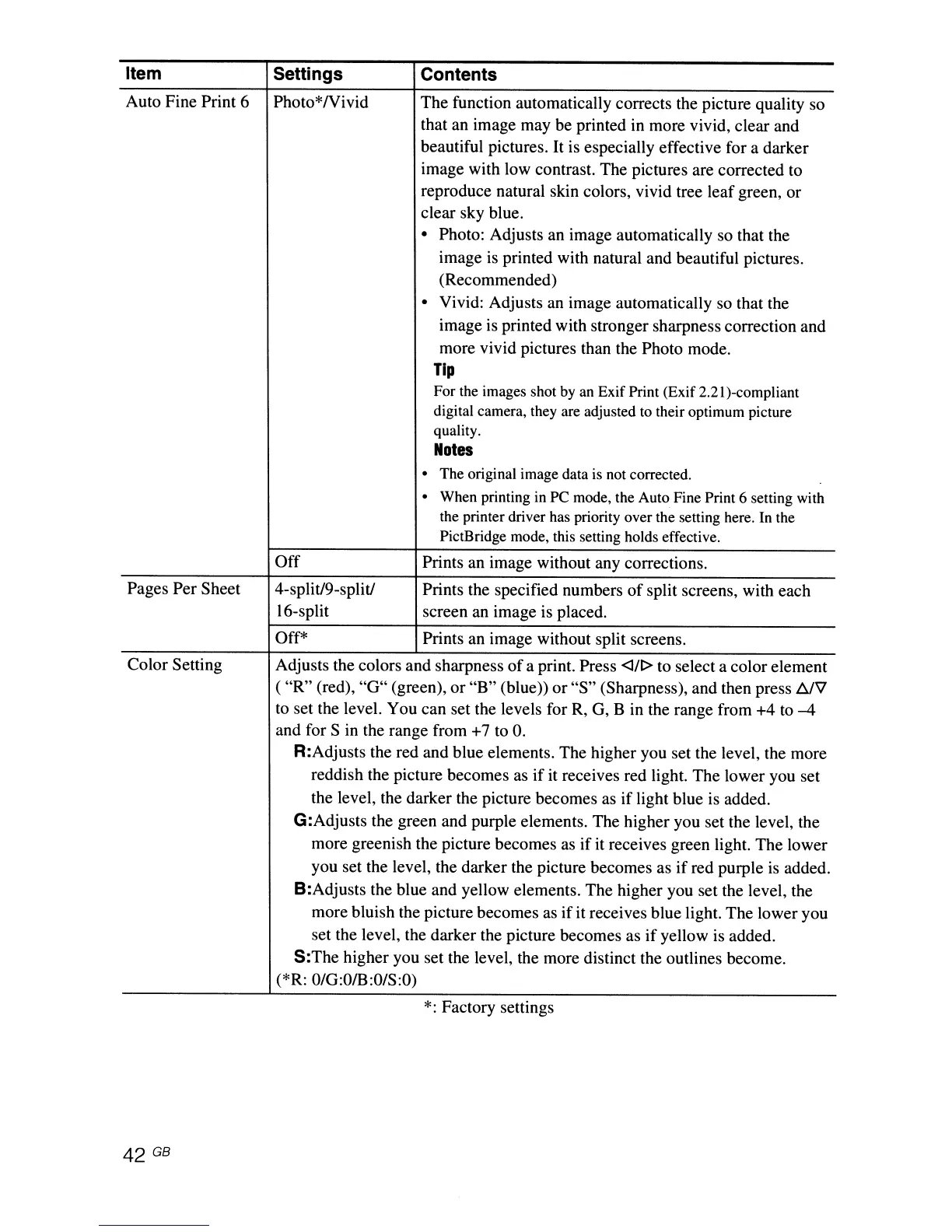
Auto Fine Print 6 Photo*Nivid
Contents
The function automatically corrects the picture quality so
that an image may be printed in more vivid, clear and
beautiful pictures. It is especially effective for a darker
image with low contrast. The pictures are corrected to
reproduce natural skin colors, vivid tree leaf green, or
clear sky blue.
• Photo: Adjusts an image automatically so that the
image
is
printed with natural and beautiful pictures.
(Recommended)
• Vivid: Adjusts an image automatically so that the
image is printed with stronger sharpness correction and
more vivid pictures than the Photo mode.
Tip
For the images shot by an Exif Print (Exif 2.21)-compliant
digital camera, they are adjusted to their optimum picture
quality.
Notes
• The original image data is not corrected.
• When printing in PC mode, the Auto Fine Print 6 setting with
the printer driver has priority over the setting here. In the
PictBridge mode, this setting holds effective.
Pages Per Sheet
Color Setting
42 GB
Off Prints an image without any corrections.
4-split/9-splitJ Prints the specified numbers
of
split screens, with each
16-split screen an image is placed.
Off* Prints an image without split screens.
Adjusts the colors and sharpness
of
a print. Press <lIt> to select a color element
( "R" (red),
"G"
(green), or
"B"
(blue» or"S" (Sharpness), and then press
DJV
to set the level. You can set the levels for R, G, B in the range from +4
to
-4
and for S in the range from
+7
to
O.
R:Adjusts the red and blue elements. The higher you set the level, the more
reddish the picture becomes as if it receives red light. The lower you set
the level, the darker the picture becomes as if light blue is added.
G:Adjusts the green and purple elements. The higher you set the level, the
more greenish the picture becomes
as
if it receives green light. The lower
you set the level, the darker the picture becomes as
if
red purple
is
added.
B:Adjusts the blue and yellow elements. The higher you set the level, the
more bluish the picture becomes as ifit receives blue light. The lower you
set the level, the darker the picture becomes as
if
yellow is added.
S:The
higher you set the level, the more distinct the outlines become.
(*R:
O/G:O/B:O/S:O)
*:
Factory settings



 To Next Page