• When you are using a television that does not
support the control for HDMI or you connect a
television with the printer for the first time, your
television may not switch input automatically.
If
this occurs, switch the input manually to display
the printer pictures on the television.
Procedures for switching the input differ
depending on the type
of
a television. For details,
refer to the manual supplied with your television.
•
If
you remove
or
connect an HDMI cable while the
printer is performing an image-processing, printing
or
other time-consuming job, the display may
switch between LCD and television. Until the
job
is competed, however, the display may show
unusual view.
During copying file, deleting file
or
other file
operations, do not remove or connect
an
HDMI
cable. Doing so cancels the job.
Using the printer
buttons
for
printing
1 Insert a memory card into the
printer.
To print an image in the internal memory,
press ENTER without a memory card
inserted.
2 Press
<1/1>
and ENTER of the printer
to select an image, and then press
PRINT to start printing.
The printing procedures are the same as
those with the printer itself. You can
perform Edit and CreativePrint operations.
Using the television remote
control
unit
for
printing
When you connect the printer with a
"BRAVIA" Sync-ready television with an
HOMI cable, you can use the remote control
unit
of
your television to operate the printer.
46
GB
--
• We cannot guarantee operations with all types
of
televisions.
• When you are using a Sony TV, you cannot use the
TV remote control to operate the printer if the TV
does not support "BRAVIA" Sync.
• To operate the printer, the
BElrnrn,
[Enter],
[Return] buttons
of
the remote control should
support the HDMI control.
•
If
the HDMI control setting
of
your television is
off, you cannot use the TV remote control to
operate the printer. Settings differ depending on
the television you use. For details, refer to the
manual supplied with your television.
•
If
"CONTROL FOR HDMI"
is
set to "Off," you
cannot use the TV remote control to operate the
printer (page 44).
• Basic printer operations with a
TV
remote control
unit
• When a cursor is displayed in an index view
or menu display, you can move the cursor by
pressing
BElrnrn.
• When
no
cursor is displayed in an image
preview, press
rn
to display the operation
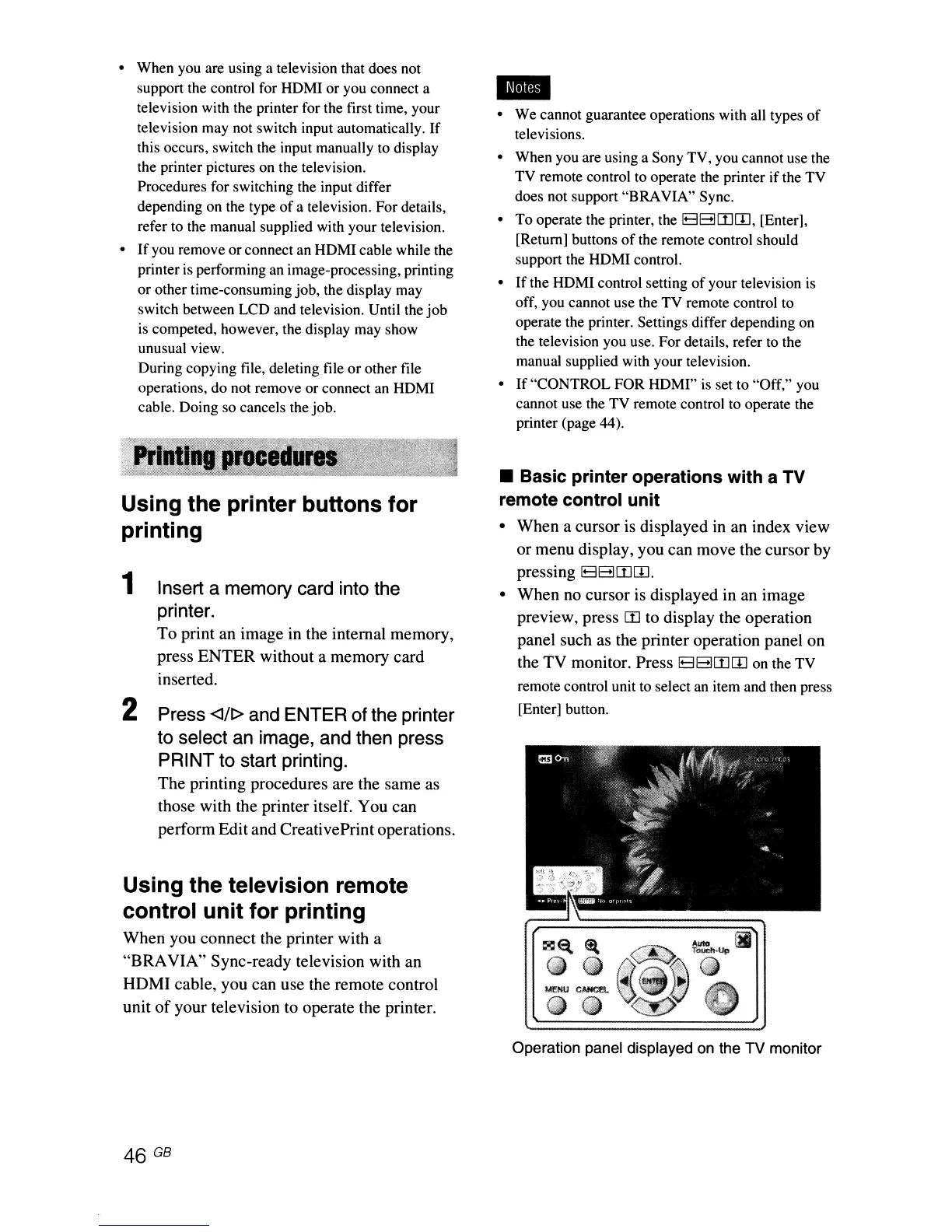
panel such as the printer operation panel on
the TV monitor. Press
BElrnlIl
on the TV
remote control unit to select
an
item and then press
[Enter] button.
Operation panel displayed
on
the TV monitor



 To Next Page