,
Printing
trom
a
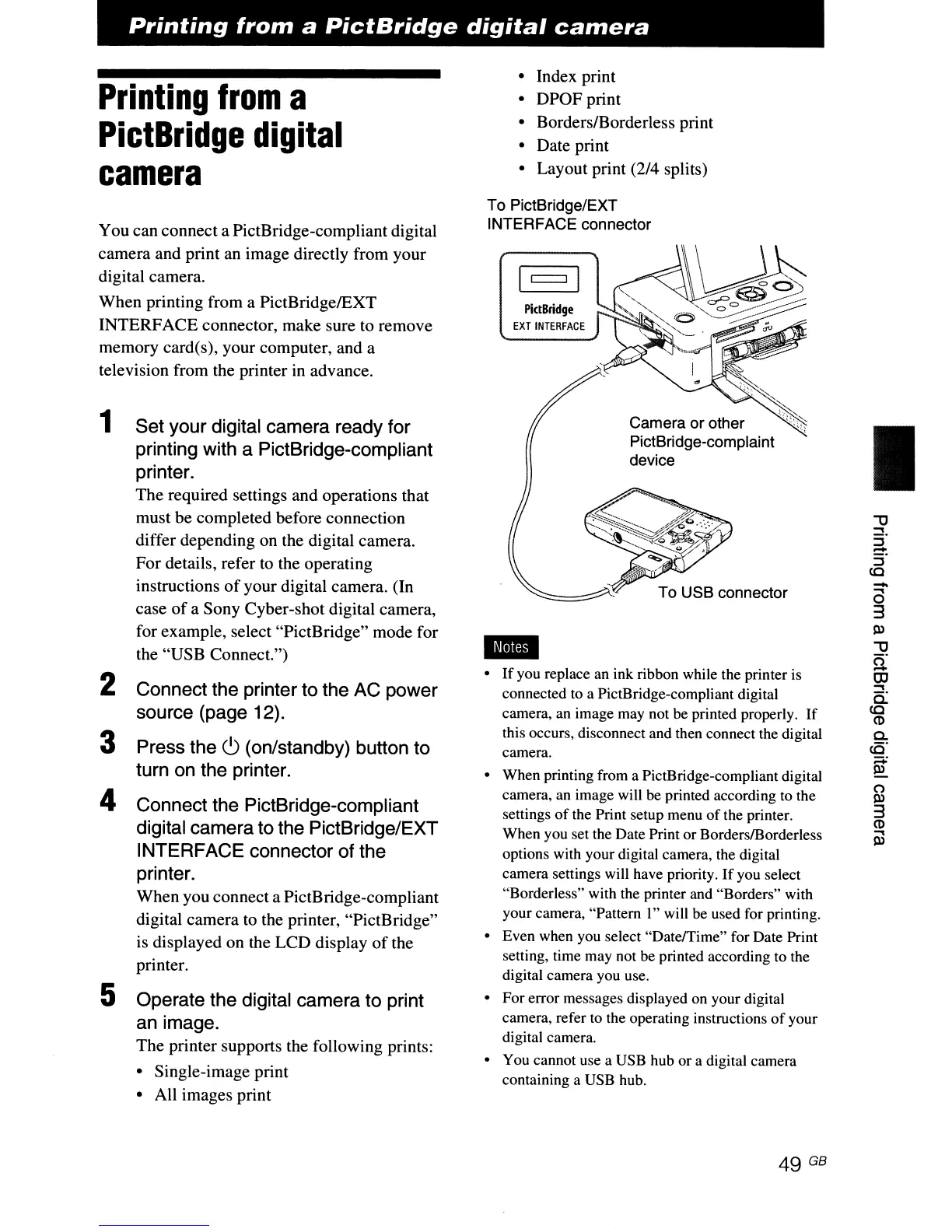
PictBridge
digital
camera
Printing
from
a
PictBridge
digital
camera
You can connect a PictBridge-compliantdigital
camera and print an image directly from your
digital camera.
When printing from a PictBridgelEXT
INTERFACE connector, make sure to remove
memory card(s), your computer, and a
television from the printer
in
advance.
1 Set your digital camera ready for
printing with a PictBridge-compliant
printer.
The required settings and operations that
must be completed before connection
differ depending on the digital camera.
For details, refer
to
the operating
instructions
of
your digital camera. (In
case
of
a Sony Cyber-shot digital camera,
for example, select "PictBridge" mode for
the "USB Connect.")
2 Connect the printer to the AC power
source (page 12).
3 Press the
C)
(on/standby) button to
turn on the printer.
4 Connect the PictBridge-compliant
digital camera to the PictBridge/EXT
INTERFACE connector of the
printer.
When you connect a PictBridge-compliant
digital camera to the printer, "PictBridge"
is displayed on the LCD display
of
the
printer.
5 Operate the digital camera to print
an image.
The printer supports the following prints:
• Single-image print
• All images print
• Index print
• DPOF print
• Borders/Borderless print
• Date print
• Layout print
(2/4 splits)
To PictBridge/EXT
INTERFACE connector
PidBridge
EXT
INTERFACE
Camera or other
PictBridge-complaint
device
•
If
you replace an ink ribbon while the printer is
connected to a PictBridge-compliant digital
camera, an image may not be printed properly.
If
this occurs, disconnect and then connect the digital
camera.
• When printing from a PictBridge-compliant digital
camera, an image will be printed according to the
settings
of
the Print setup menu
of
the printer.
When you set the Date Print orBorderslBorderless
options with your digital camera, the digital
camera settings will have priority.
If
you select
"Borderless" with the printer and "Borders" with
your camera, "Pattern
I"
will be used for printing.
• Even when you select "DatelTime" for Date Print
setting, time may not be printed according to the
digital camera you use.
• For error messages displayed on your digital
camera, refer to the operating instructions
of
your
digital camera.
• You cannot use a USB hub or a digital camera
containing a USB hub.
I
-
a
3
III
"'U
U
OJ
-.
a:
co
(1)
C-
cO'
s:
(")
III
3
(1)
-.
III



 To Next Page