-
a
3
III
"'U
()
"'U
...,
S'
-
S'
ec
Functions
To
change the size, click
"Properties."
Note: In some regions, L size
print paper
is
not sold.
Selectthe printer you are using:
"Sony DPP-FP97"
• Zoom the image until the print
area
is
full: When checked,
an
image will be printed over the
entire printing area
of
the
paper. An edge
of
the photo
may be cut. When unchecked,
an image will be printed
without cutting
off
any
portions.
• Print date taken: When
checked, an image is printed
with the date
of
shooting if the
image
is
a file recorded in the
DCF (Design rule for Camera
File system) format.
Print
Options
Paper size
Printer
Items
5
In
the "Printer" drop-down list box,
select "Sony DPP-FP97."
To
set the
paper orientation or other print
options, go to step
6.
To
print, skip
to step 11.
Click the folder containing the
photos you want to print.
As an example, the "sample" folder is
selected in the following explanation.
•
"Calendar"
view
The
images will
be
classified according
to the shot date and are displayed as
thumbnails on each date
of
the calendar.
In "Calendar" view, you can switch the
display by year, by month,
or
by hour.
In this section, "Folders" view windows
are used as examples.
Select the photos that you want to
print and click
.i
(print).
The
Print dialog box is displayed.
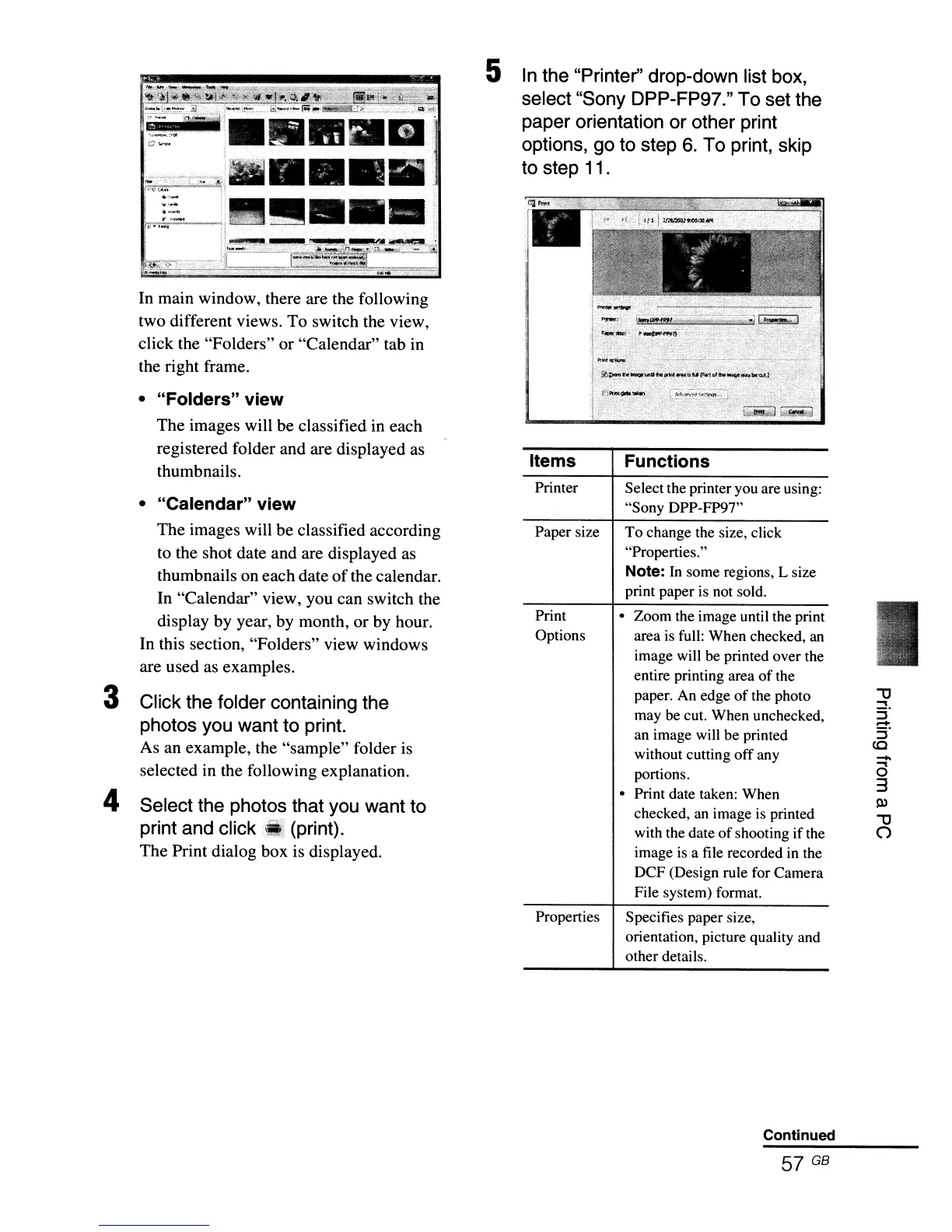
In main window, there are the following
two different views.
To
switch the view,
click the "Folders" or "Calendar" tab in
the right frame.
•
"Folders"
view
The
images will
be
classified in each
registered folder and are displayed as
thumbnails.
:.1111I
•
'''.'~~j.~.~'"'''.i'IIIIII
••
''
Ir~
,-I,,~.:,
.
•
"=-:-
Ib'xE::::~::
_.,:1111
•••.
4
3
Properties Specifies paper size,
orientation, picture quality and
other details.
Continued
57 GB



 To Next Page