• To cancel the printing operation, do the following.
G)Double-c1ick on the printer icon on the taskbar,
and open the "Print" dialog box.
®Click
the document name that you want to
cancel printing
of
and then click "Cancel" from
the "Document" menu.
The dialog box used for confirming the deletion
is
displayed.
®Click
"Yes."
The printing job
is
canceled.
-
When cancelling a job, do not remove the
job
being printed. Doing so may cause a paper jam.
3 Click "Yes."
Registration
of
the image information in
the data base starts.
4 Click "Close."
-
• The folder you select as the destination
of
the imported images will
be
registered
automatically.
• You cannot cancel registration
of
the folder
you register here.
To change the browsing folder
Click "Tools" - "Settings" - "Viewed folders."
You can use a commercially available software
application to print an image from the DPP-
FP97. Select "DPP-FP97" as a printer in the
print dialog box, and select the print paper size
in
the page setup dialog box. For details
of
print
settings, see steps 5 and 7 on pages page 57 and
58.
On the "Borderless Print" setting in
"Printer Features"
When using an application other than the PMB,
an image might be printed with borders even if
you select "ON" for "Borderless Print" in
"Printer Features"
of
the "Sony DPP-FP97
Advanced Options" dialog box.
When you select the borderless print option, the
printing range information for borderless
printing will be supplied to the application.
Some applications, however, may arrange and
'
.•.
:ii
t
"*.
·11:'
..
~RIL~
•
If
a sub folder is contained
in
the source folder, the
images in the sub folder will also be registered.
• When the software
is
first started, a message
prompting you to register "Pictures" will be
displayed.
• Depending on the number
of
images, it may take
some tens
of
minutes to register images.
The confirmation dialog box used for
registration is displayed.
You cannot register the whole drive.
PMB does not allow you
to
view images saved
on the PC hard disk directly. You must first
register the browsing folder as follows:
1 Click "File"-"Register Viewed
Folder,"
or
click
~
...
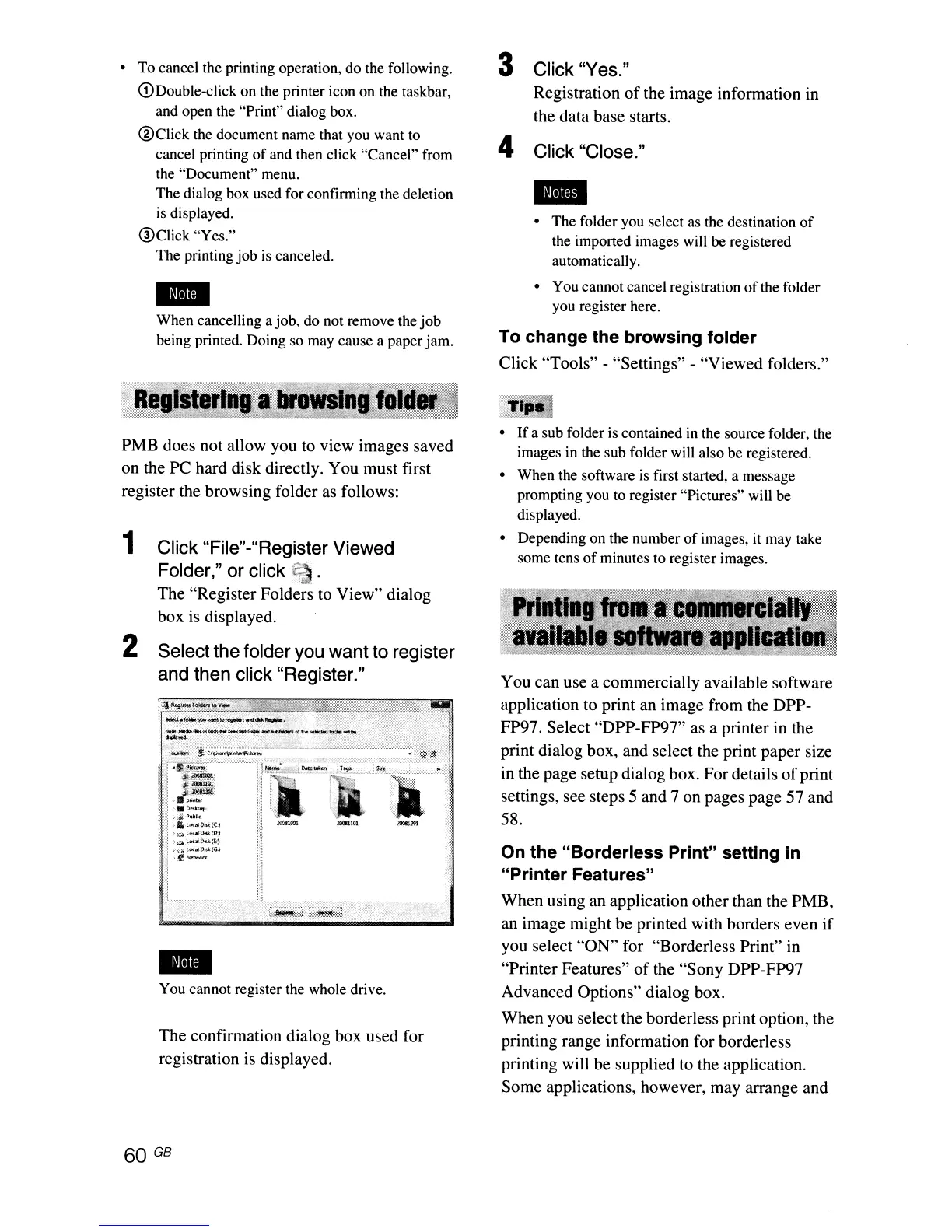
The "Register Folders to View" dialog
box is displayed.
2 Select the folder you want to register
and then click "Register."
60
GB



 To Next Page