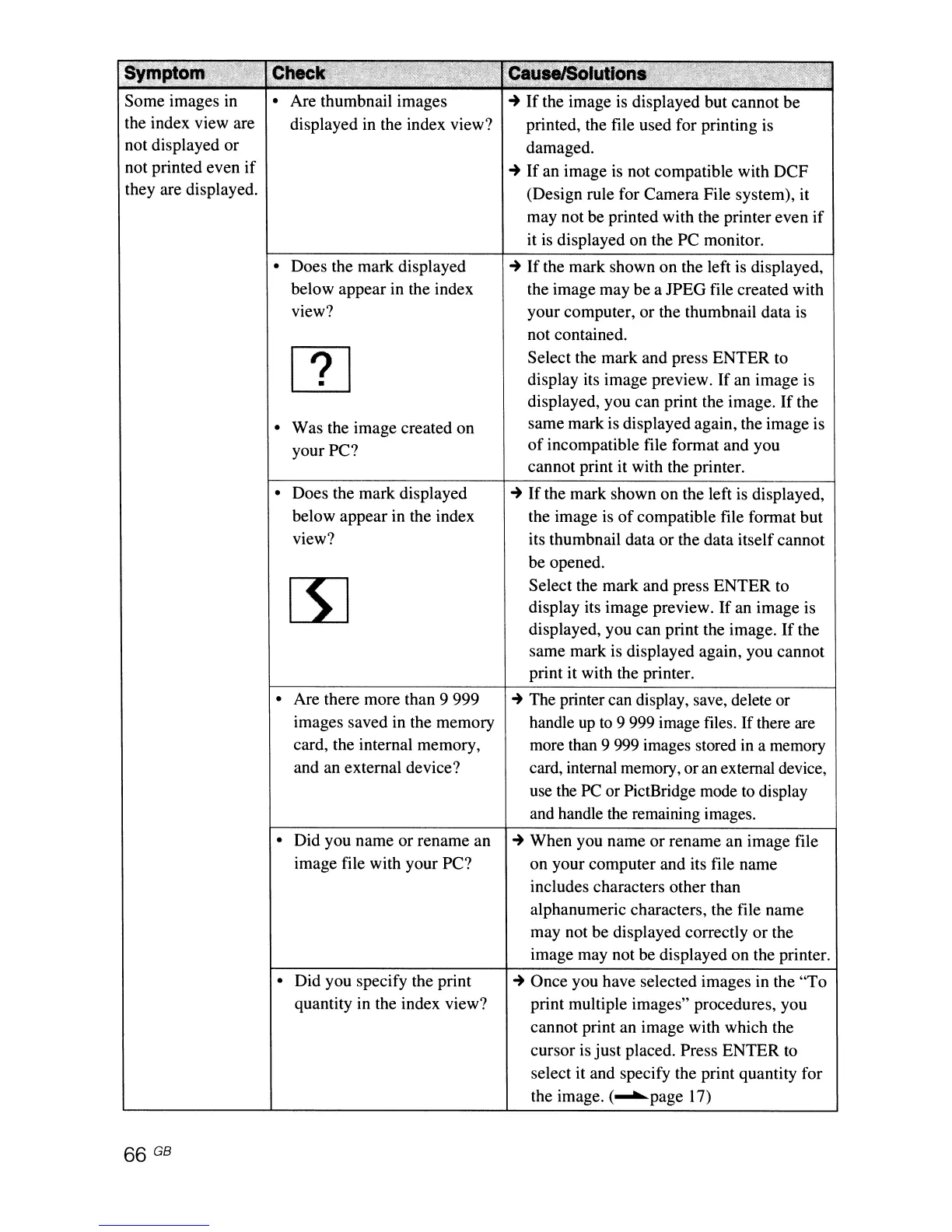
Some images in
the index view are
not displayed or
not printed even
if
they are displayed.
66
GB
• Are thumbnail images
displayed in the index view?
• Does the mark displayed
below appear in the index
view?
• Was the image created on
your PC?
• Does the mark displayed
below appear in the index
view?
• Are there more than 9 999
images saved in the memory
card, the internal memory,
and an external device?
• Did you name or rename an
image file with your PC?
• Did you specify the print
quantity in the index view?
~
If
the image is displayed but cannot be
printed, the file used for printing is
damaged.
~
If
an image
is
not compatible with DCF
(Design rule for Camera File system), it
may not be printed with the printer even
if
it
is
displayed on the PC monitor.
~
If
the mark shown on the left is displayed,
the image may be a JPEG file created with
your computer, or the thumbnail data
is
not contained.
Select the mark and press ENTER to
display its image preview.
If
an image is
displayed, you can print the image.
If
the
same mark is displayed again, the image is
of
incompatible file format and you
cannot print it with the printer.
~
If
the mark shown on the left is displayed,
the image is
of
compatible file format but
its thumbnail data or the data itself cannot
be opened.
Select the mark and press ENTER to
display its image preview.
If
an image is
displayed, you can print the image.
If
the
same mark is displayed again, you cannot
print it with the printer.
~
The printer can display, save, delete or
handle
up
to
9 999 image files. If there are
more than 9 999 images stored in a memory
card, internal memory, or
an
external device,
use the
PC
or PictBridge mode to display
and handle the remaining images.
~
When you name
or
rename an image file
on your computer and its file name
includes characters other than
alphanumeric characters. the file name
may not be displayed correctly
or
the
image may not be displayed on the printer.
~
Once you have selected images in the "To
print multiple images" procedures. you
cannot print an image with which the
cursor is just placed. Press ENTER
to
select it and specify the print quantity for
the image.
(~page
17)



 To Next Page