'S}!~pto:,
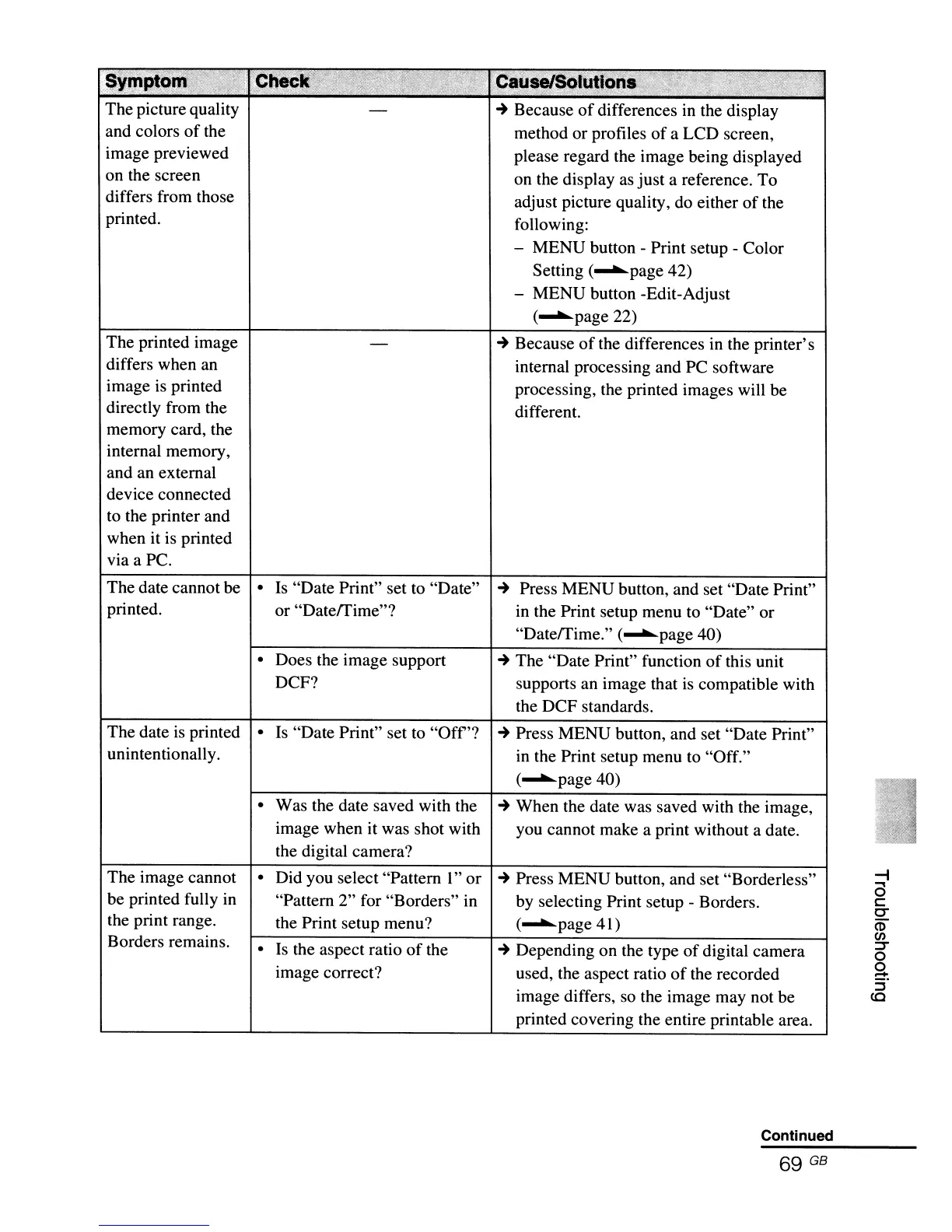
The picture quality
and colors
of
the
image previewed
on the screen
differs from those
printed.
The printed image
differs when an
image
is
printed
directly from the
memory card, the
internal memory,
and an external
device connected
to the printer and
when it is printed
via a PC.
The date cannot be
printed.
The date
is
printed
unintentionally.
The image cannot
be printed fully
in
the print range.
Borders remains.
• Is "Date Print" set to "Date"
or "DatefTime"?
• Does the image support
DCF?
• Is "Date Print" set to
"Off'?
• Was the date saved with the
image when it was shot with
the digital camera?
• Did you select "Pattern
I"
or
"Pattern 2" for "Borders" in
the Print setup menu?
• Is the aspect ratio
of
the
image correct?
~
Because
of
differences
in
the display
method or profiles
of
a LCD screen,
please regard the image being displayed
on the display
as
just a reference. To
adjust picture quality, do either
of
the
following:
- MENU button - Print setup - Color
Setting
(~page
42)
- MENU button -Edit-Adjust
(~page22)
~
Because
of
the differences
in
the printer's
internal processing and PC software
processing, the printed images will be
different.
~
Press MENU button, and set "Date Print"
in the Print setup menu to "Date" or
"DatefTime."
(~page
40)
~
The "Date Print" function
of
this unit
supports an image that
is
compatible with
the DCF standards.
~
Press MENU button, and set "Date Print"
in the Print setup menu to "Off."
(~page40)
~
When the date was saved with the image,
you cannot make a print without a date.
~
Press MENU button, and set "Borderless"
by selecting Print setup - Borders.
(~page41)
~
Depending on the type
of
digital camera
used, the aspect ratio
of
the recorded
image differs, so the image may not be
printed covering the entire printable area.
Continued
69
GB



 To Next Page