s;i~~
%'
..
:,~~"
...
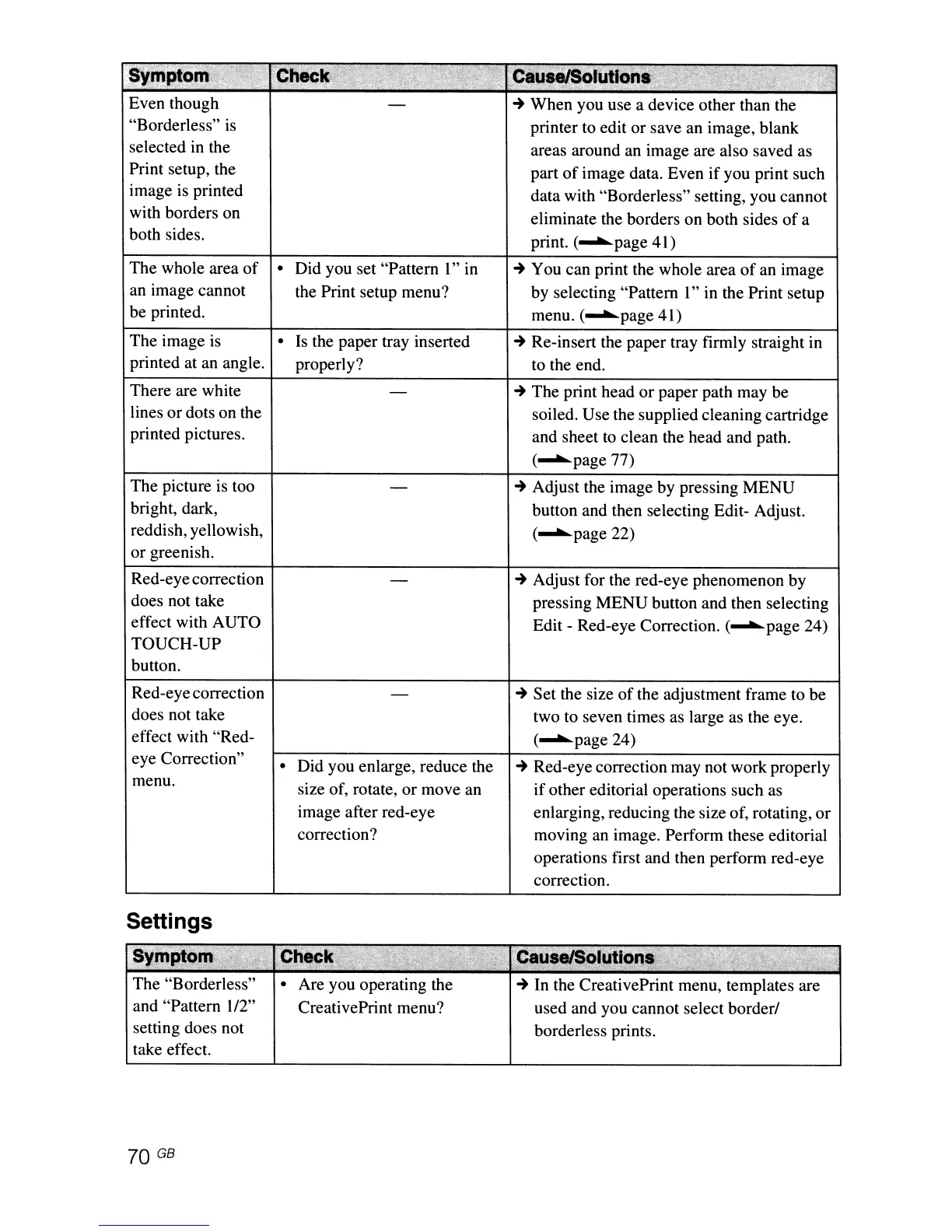
Even though
"Borderless"
is
selected in the
Print setup, the
image
is
printed
with borders on
both sides.
The whole area
of
an
image cannot
be printed.
The image
is
printed at
an
angle.
There are white
lines or dots on the
printed pictures.
The picture
is
too
bright, dark,
reddish, yellowish,
or greenish.
Red-eyecorrection
does not take
effect with AUTO
TOUCH-UP
button.
Red-eye correction
does not take
effect with "Red-
eye Correction"
menu.
Settings
Synf'
- .
",r'"
The "Borderless"
and "Pattern 1/2"
setting does not
take effect.
70 GB
• Did you set "Pattern
1"
in
the Print setup menu?
•
Is
the paper tray inserted
properly?
• Did you enlarge, reduce the
size of, rotate, or move an
image after red-eye
correction?
• Are you operating the
CreativePrint menu?
~
When you use a device other than the
printer to edit or save an image, blank
areas around
an
image are also saved
as
part
of
image data. Even if you print such
data with "Borderless" setting, you cannot
eliminate the borders on both sides
of
a
print.
C
.......
page 41)
~
You can print the whole area
of
an image
by selecting "Pattern
1"
in
the Print setup
menu.
C
.......
page 41)
~
Re-insert the paper tray firmly straight in
to the end.
~
The print head or paper path may be
soiled. Use the supplied cleaning cartridge
and sheet
to
clean the head and path.
C
.......
page 77)
~
Adjust the image by pressing MENU
button and then selecting Edit- Adjust.
C
.......
page 22)
~
Adjust for the red-eye phenomenon by
pressing MENU button and then selecting
Edit - Red-eye Correction.
C
.......
page 24)
~
Set the size
of
the adjustment frame to be
two to seven times as large
as
the eye.
C
.......
page 24)
~
Red-eye correction may not work properly
if
other editorial operations such
as
enlarging, reducing the size of, rotating, or
moving
an
image. Perform these editorial
operations first and then perform red-eye
correction.
~
In
the CreativePrint menu, templates are
used and you cannot select
borderl
borderless prints.



 To Next Page