S
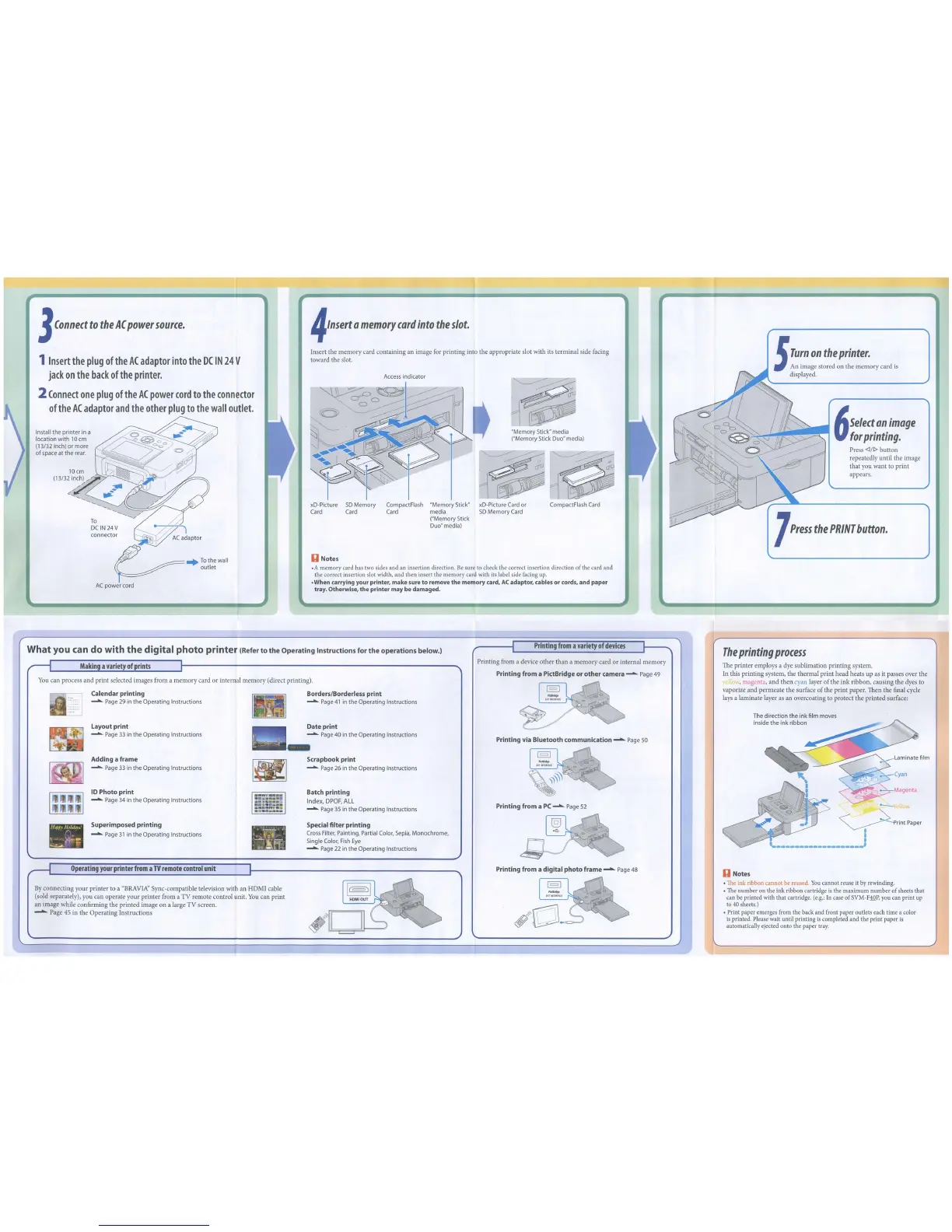
Turn
on
the
printer.
An image stored
on
the
memory
card is
displayed.
7
Press
the
PRINT
button.
6
Select
an
image
~~~.~.,
for
printing.
Press <III>
button
repeatedly until
tbe
image
that
you want to
print
appears.
"Memory Stick" media
("Memory Stick
Duo"
media)
U
Notes
.A
memory card
has
two
sides and an insertion direction.
Be
sure to check the correct insertion direction
of
the card and
the correct insertion slot width, and then insert the memory card with
its
label side facing
up
.
•When carrying
your
printer,
make
sure
to
remove
the
memory
card,
AC
adaptor,
cables
or
cords,
and
paper
tray.
Otherwise,
the
printer
may
be
damaged.
Access indicator
xD-Picture
SD
Memory CompactFlash "Memory Stick" xD-Picture Card or
Card Card Card media
SD
Memory Card
("Memory Stick
Duo"
media)
Insert the
memory
card containing an image for
printing
into the appropriate slot with its terminal side facing
toward the slot.
4,nsert
a
memory
card
into
the
slot.
AC
power cord
To
DCIN24V .'""--.
/)
connector
~
AC
adaptor
p
--..r
--=-+Tothewall
(~
outlet
Install the printer
in
a
location with
10
cm
(13/32 inch) or more
of space at
the
rear.
3
(onned
to
the
A(
power
source.
1
Insert
the
plug
of
the
AC
adaptor
into
the
DC
IN
24
V
jack
on
the
back
of
the
printer.
2
Connect
one
plug
of
the
AC
power
cord
to
the
connector
of
the
AC
adaptor
and
the
other
plug
to
the
wall
outlet.
You
can process
and
print selected images from a
memory
card
or
internal
memory
(direct printing).
Laminate
film
Magenta
--
~rintPaper
•
•
~
..
_.
__
._. ••
_.J
The
printing
process
The
printer
employs a dye sublimation
printing
system.
In this printing system, the thermal
print
head heats
up
as it passes over the
, magenta,
and
then
cyan layer
of
the ink ribbon, causing the dyes to
vaporize
and
permeate
the surface
of
the
print
paper. Then the final cycle
lays a laminate layer as an overcoating to protect the
printed
surface:
Printing
from
a
variety
of
devices
Printing
via
Bluetooth
communication
......... Page 50
Printing
from
a PC
.........
Page 52
Printing from a device
other
than a
memory
card
or
internal
memory
Printing
from
a
PictBridge
or
other
camera
.........
Page 49
Batch
printing
Index,
DPOF,
ALL
......... Page
35
in
the
Operating Instructions
Scrapbook
print
......... Page
26
in
the Operating Instructions
Special
filter
printing
Cross
Filter,
Painting, Partial
Color,
Sepia, Monochrome,
Single
Color.
Fish
Eye
......... Page
22
in
the Operating Instructions
Date
print
......... Page 40
in
the Operating Instructions
Borders/Borderless
print
......... Page
41
in
the Operating Instructions
• n'lr
••••
....
..
..........
II
•••••••
•••
"11
••
..-
...
Superimposed
printing
.........
Page
31
in
the
Operating Instructions
Calendar
printing
......... Page
29
in
the
Operating Instructions
Adding
a
frame
......... Page 33
in
the
Operating Instructions
Layout
print
.........
Page 33
in
the
Operating Instructions
10
Photo
print
......... Page 34
in
the
Operating Instructions
What you can
do
with
the
digital
photo
printer
(Refer
to
the
Operating Instructionsfor
the
operations below.)
Making
a
variet
of
prints
Operating
your
printer
from
a
TV
remote
control
unit
By
connecting
your
printer
to a
"BRAVlA"
Sync-compatible television with an
HDM!
cable
(sold separately), you can operate
your
printer
from a
TV
remote control unit.
You
can
print
an image while confirming the
printed
image
on
a large
TV
screen.
~
Page 45 in the
Operating
Instructions
Printing
from
a
digital
photo
frame
......... Page
48
U
Notes
•
The
ink ribbon cannot be reused.
You
cannot reuse
it
by
rewinding.
•
The
number on the ink ribbon cartridge
is
the maximum number ofsheets that
can
be
printed with that cartridge.
(e.g.:
In case ofSVM-F1llP,
you
can print up
to
40
sheets.)
• Print paper emerges from the back and front paper outlets each time a color
is
printed. Please wait until printing
is
completed and the print paper
is
automatically ejected onto the paper
tray.



 To Next Page