27
Editing the USER Menu
You can select desired pages and items from the
OPERATION, PAINT, MAINTENANCE, FILE, and
DIAGNOSIS menus and register them to the USER menu.
If you specify pages or items frequently used for the USER
menu, you can easily call and use them.
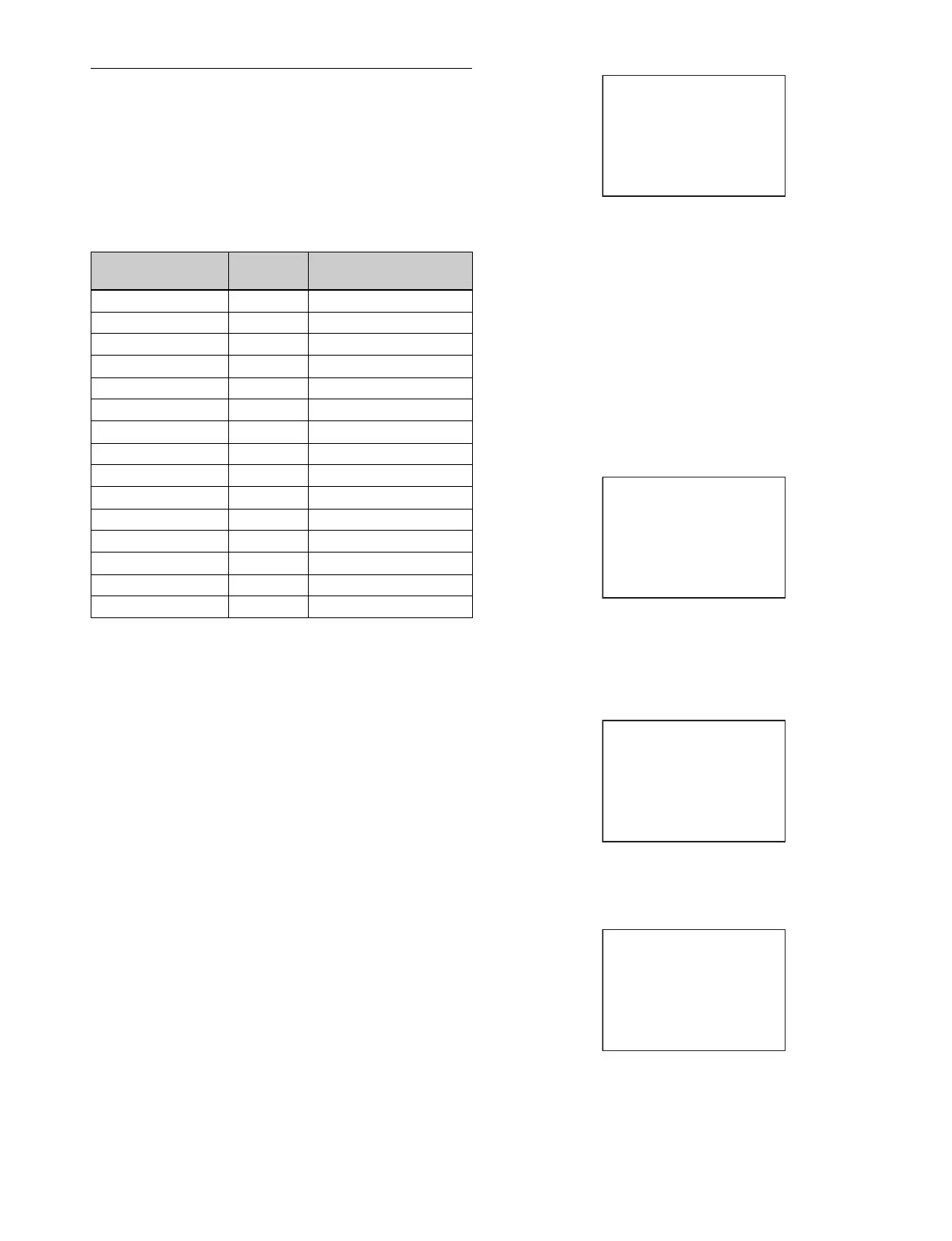
The following pages are included on the factory-set USER
menu:
For the items on each page, see the corresponding source
menu page in the table in “Menu List” (page 30).
The USER MENU CUSTOMIZE menu allows you to configure
a USER menu that consists only of pages and items that you
need, by your adding, deleting or replacing pages.
Editing by items
The USER MENU CUSTOMIZE menu allows you to add a
new page to the USER menu and add desired items to the
page.
While the EDIT page contains factory-preset items, the USER
1 EDIT to USER 19 EDIT pages are all blank in their initial
state. You can register up to 10 items, including blank lines, on
each of these pages.
To add items to a page
Proceed as follows.
1 Set the DISPLAY switch from OFF to MENU while
holding the MENU SEL knob/ENTER button pressed.
The TOP MENU screen appears.
2 Turn the MENU SEL knob/ENTER button to move the
arrow marker (,) to “USER MENU CUSTOMIZE” then
press the MENU SEL knob/ENTER button.
If this is the first time the USER MENU CUSTOMIZE
menu has been displayed, the CONTENTS page of the
menu appears.
If the USER MENU CUSTOMIZE menu has been used
before, the page last accessed appears.
3 If the CONTENTS page is displayed, turn the MENU
SEL knob/ENTER button to move the arrow marker
(,) to any of USER 1 EDIT to USER 19 EDIT then
press the MENU SEL knob/ENTER button to display
the page.
If a different page is displayed, turn the MENU SEL
knob/ENTER button until the desired page appears,
then press the MENU SEL knob/ENTER button to
select the page.
Example: When you select the USER 2 EDIT page
4 Move the arrow marker (,) to the item to be added
(this operation is unnecessary if no item exists on the
page, as shown in the figure for step 3) then press the
MENU SEL knob/ENTER button.
The EDIT FUNCTION screen appears.
5 Move the arrow marker (,) to “INSERT” and press
the MENU SEL knob/ENTER button.
The page with the last item added appears.
6 Add the items.
1 Turn the MENU SEL knob/ENTER button until the
page that has the desired items appears then press
the MENU SEL knob/ENTER button.
Menu page USER
menu No.
Source menu / page No.
<VF OUT> U01 OPERATION 13
<VF DETAIL> U02 OPERATION 04
<FOCUS ASSIST> U03 OPERATION 09
<VF DISPLAY> U04 OPERATION 01
<‘!’ IND> U05 OPERATION 02
<VF MARKER> U06 OPERATION 03
<CURSOR> U07 OPERATION 11
<ZEBRA> U08 OPERATION 10
<SWITCH ASSIGN1> U09 OPERATION 14
<SWITCH ASSIGN2> U10 OPERATION 15
<HEADSET MIC> U11 OPERATION 18
<SYSTEM FORMAT> U12 MAINTENANCE M09
<TEST OUT> U13 MAINTENANCE M10
<SDI OUT> U14 MAINTENANCE M11
<ROM VERSION> U15 DIAGNOSIS D03
CONTENTS E00
xx
01.EDIT PAGE
02.USER 1 EDIT
c
03.USER 2 EDIT
04.USER 3 EDIT
05.USER 4 EDIT
06.USER 5 EDIT
07.USER 6 EDIT
08.USER 7 EDIT
09.USER 8 EDIT
10.USER 9 EDIT
TOP
USER 2 EDIT E03
c
TOP
EDIT FUNCTION
c
INSERT
MOVE
DELETE
BLANK
ESC
<SW STATUS> P01
FLARE :
c
ON
GAMMA : ON
BLK GAM : OFF
KNEE : ON
WHT CLIP: ON
DETAIL : ON
LVL DEP : ON
SKIN DTL: OFF
MATRIX : OFF
ESC



 To Next Page